What the WhatsApp Routing template does
- Receive inbound WhatsApp messages through the WhatsApp Cloud API webhook on one or more numbers.
- Pick a route by reading the customer's intent against route descriptions you write, with no keyword rules.
- Send an automatic reply, forward the enquiry by email or WhatsApp, or reply and forward together.
- Send a short acknowledgement after a forward so the customer knows someone will respond.
- Attach an AI agent to answer every message, with your fallback settings as the safety net.
- Show every message, reply, action and delivery status in the workflow's execution history.
How to set it up
- Create a Meta developer app, add the WhatsApp product and copy your phone number ID, business account ID, access token and app secret.
- Add the number in the template and paste the webhook URL and verify token into Meta so messages reach Coderva.
- Describe the kinds of enquiry you get, and choose what happens for each: reply, forward or both.
- Set a fallback for messages that match nothing, use the Test message tab, then enable the workflow.
What you need
- A WhatsApp Business phone number connected to the Meta WhatsApp Cloud API.
- The number's access token and the Meta app secret.
- An email address or WhatsApp number to forward enquiries to.
Control and safety
The agent can only use destinations you saved, so customers cannot redirect it. A reply limit stops bot loops, message logs expire after 90 days, and you can pause the workflow at any time.
- Routes you describe: Describe each enquiry type and the AI picks the route.
- Attach an AI agent: Attach the Coderva AI Assistant or any of your agents to answer every message.
- Login over WhatsApp: Customers can log in or sign up in the chat with a six digit code.
What the WhatsApp Routing template gives you
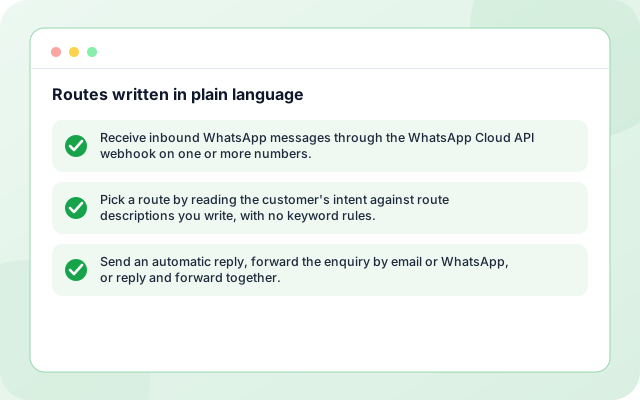
Routes written in plain language
Describe each enquiry type and the AI picks the route, with no keyword rules to maintain.
- Receive inbound WhatsApp messages through the WhatsApp Cloud API webhook on one or more numbers.
- Pick a route by reading the customer's intent against route descriptions you write, with no keyword rules.
- Send an automatic reply, forward the enquiry by email or WhatsApp, or reply and forward together.
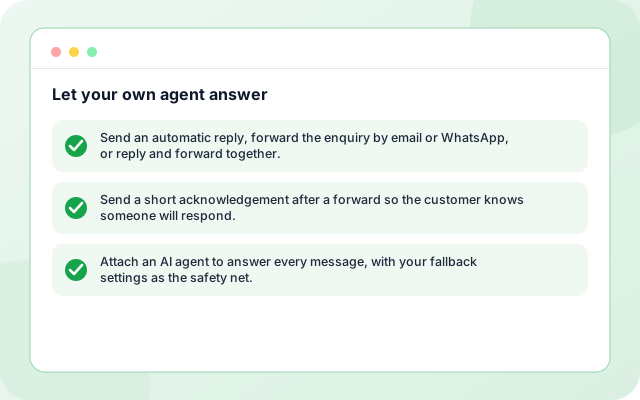
Let your own agent answer
Attach the Coderva AI Assistant or any of your agents so every message gets a real answer, with your fallback as the safety net.
- Send an automatic reply, forward the enquiry by email or WhatsApp, or reply and forward together.
- Send a short acknowledgement after a forward so the customer knows someone will respond.
- Attach an AI agent to answer every message, with your fallback settings as the safety net.
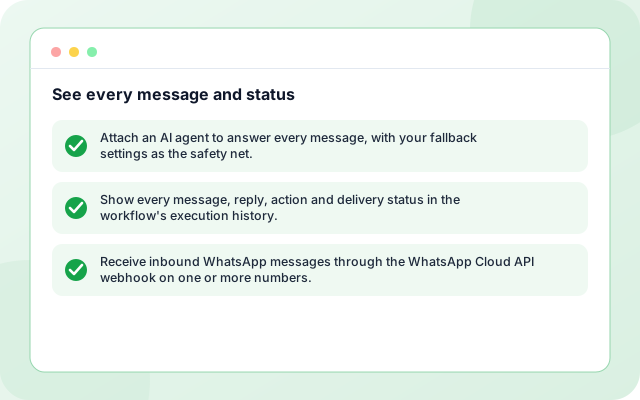
See every message and status
The execution history shows each message, reply, action and delivery status.
- Attach an AI agent to answer every message, with your fallback settings as the safety net.
- Show every message, reply, action and delivery status in the workflow's execution history.
- Receive inbound WhatsApp messages through the WhatsApp Cloud API webhook on one or more numbers.
From sign-in to a running workflow
Setup is guided. Nothing runs until you review the settings and enable it.
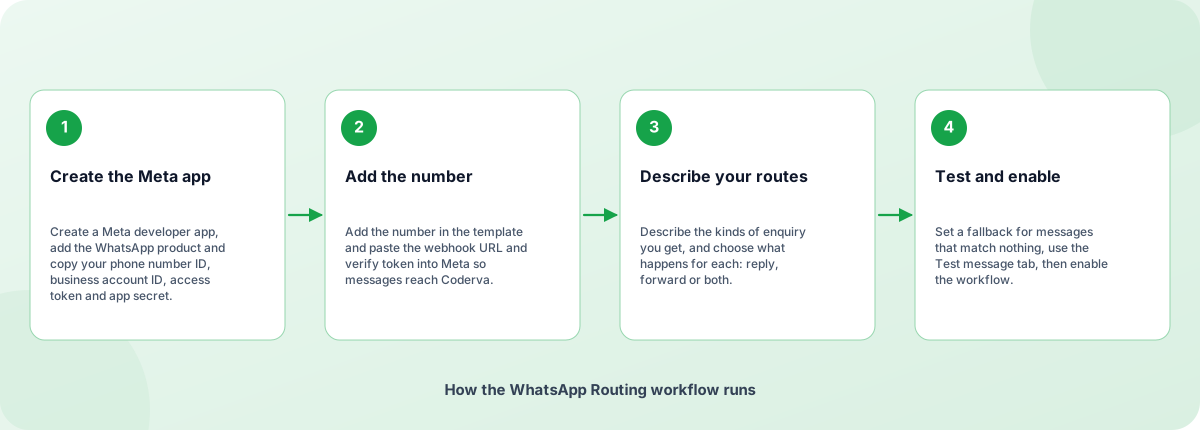
- Create the Meta app: Create a Meta developer app, add the WhatsApp product and copy your phone number ID, business account ID, access token and app secret.
- Add the number: Add the number in the template and paste the webhook URL and verify token into Meta so messages reach Coderva.
- Describe your routes: Describe the kinds of enquiry you get, and choose what happens for each: reply, forward or both.
- Test and enable: Set a fallback for messages that match nothing, use the Test message tab, then enable the workflow.
How the WhatsApp Routing workflow runs
How WhatsApp Routing is built
WhatsApp Routing is a template on the Coderva workflow platform: a guided setup writes the configuration, agents do the work, and every run is stored in the execution history.
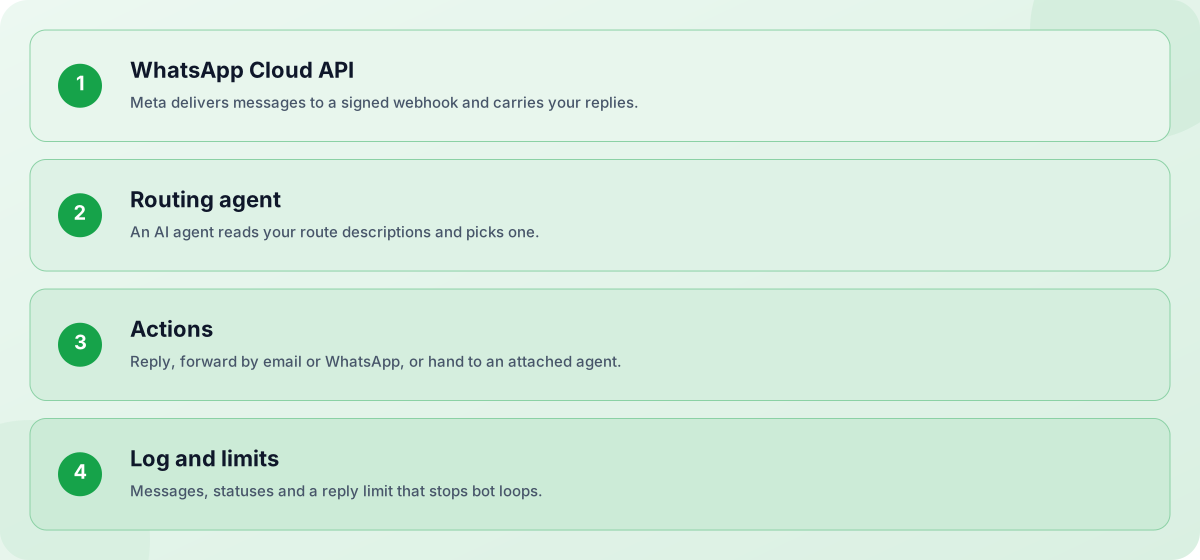
- WhatsApp Cloud API: Meta delivers messages to a signed webhook and carries your replies.
- Routing agent: An AI agent reads your route descriptions and picks one.
- Actions: Reply, forward by email or WhatsApp, or hand to an attached agent.
- Log and limits: Messages, statuses and a reply limit that stops bot loops.
Screens you will use
Everything is managed from the workflow page after you sign in.
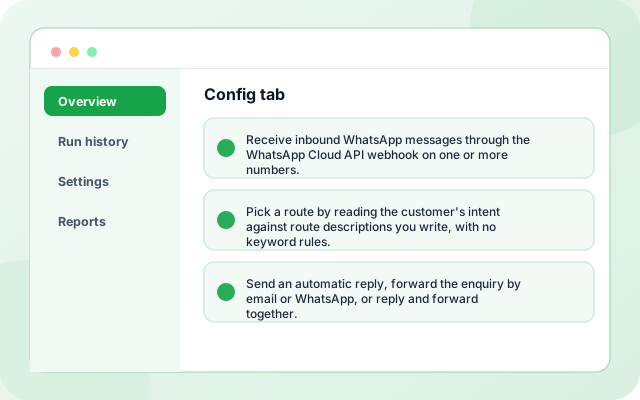
Config tab
Numbers, replies, email delivery, routing rules, fallback and the attached agent.
- Receive inbound WhatsApp messages through the WhatsApp Cloud API webhook on one or more numbers.
- Pick a route by reading the customer's intent against route descriptions you write, with no keyword rules.
- Send an automatic reply, forward the enquiry by email or WhatsApp, or reply and forward together.
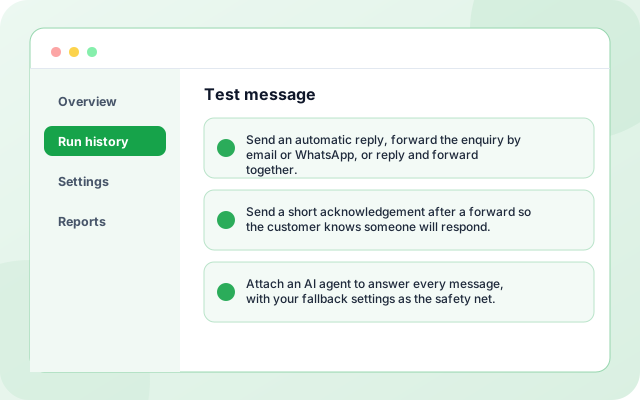
Test message
Dry-run a message, or send a real test from your number.
- Send an automatic reply, forward the enquiry by email or WhatsApp, or reply and forward together.
- Send a short acknowledgement after a forward so the customer knows someone will respond.
- Attach an AI agent to answer every message, with your fallback settings as the safety net.
What teams switch on first
Each capability can be used on its own.
- Inbound webhook: Receive inbound WhatsApp messages through the WhatsApp Cloud API webhook on one or more numbers.
- Intent routing: Pick a route by reading the customer's intent against route descriptions you write, with no keyword rules.
- Reply or forward: Send an automatic reply, forward the enquiry by email or WhatsApp, or reply and forward together.
- Acknowledgement: Send a short acknowledgement after a forward so the customer knows someone will respond.
- Attach an AI agent: Attach an AI agent to answer every message, with your fallback settings as the safety net.
- Execution history: Show every message, reply, action and delivery status in the workflow's execution history.
Systems it works with
Connections this template uses today.
- WhatsApp Business Cloud API
- Email forwarding
- WhatsApp forwarding
- Coderva AI Assistant
- Your deployed agents
- Groq models
Control and checks built in
The agent can only use destinations you saved, so customers cannot redirect it. A reply limit stops bot loops, message logs expire after 90 days, and you can pause the workflow at any time.
- Does it need keyword rules?: No. Routing is done by an AI agent that reads your route descriptions, so you describe each enquiry type in plain language.
- Can customers log in to Coderva over WhatsApp?: Yes, when the Coderva AI Assistant is attached. A customer can send login or signup, receive a six digit code by email and then ask about their own agents and data.
- Do I need a published Meta app?: In Meta development mode, real customer messages are delivered only to people with a role on the app. Switch the app to live to receive messages from everyone.
What is in WhatsApp Routing
- Inbound webhook: Receive inbound WhatsApp messages through the WhatsApp Cloud API webhook on one or more numbers.
- Intent routing: Pick a route by reading the customer's intent against route descriptions you write, with no keyword rules.
- Reply or forward: Send an automatic reply, forward the enquiry by email or WhatsApp, or reply and forward together.
- Acknowledgement: Send a short acknowledgement after a forward so the customer knows someone will respond.
- Attach an AI agent: Attach an AI agent to answer every message, with your fallback settings as the safety net.
- Execution history: Show every message, reply, action and delivery status in the workflow's execution history.
Frequently asked questions
Does it need keyword rules?
No. Routing is done by an AI agent that reads your route descriptions, so you describe each enquiry type in plain language.
Can customers log in to Coderva over WhatsApp?
Yes, when the Coderva AI Assistant is attached. A customer can send login or signup, receive a six digit code by email and then ask about their own agents and data.
Do I need a published Meta app?
In Meta development mode, real customer messages are delivered only to people with a role on the app. Switch the app to live to receive messages from everyone.