What the Email Follow-up Monitor template does
- Scan a connected mailbox every morning for open threads addressed or cc'd to it.
- Send a reminder when the customer has not replied after a number of days you choose.
- Escalate to a manager when your team has not responded within the SLA window.
- Skip spam, promotions and threads that are already settled.
- Record every reminder and escalation in the execution history.
How to set it up
- Open the template and connect the mailbox with its own Google sign-in or an app password.
- Set the reminder delay, the escalation delay and the manager who receives escalations.
- Choose the time of day the monitor runs.
- Enable it and check the first morning run in the execution history.
What you need
- A mailbox to monitor and permission to read it.
- A manager or shared address for escalations.
- Agreed reminder and SLA timings for your team.
Control and safety
You set every delay and the escalation contact. The monitor only reminds and escalates, it never closes or deletes threads, and each action is listed in the history.
- Customer reminders: Remind customers who have not replied after the delay you set.
- Team escalation: Escalate to a manager when your team misses its response window.
- Skips settled threads: Spam, promotions and settled threads are left alone.
What the Email Follow-up Monitor template gives you
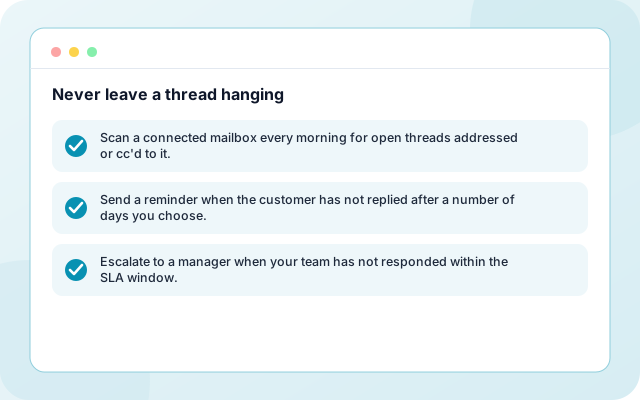
Never leave a thread hanging
Customers and colleagues both get a nudge at the moment a conversation stalls.
- Scan a connected mailbox every morning for open threads addressed or cc'd to it.
- Send a reminder when the customer has not replied after a number of days you choose.
- Escalate to a manager when your team has not responded within the SLA window.
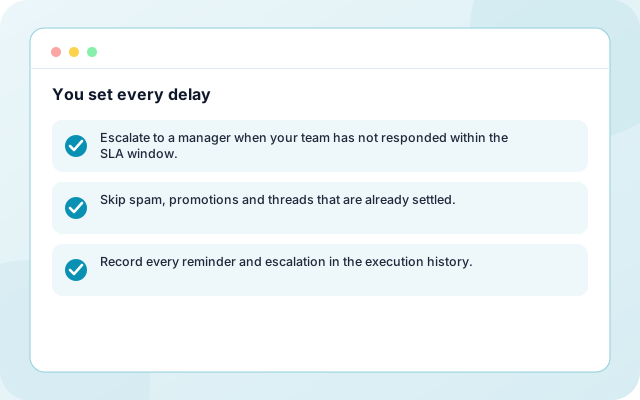
You set every delay
Reminder delay, escalation delay and the manager who receives escalations are all settings.
- Escalate to a manager when your team has not responded within the SLA window.
- Skip spam, promotions and threads that are already settled.
- Record every reminder and escalation in the execution history.
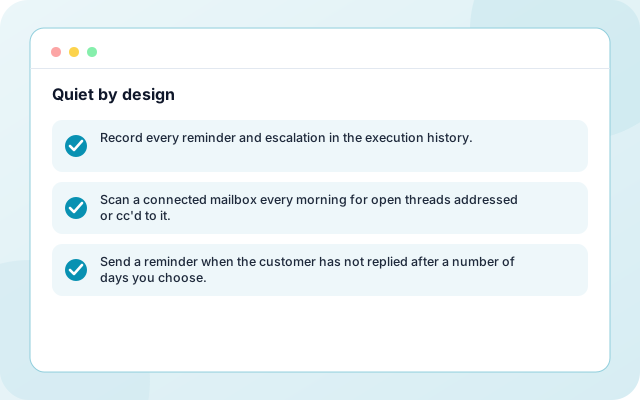
Quiet by design
It skips spam, promotions and threads where the customer already accepted or declined.
- Record every reminder and escalation in the execution history.
- Scan a connected mailbox every morning for open threads addressed or cc'd to it.
- Send a reminder when the customer has not replied after a number of days you choose.
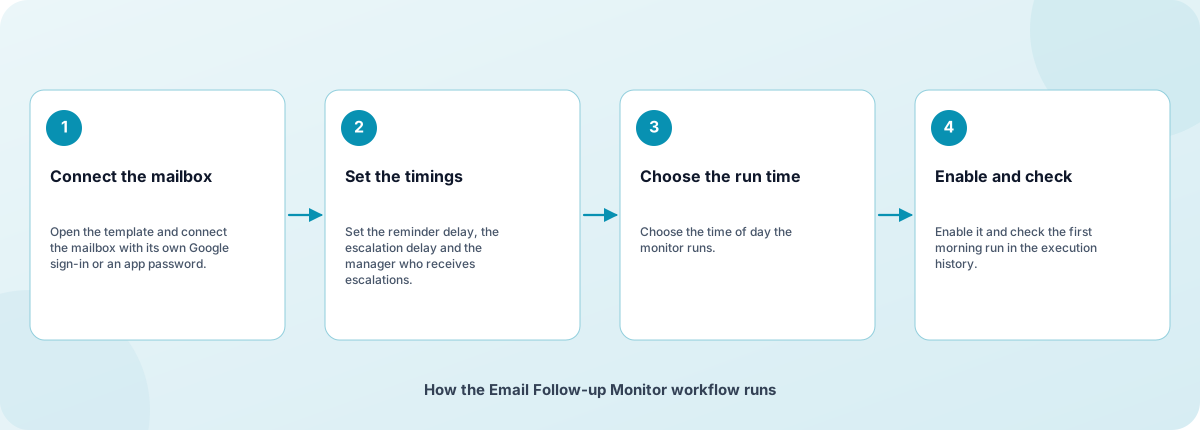
From sign-in to a running workflow
Setup is guided. Nothing runs until you review the settings and enable it.
- Connect the mailbox: Open the template and connect the mailbox with its own Google sign-in or an app password.
- Set the timings: Set the reminder delay, the escalation delay and the manager who receives escalations.
- Choose the run time: Choose the time of day the monitor runs.
- Enable and check: Enable it and check the first morning run in the execution history.
How the Email Follow-up Monitor workflow runs
How Email Follow-up Monitor is built
Email Follow-up Monitor is a template on the Coderva workflow platform: a guided setup writes the configuration, agents do the work, and every run is stored in the execution history.
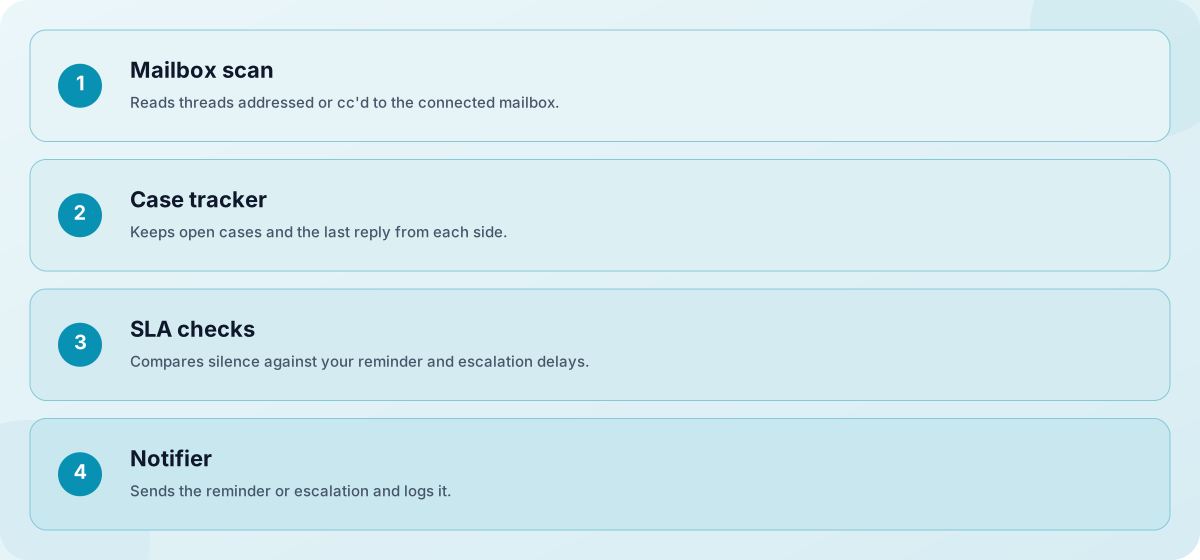
- Mailbox scan: Reads threads addressed or cc'd to the connected mailbox.
- Case tracker: Keeps open cases and the last reply from each side.
- SLA checks: Compares silence against your reminder and escalation delays.
- Notifier: Sends the reminder or escalation and logs it.
Screens you will use
Everything is managed from the workflow page after you sign in.
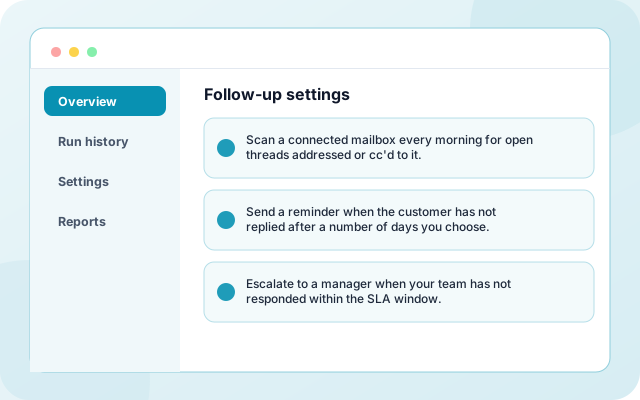
Follow-up settings
Customer SLA, escalation SLA, reminder limit and the run time.
- Scan a connected mailbox every morning for open threads addressed or cc'd to it.
- Send a reminder when the customer has not replied after a number of days you choose.
- Escalate to a manager when your team has not responded within the SLA window.
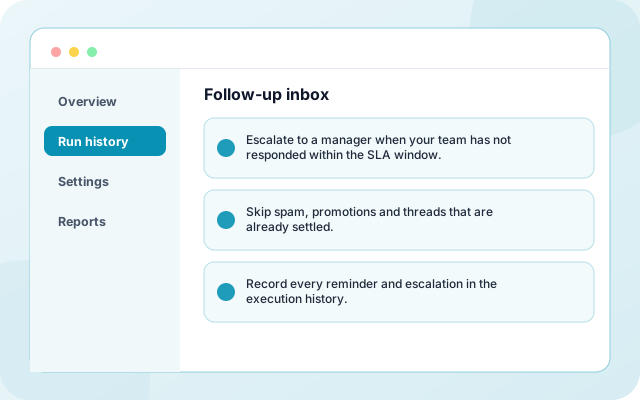
Follow-up inbox
Every tracked case with Open or Closed status and its history.
- Escalate to a manager when your team has not responded within the SLA window.
- Skip spam, promotions and threads that are already settled.
- Record every reminder and escalation in the execution history.
What teams switch on first
Each capability can be used on its own.
- Morning scan: Scan a connected mailbox every morning for open threads addressed or cc'd to it.
- Customer reminders: Send a reminder when the customer has not replied after a number of days you choose.
- Team escalation: Escalate to a manager when your team has not responded within the SLA window.
- Settled threads skipped: Skip spam, promotions and threads that are already settled.
- History of every nudge: Record every reminder and escalation in the execution history.
- Works on any mailbox: Agreed reminder and SLA timings for your team.
Systems it works with
Connections this template uses today.
- Gmail sign-in
- App password mailboxes
- IMAP and SMTP
- Manager email
Control and checks built in
You set every delay and the escalation contact. The monitor only reminds and escalates, it never closes or deletes threads, and each action is listed in the history.
- Do I need the email routing workflow to use it?: No. The standalone monitor works on any mailbox by itself, so you can add follow-up discipline to an inbox without routing.
- How often does it run?: Once each day at the time you choose, which keeps reminders predictable for customers.
- What stops it nagging a customer who already answered?: It checks the thread before each reminder and skips threads where the customer replied, accepted or declined.
What is in Email Follow-up Monitor
- Morning scan: Scan a connected mailbox every morning for open threads addressed or cc'd to it.
- Customer reminders: Send a reminder when the customer has not replied after a number of days you choose.
- Team escalation: Escalate to a manager when your team has not responded within the SLA window.
- Settled threads skipped: Skip spam, promotions and threads that are already settled.
- History of every nudge: Record every reminder and escalation in the execution history.
Frequently asked questions
Do I need the email routing workflow to use it?
No. The standalone monitor works on any mailbox by itself, so you can add follow-up discipline to an inbox without routing.
How often does it run?
Once each day at the time you choose, which keeps reminders predictable for customers.
What stops it nagging a customer who already answered?
It checks the thread before each reminder and skips threads where the customer replied, accepted or declined.