Templates available
- ERA email routing and follow-up: classifies incoming email and routes it, with a follow-up monitor for open requests.
- SEO Management: monitors a website, proposes fixes and tracks the history of runs.
- Google Ads PMA: a multi-agent assistant that recommends keywords, ad copy, landing page fixes and budget changes.
- Auto Trading Agent: generates and acts on equity signals within the limits you configure.
- Marketing and Social Agent: drafts campaign emails and images for approval, on a schedule.
- Mock Interview: a practice agent for interview preparation.
How it works
- Open Workflow Templates and choose the template that matches your process.
- Start the guided setup wizard and enter the settings it asks for, such as mailbox details or account limits.
- Review your answers and enable the template for your organization.
- Run it once with run-now to confirm it behaves as expected.
- Let it run on its schedule and review the execution history in Workflows.
Who it is for
Templates suit teams that want a result without a long build phase. An operations manager can enable email routing, a marketer can enable SEO Management, and a trader can configure the trading agent with their own capital and risk settings. Because setup is guided and enablement is per organization, each team gets its own configuration while starting from a tested pattern. This keeps rollout simple when several teams adopt the same template with different settings.
Key capabilities
- Guided setup wizards that collect required configuration step by step.
- Per-organization enablement so settings stay separate between teams.
- Templates that connect to the same agents, tools and apps used across the platform.
- Full visibility through the standard workflow execution history.
- A faster route to value, since the structure and wording of the process are already in place.
- Browse and search: Find a template by name, tagline, category or tag, and sort the list.
- Guided wizard: Step-by-step setup with required fields and in-page guides.
- Save a draft: Leave halfway, return with Edit Draft, and activate when ready.
What Workflow Templates gives you
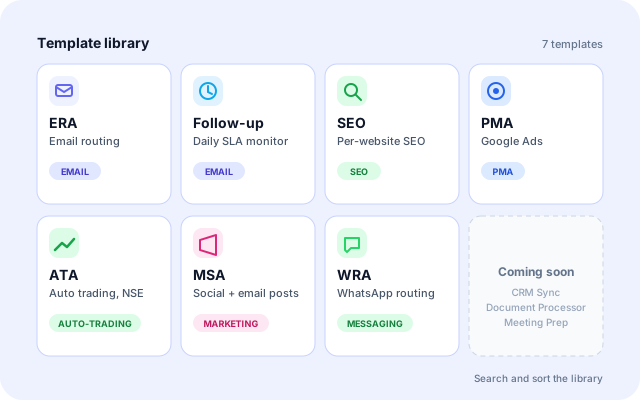
A library of proven processes
Each template packages a process, the agents behind it and the settings it needs, so you start from a working structure.
- ERA email routing and an ERA follow-up monitor.
- SEO Management, PMA for Google Ads and the ATA auto trading agent.
- MSA marketing and social posting, and WRA WhatsApp routing.
- Coming soon: CRM Sync Agent, Document Processor and Meeting Prep Agent.
Setup that explains itself
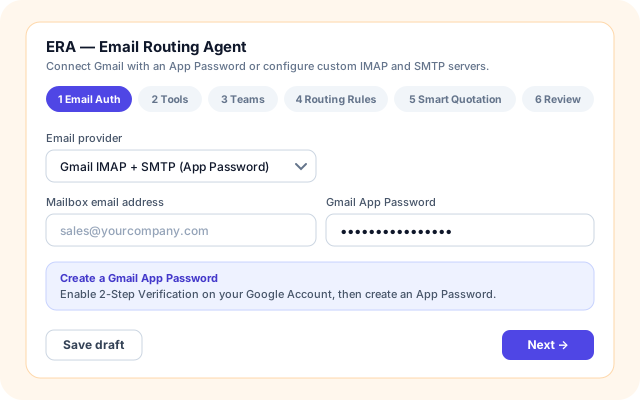
The wizard asks only for what the template needs, one step at a time, and checks required fields before you move on.
- A stepper shows where you are, from Email Auth to Review for ERA.
- Field types include text, select, switch, slider, OAuth and custom panels.
- Info boxes and step guides, such as how to create a Gmail App Password.
- Save draft keeps your answers until you activate.
Status you can see per organisation
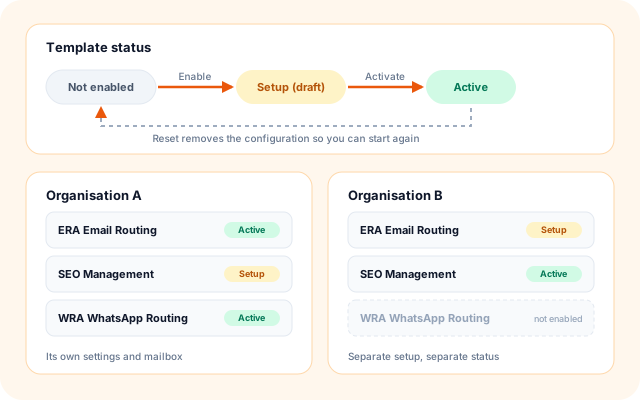
Every template card shows where your organisation stands, and the action changes to match.
- Setup means a saved draft; Active means the template is enabled.
- Edit Draft, Open and Reset change with the status.
- Reset removes the configuration and trigger so you can start clean.
- One organisation setting up a template does not change another.
Templates turn into real workflows
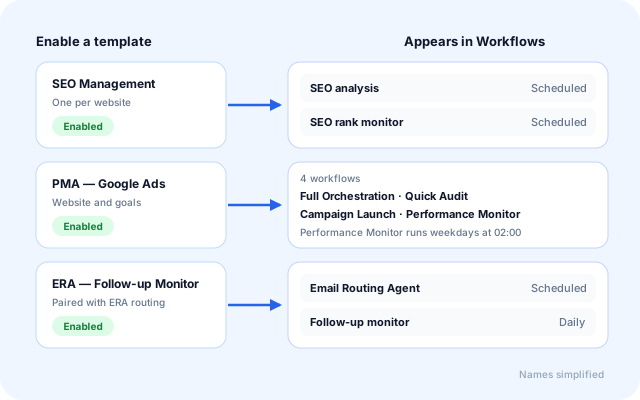
Enabling a template provisions the workflows and triggers behind it, so you manage them in the same Workflows page as everything else.
- SEO Management adds an analysis and a rank-monitor workflow per website.
- PMA adds Full Orchestration, Quick Audit, Campaign Launch and Performance Monitor.
- The follow-up monitor pairs with an ERA routing inbox.
- Run now, schedules and Execution History work as usual.
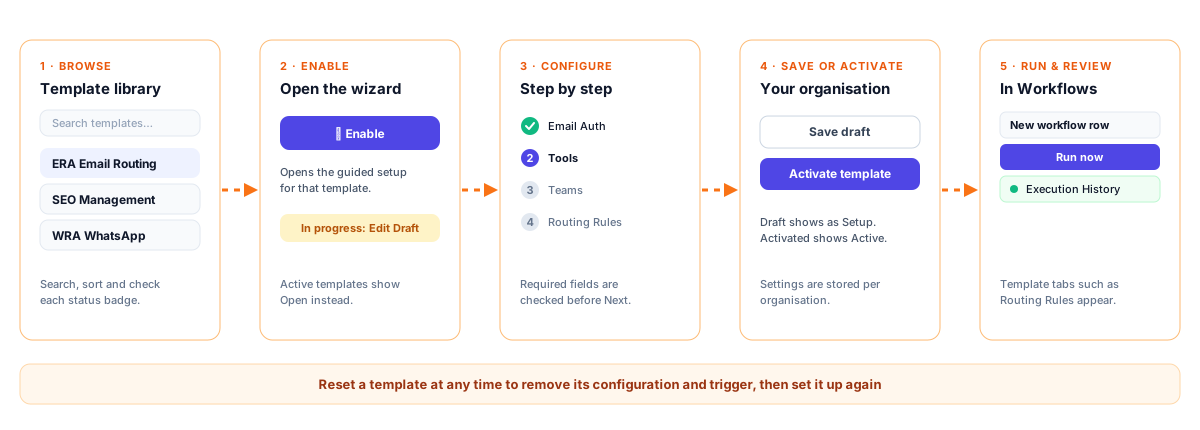
From template to running workflow
The flow is the same for every template; only the wizard steps differ.
- Browse the library: Open Workflow Templates and search or sort to find the process you need.
- Enable a template: Click Enable to open its setup wizard, or Edit Draft to continue one you started.
- Work through the steps: Fill each step, use the guides where offered, and fix any required field flagged on Next.
- Save a draft or activate: Save draft keeps you in Setup status. Activate template enables it for your organisation.
- Run and review: Find the new workflows in Workflows, run one now and read its Execution History.
Browse, set up, activate, run
How templates are built
A schema registry describes each wizard, so the same setup page renders every template. Enabling writes organisation config and provisions workflows that the shared scheduler and execution Lambdas then run.
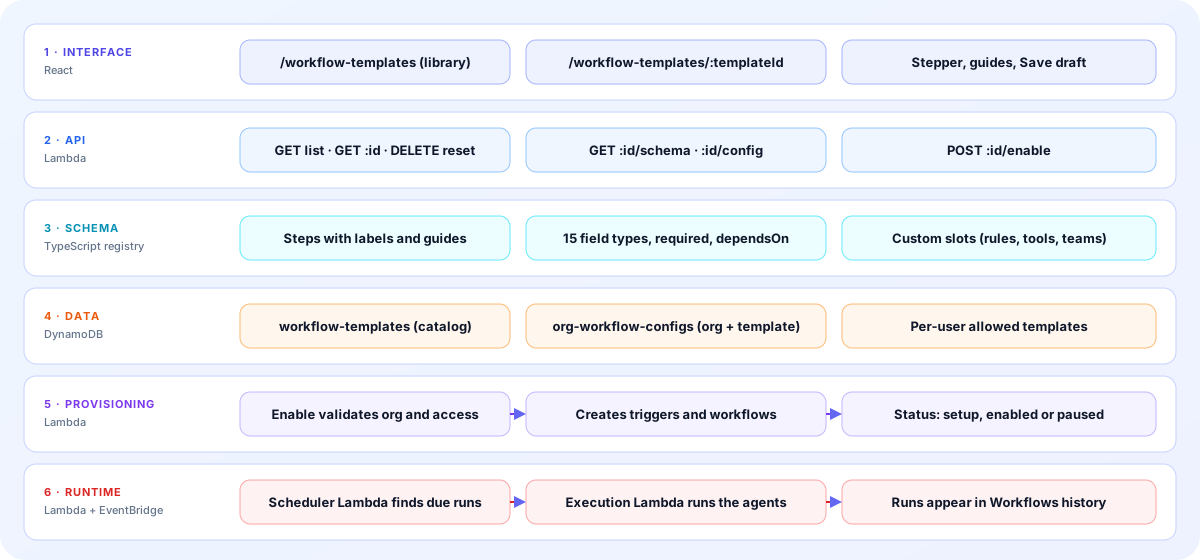
- Interface: A library page at /workflow-templates and one setup page at /workflow-templates/:templateId with a stepper, guides and Save draft.
- API: Endpoints list templates, return a template or its setup schema, read and update its config, enable it, and reset it.
- Schema: A TypeScript registry defines each wizard as steps and fields, with 15 field types, required flags, dependencies and custom slots.
- Data: A catalog table holds the templates, an organisation config table keys settings by organisation and template, and users can be limited to allowed templates.
- Provisioning: Enable checks the organisation and access, saves the config with a Setup, Enabled or Paused status, and creates the triggers and workflows.
- Runtime: The same scheduler and execution Lambdas that run any workflow run template workflows, and their runs appear in Execution History.
The screens you will use
Labels below are the ones shown in the product.
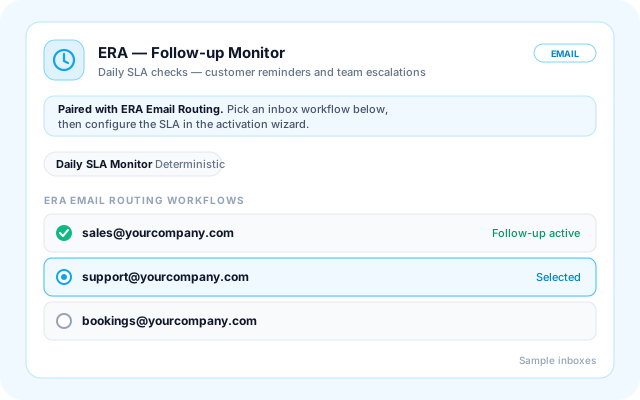
Paired follow-up monitor
The follow-up template explains how it relates to ERA and lets you pick the inbox workflow it should watch.
- Shows a Daily SLA Monitor tag.
- Lists ERA routing workflows by inbox.
- Inboxes that already have follow-up are marked active.
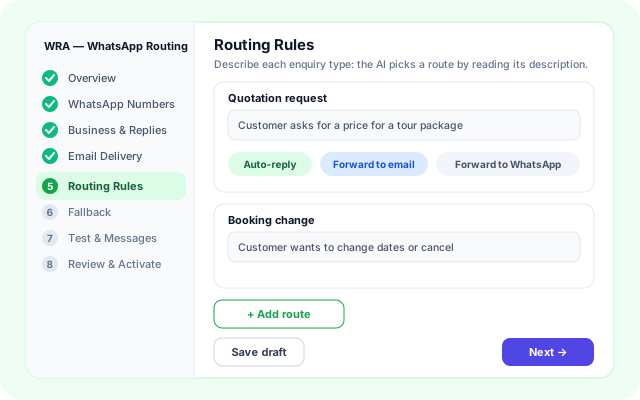
Routing rules in WhatsApp setup
The WRA wizard runs through eight steps. On Routing Rules you describe each enquiry type in plain words.
- The AI picks a route by reading its description.
- Auto-reply, forward to email or forward to WhatsApp.
- Fallback and Test & Messages come next.
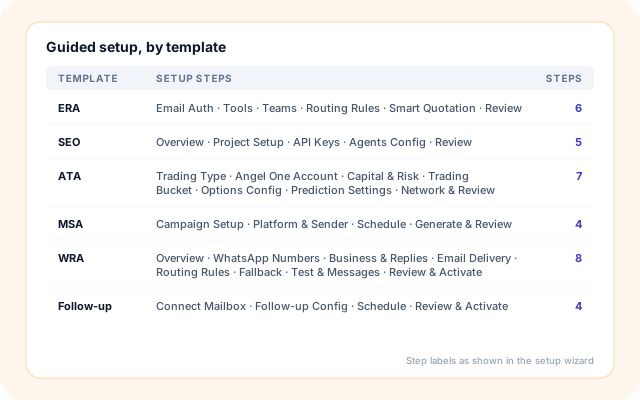
Setup steps by template
Every template has its own set of steps, from four to eight.
- ERA: Email Auth to Review.
- ATA: Trading Type to Network & Review.
- MSA: Campaign Setup to Generate & Review.
Templates you can enable today
Each card matches a template defined in the product.
- Route and answer email: ERA applies routing rules first, then an LLM agent, and labels outcomes such as ERA/Reply and ERA/Forward.
- Chase open threads: The follow-up monitor reminds customers who have not replied and escalates when nobody on your side has.
- Manage SEO per website: SEO Management combines crawls, Search Console and GA4 evidence, keyword observations and reviewed changes.
- Run Google Ads with agents: PMA coordinates nine agents across planning, copy, landing pages, budget, monitoring, A/B tests and reporting.
- Trade NSE equities: ATA scores stocks with a prediction agent and places orders with a trading agent through Angel One.
- Reply on WhatsApp: WRA reads each message, picks a route by its description, and replies or forwards by email or WhatsApp.
What templates connect to
Only systems referenced in the template definitions are listed.
- Gmail (App Password)
- Custom IMAP/SMTP
- Meta WhatsApp Cloud API
- Angel One
- Google Search Console
- Google Analytics 4
- WordPress or GitHub publishing
- Google Ads
- X
- Groq models
- Gemini
- Claude Haiku
Control and approvals
What stays under your control when you enable a template.
- Organisation scoped: Template settings and status are stored per organisation and template, and enabling needs an organisation.
- Access can be limited: A user can be restricted to specific templates; enabling any other is refused.
- Human approval where it matters: MSA emails AI-generated content to an approver for one-click review before publishing.
- Admin-only resets: Resetting SEO Management or WRA requires an organisation administrator.
Everything in the template library
- Search and sort: Newest first, Oldest first, Name A→Z, Name Z→A and By status.
- Status badges: Setup, Active or Paused on each card for your organisation.
- Edit Draft: Return to a saved draft and continue where you stopped.
- Activate template: One action to enable the template for your organisation.
- Reset: Remove a template's configuration and trigger, then set it up again.
- Step guides: Info boxes and how-to guides inside steps, such as Gmail App Password and API key setup.
- Paired templates: The follow-up monitor links to ERA routing workflows by inbox.
- Coming soon: CRM Sync Agent, Document Processor and Meeting Prep Agent are previewed.
Frequently asked questions
Can I change a template after enabling it?
Yes. Enabled templates produce workflows in your organization that you can review and adjust, and you can revisit configuration through the platform. Start with the guided defaults and refine as your process becomes clearer.
Are templates shared across organizations?
Templates are enabled per organization, so the configuration and data for one organization stay separate from another. Each organization completes its own setup wizard with its own settings.
Do templates guarantee specific business results?
No. Templates provide a tested starting structure and automate the steps, but outcomes depend on your data, settings and market conditions. Review results and tune the configuration to your needs.