What you can do in the App Store
- Switch between My Owned, your organization's agents and Published agents.
- Search by name, sort the list and filter by category.
- Open an agent and start chatting with it right away.
- Share an agent with one user as Read-only or Read/Write, or publish it to everyone.
- Open Build Agent to create a new agent in Agent Studio.
How it works
- Sign in to Coderva and open the App Store.
- Browse or search for an agent that fits your task.
- Open its card to see its description, category and custom URL.
- Chat with it, or share it with a colleague if you own it.
- Publish it when you want every user on the platform to find it, and extend it in Agent Builder or Workflows if needed.
Who it is for
The App Store is for teams who want to try a capability quickly. A finance team might look for an accounting assistant, a marketer for an SEO tool, and a business owner for an email management solution. Technical teams can also use installed agents as building blocks and adapt them to local requirements instead of starting from a blank page. Evaluating an existing item first also helps avoid building something that already exists.
Key capabilities
- Owned, organization and published agents in a single catalog.
- Per-agent sharing with Read-only or Read/Write access.
- Compatibility with the Agent Studio, Agent Builder and Workflows features.
- A clear way to evaluate what exists before building something new.
- Cards that show each agent's description, category and custom URL.
- Search and filter: Search by name, sort four ways and filter by category.
- Chat Now: Open a published agent and start a conversation.
- Share or publish: Give one user access, or publish the agent to everyone.
What the App Store gives you
Find agents that already exist
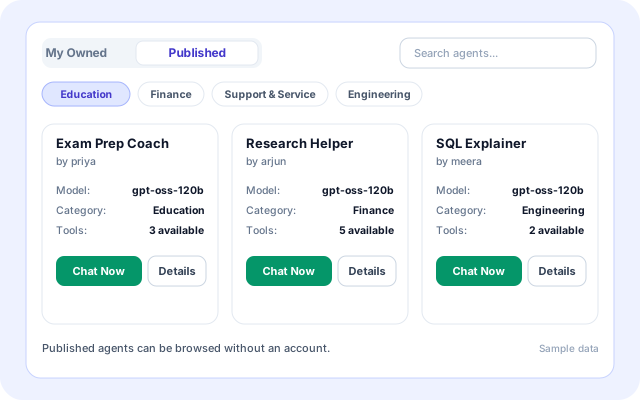
The Published tab lists agents other people have deployed and chosen to publish, and it can be browsed without an account.
- Search agents and sort by newest, oldest or name.
- Filter by Education, Personalization, Finance, Healthcare, Support & Service or Engineering.
- Each card shows the model, the category and how many tools it has.
- Chat Now opens the agent straight away.
See how an agent is set up
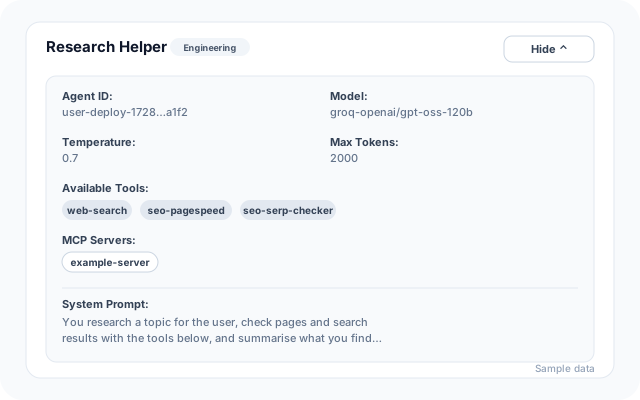
Details opens a panel with the configuration behind the agent, so you can judge it before you rely on it.
- Agent ID, model, temperature and max tokens.
- The tools and MCP servers the agent can use.
- The system prompt that guides its answers.
- Hide the panel again with one click.
Share with the right people
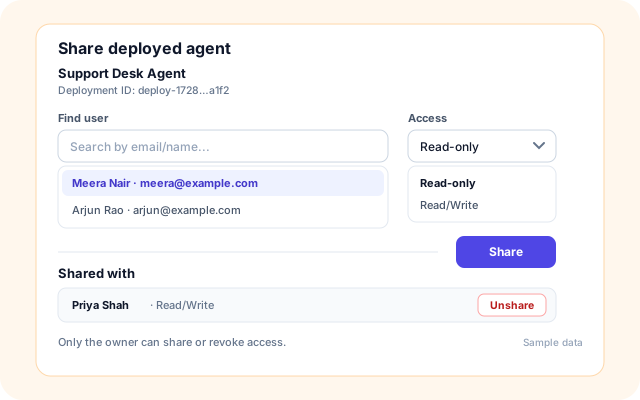
Owners can share a deployed agent with a specific user and choose what that person may do.
- Find a user by email or name.
- Choose Read-only or Read/Write access.
- See everyone the agent is shared with.
- Unshare at any time to revoke access.
Connect agents to the AI Assistant
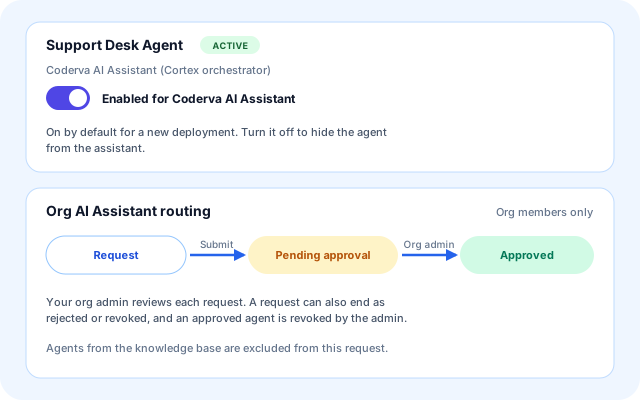
Each owned agent can be made available to the Coderva AI Assistant, and organisation members can ask their admin to enable it on the org assistant.
- A toggle enables an agent for the Coderva AI Assistant.
- It is on by default for a new deployment.
- Org members can request org AI Assistant routing.
- The org admin approves, and the status shows as pending or approved.
From a built agent to a shared one
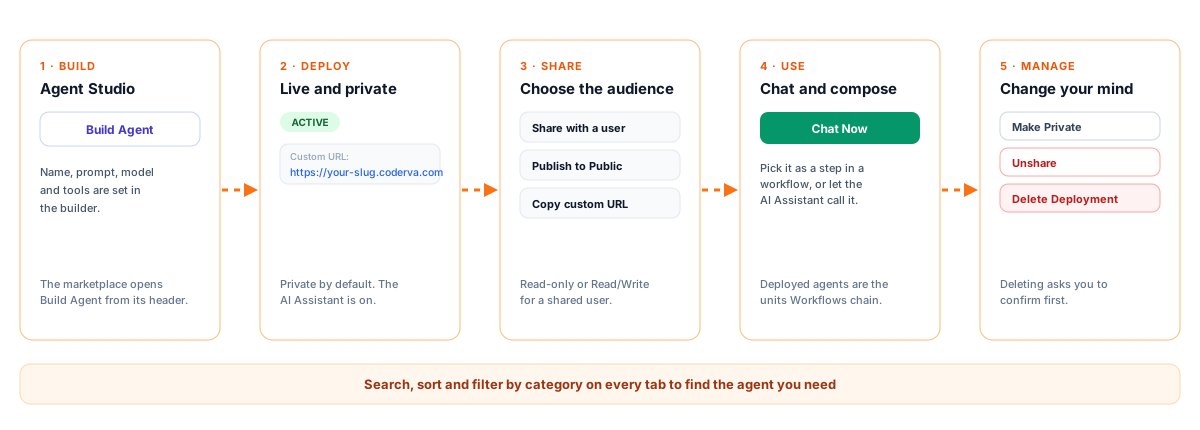
Agents come from Agent Studio and Agent Builder; the App Store is where you manage and share them.
- Build an agent: Use Build Agent in the page header to open Agent Studio and create the agent.
- Deploy it: A deployed agent is Active, gets a custom URL, and stays private until you decide otherwise.
- Find it: Use My Owned, your organisation tab or Published, with search, sort and category chips.
- Use or share it: Launch or Chat Now, open Details, share with a user, or Publish to Public.
- Control it: Toggle the AI Assistant, request org routing, Make Private, unshare or delete the deployment.
Build, deploy, share, use
How the App Store is built
The page is a thin client over one deployed-agents API. Deployments, definitions and conversations live in DynamoDB, and each deployed agent gets its own chat endpoint and custom URL.
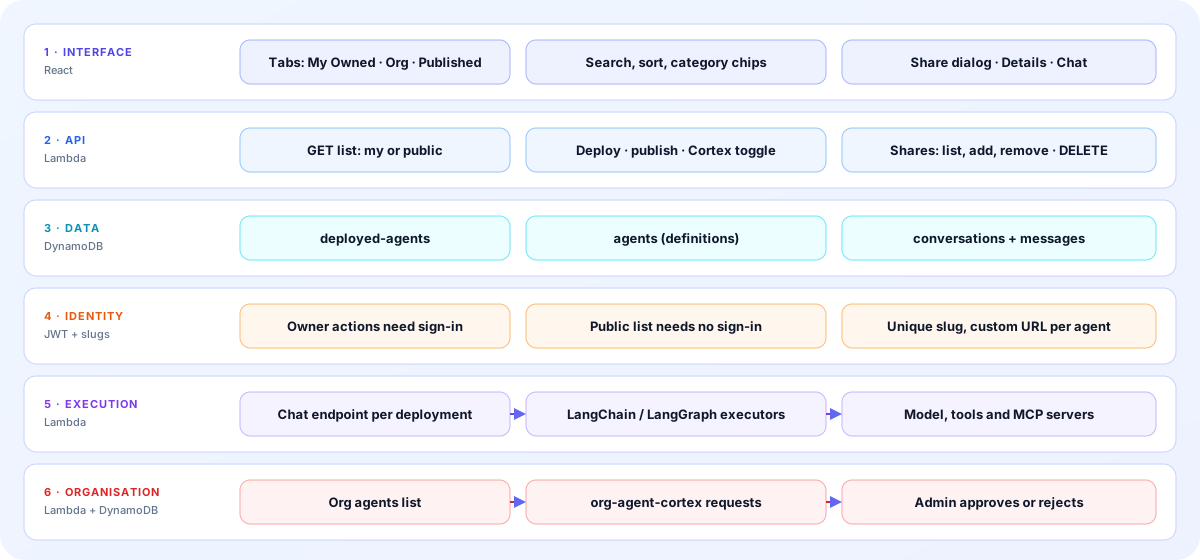
- Interface: The Agents page has three tabs, search, sort and category chips, a Details panel, a Share dialog and a link into chat.
- API: One Lambda lists your own or public deployments, deploys, publishes, toggles the assistant, manages shares and deletes.
- Data: Deployments, agent definitions, conversations and messages are stored in separate DynamoDB tables.
- Identity: Owner actions need a signed-in user, the public list does not, and every deployment gets a unique slug and custom URL.
- Execution: Chat runs through LangChain and LangGraph executors with the agent's model, tools and MCP servers.
- Organisation: An org agents list and an org-agent-cortex table track requests as pending, approved, rejected or revoked.
The screens you will use
Labels match what the page shows.
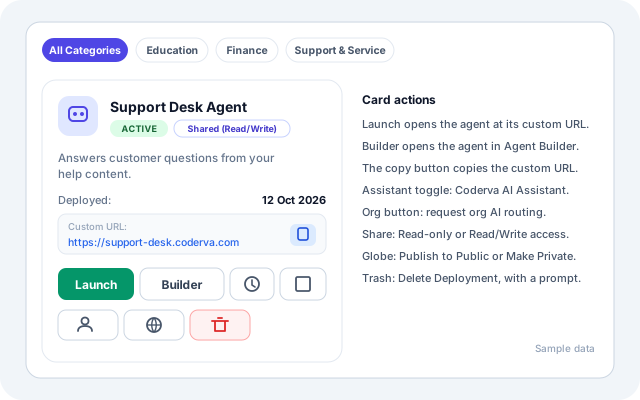
My Owned
Every deployment you own or that was shared with you, with its status, URL and controls.
- Status badge and a Shared (Read-only or Read/Write) badge.
- Launch, Builder and copy custom URL.
- Share, Publish or Make Private, and Delete Deployment.
Organisation agents
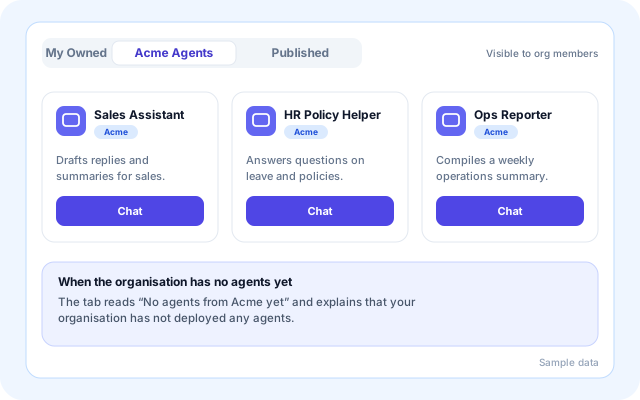
Organisation members get an extra tab named after their organisation.
- Cards carry the organisation badge.
- Chat opens the agent in the platform.
- An empty state explains when nothing is deployed yet.
Signed-out view
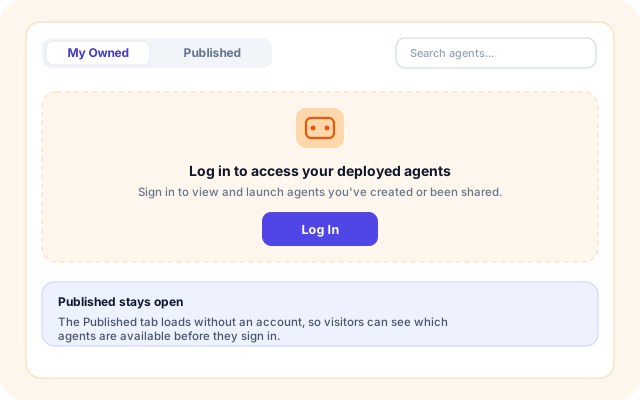
Visitors can browse Published; My Owned asks them to log in.
- Log in to access your deployed agents.
- Published loads without an account.
- Sign in to view and launch agents you created or were shared.
What teams do in the App Store
Based on the actions the page supports.
- Share an agent with a teammate: Grant one user Read-only or Read/Write access and revoke it later.
- Publish a useful agent: Publish to Public so it appears on the Published tab, and Make Private to take it back.
- Browse your organisation's agents: Org members see agents deployed in their organisation in one tab and can chat with them.
- Open an agent by link: Each deployment has a custom URL you can launch or copy to share.
- Feed the AI Assistant: Enable an agent for the Coderva AI Assistant, or request org assistant routing.
- Choose agents for workflows: The Create workflow wizard chains deployed agents, so deploy them here first.
What the App Store works with
Only components present in the product code are listed.
- Agent Studio
- Agent Builder
- Workflows
- Coderva AI Assistant (Cortex)
- Org AI Assistant approvals
- Custom subdomain URLs
- Agent tools
- MCP servers
- LangChain and LangGraph
- Groq models
- Amazon DynamoDB
- AWS Lambda
Who can see and change an agent
Visibility is a choice you make for each deployment.
- Private by default: A new deployment is not public until its owner publishes it.
- Owner-only sharing: Only the owner can list, add or remove shares for a deployment.
- Two access levels: Shared users get Read-only or Read/Write access, never more.
- Confirm before big changes: Publishing, making private and deleting each ask for confirmation first.
- Admin approval for org routing: An org admin reviews each request to enable an agent on the org AI Assistant.
Everything on the Agents page
- Three tabs: My Owned, your organisation's agents for org members, and Published.
- Search and sort: Search agents, then sort by Newest first, Oldest first, Name A → Z or Name Z → A.
- Category chips: All Categories, Education, Personalization, Finance, Healthcare, Support & Service and Engineering.
- Deployment status: Badges for Active, Deploying, Stopped and Error on your own agents.
- Custom URL: A launchable address per deployment, with a one-click copy.
- Details panel: Model, temperature, max tokens, tools, MCP servers and system prompt.
- Share dialog: Find a user, set access and manage the Shared with list.
- Publish and delete: Publish to Public, Make Private or Delete Deployment.
Frequently asked questions
Can anyone see the agents I build?
No. A new agent is listed under My Owned. You decide whether to share it with a single user as Read-only or Read/Write, or to publish it so every user can find it.
Can I modify an agent I find here?
If you own it, yes. Open it in the Agent Builder to adjust prompts, tools and knowledge, and use it within your own workflows. Agents shared with you as Read-only can be used but not changed.
How is the App Store different from the Apps page?
The App Store lists deployed AI agents that you own, share or publish. The Apps page lists Coderva first-party applications such as trading, email management, ledger analysis and SEO Intelligence.