What you can do in Fynamics Wealth
- Review daily prediction signals for NSE equities with the reasoning behind them.
- Connect a broker account and keep credentials and network settings in one place.
- Set capital and risk limits so no single trade or day exceeds what you defined.
- Group trades into buckets for delivery or intraday strategies.
- Place trades manually or let the auto-trading workflow act within your limits.
- Track portfolio performance and execution history.
How to get started
- Sign in and open the Fynamics Wealth app.
- Connect your broker account and confirm network and credential settings.
- Define capital, risk limits and trading buckets.
- Enable the auto-trading workflow or review signals and trade manually.
Built around control
Automation is only useful when you can bound it. Risk caps, buckets and clear execution history keep each decision inspectable. You can pause automation at any time and return to manual trading.
Who it is for
Self-directed investors, small trading desks and advisors who want repeatable processes, consistent risk limits and a record of what the system did on their behalf.
Start with the Trade Now and auto-trading tabs
Fynamics Wealth separates delivery and intraday workflows so each strategy keeps its own capital, buckets and limits. Open the app, review the credentials and network checklist, then choose the workflow that matches how you trade. Execution history records every order the automation considered, placed or skipped, which makes reviews at the end of the week straightforward.
- Signals with a score: Prediction Bucket shows direction, confidence and RSI for every symbol it tracks.
- Limits you set: Max Total Capital, per-trade cap, bucket caps and Enable Buy and Enable Sell switches.
- Virtual or Real: A mode switch lets you run simulated trading and move to real orders when you decide.
What Fynamics Wealth gives you
Prediction signals for your universe
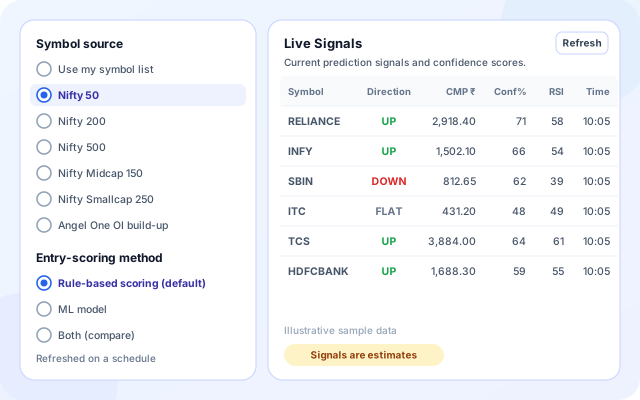
The Prediction Bucket tab lets you pick what gets predicted and how entries are scored, then shows the current signal for each symbol.
- Symbol sources: your own list, Nifty 50, 200, 500, Midcap 150, Smallcap 250 or Angel One OI build-up.
- Scoring method: rule-based (default), an ML model, or both so you can compare.
- Live Signals table with Symbol, Direction, CMP, Signal, Conf% and RSI.
- Signals are statistical estimates, not certainty.
Entry and exit gates you can switch
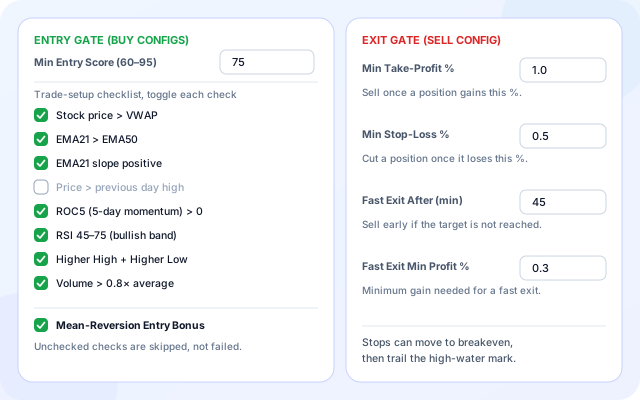
On the Capital & Risk tab you decide how strict the agent is. Each trade-setup check can be turned on or off, and exits have their own thresholds.
- Min Entry Score between 60 and 95.
- Eight checks such as price above VWAP, EMA21 above EMA50, RSI band and volume.
- Min Take-Profit %, Min Stop-Loss % and a Fast Exit rule.
- An optional Mean-Reversion Entry Bonus; unchecked checks are skipped, not failed.
Buckets that cap every symbol
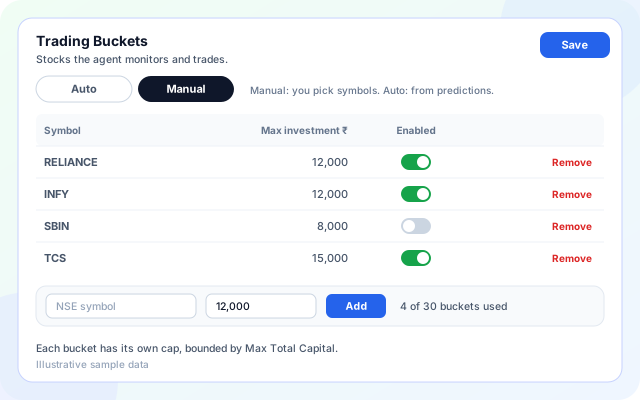
Trading Buckets define which stocks the agent may trade and how much each one can take. Let the agent choose from predictions, or list the symbols yourself.
- Auto mode picks from predictions; Manual mode uses your symbols.
- A Max investment cap and an Enabled switch for every bucket.
- Up to 30 buckets, each bounded by your Max Total Capital.
- A Next Run Watchlist shows live bucket state with the latest signal.
Trade manually when you want to
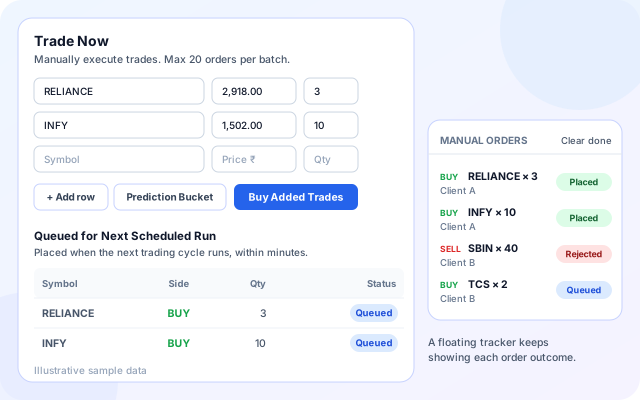
Trade Now lets you place orders by hand, and the desk can buy or sell across several clients at once. A floating tracker shows whether each order was placed or rejected.
- Enter symbol, price and quantity; up to 20 orders per batch.
- Orders queue for the next scheduled trading cycle.
- Buy Selected and Sell Selected work across client cards.
- Pair trading options: NIFTY to SENSEX, CE to PE hedge or a custom pair.
From credentials to a running workflow
Setting up an Auto Trading workflow follows the same five steps the template uses: credentials, capital, buckets, prediction and review.
- Add credentials: Enter the Angel One Client ID, PIN, Smart API Key and TOTP secret. Trading stays paused until they are saved.
- Set capital and risk: Choose Max Total Capital, a per-trade cap, Virtual or Real mode, and the entry and exit gates.
- Define buckets: Use Auto mode or list your own symbols, each with its own maximum investment.
- Configure prediction: Pick a symbol source and a scoring method for the Prediction Agent.
- Review and activate: Activate the workflow, whitelist the assigned IP on the Angel One dashboard, then watch the desk.
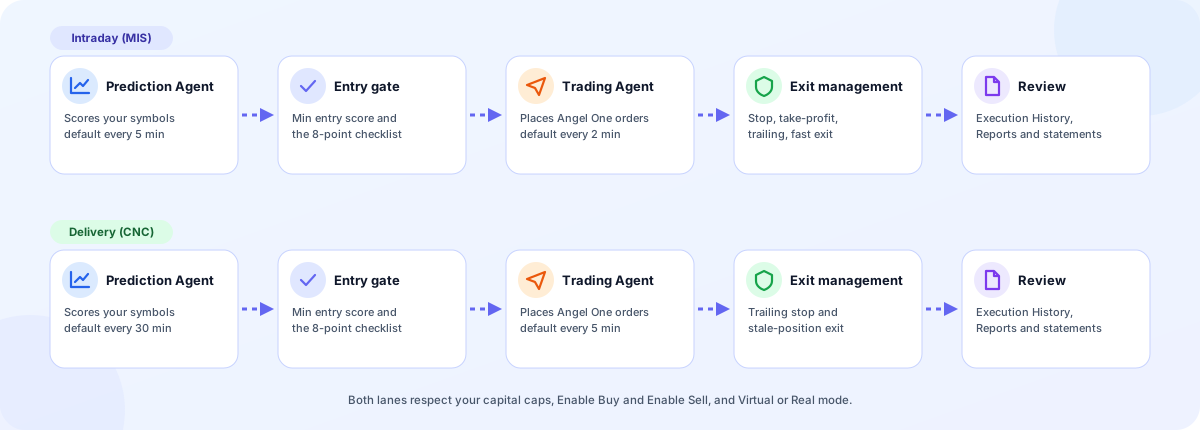
Intraday and delivery, each with its own cycle
How auto trading is built
The desk and workflow tabs sit on a workflow API and schedules, which drive prediction and trading engines that talk to Angel One and store results in DynamoDB.
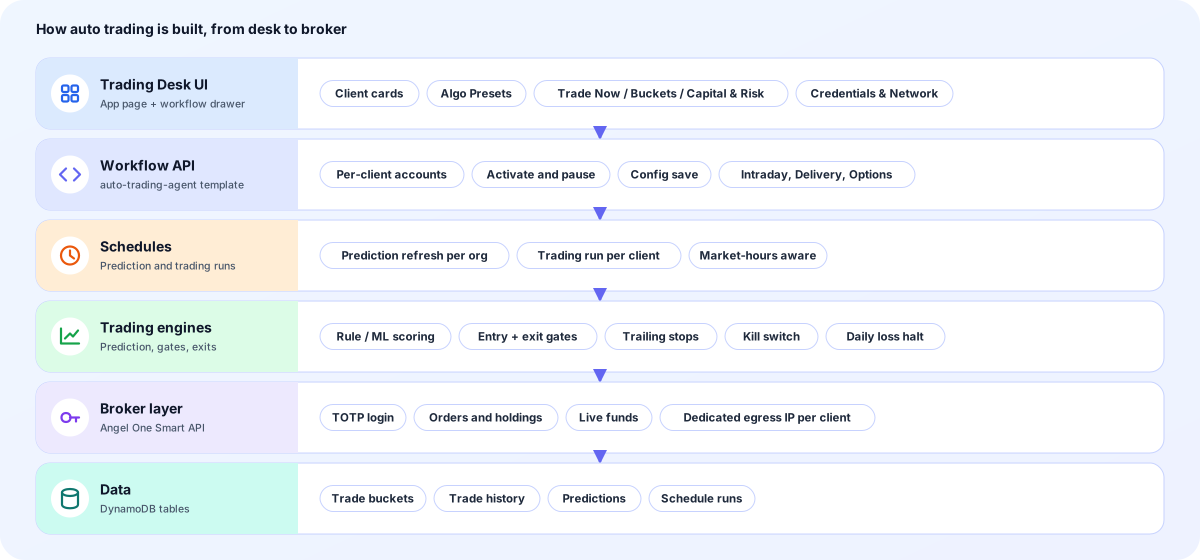
- Trading Desk UI: Client cards, Algo Presets and the workflow drawer with Trade Now, Trading Buckets, Capital & Risk and Credentials & Network tabs.
- Workflow API: The auto-trading-agent template stores one account per Angel One client and trading type, with activate, pause and save actions.
- Schedules: A prediction refresh runs per organization and trading type, and a trading run per client, with defaults tuned for intraday and delivery.
- Trading engines: Scoring, entry and exit gates, trailing stops, a kill switch for broker or data problems, and a halt on new entries after a daily loss limit.
- Broker layer: Orders, holdings and live funds go through the Angel One Smart API with TOTP login, over a dedicated egress IP for each client.
- Data: DynamoDB tables hold trade buckets, trade history, predictions and schedule runs for reports and statements.
Screens you will use
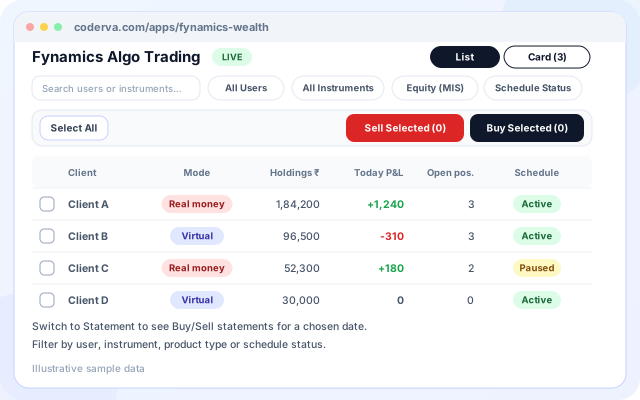
The desk shows every client at a glance, and each workflow has tabs for capital, risk and credentials.
Trading desk
One row or card per Angel One client with filters and bulk Buy and Sell actions.
- Holding and Statement views, in List or Card layout with one to four columns.
- Filters for users, instruments, product type and schedule status.
- Sell Selected and Buy Selected across clients.
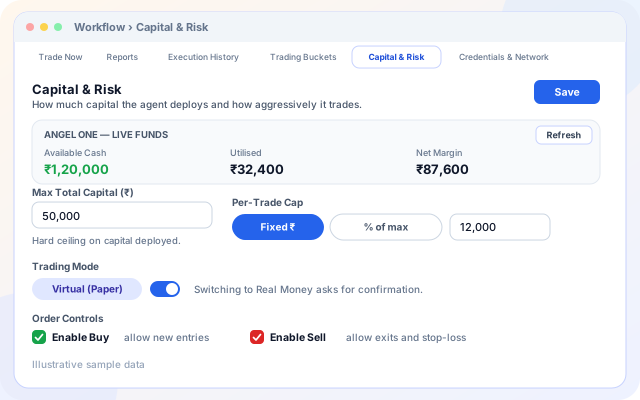
Capital & Risk tab
Live funds from Angel One next to the limits and switches that control the agent.
- Available Cash, Utilised and Net Margin from the broker.
- Max Total Capital and a Fixed or percent per-trade cap.
- Virtual (Paper) or Real Money, with a confirmation before real orders.
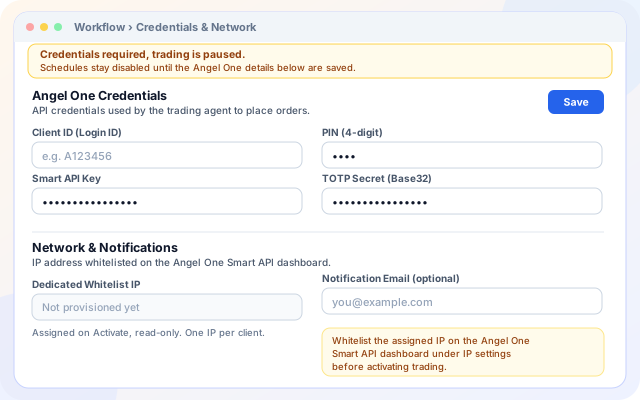
Credentials & Network tab
Where broker details and the whitelist IP live, kept apart from strategy settings.
- Client ID, PIN, Smart API Key and TOTP secret.
- A dedicated whitelist IP assigned to each client on Activate.
- Optional notification email.
How people use it
The same engine supports different styles of trading, and each strategy keeps its own settings.
- Manage several clients from one desk: Advisors and small desks see each connected Angel One client as a card with holdings, today's P&L and recent trades.
- Intraday equity (MIS): Tighter prediction and trading cycles for same-day positions, with stop, take-profit, trailing and fast-exit logic.
- Delivery equity (CNC): Slower cycles for holding positions longer, with trailing stops and stale-position clean-up.
- Options: Options MIS and carry-forward workflows with settings for strike selection, expiry type and maximum lots.
- Paper-test a strategy: Run in Virtual (Paper) mode and compare rule-based and ML scores before using real money.
- Review the day: Use the Statement view, Execution History and Reports to see what was placed, skipped or rejected.
Systems named in the code
Fynamics Wealth works with these services today.
- Angel One Smart API
- NSE equities
- NSE options (MIS and NRML)
- Nifty 50
- Nifty 200
- Nifty 500
- Nifty Midcap 150
- Nifty Smallcap 250
- Angel One OI build-up
- TOTP login
- Organization AI Assistant (Ask about trades)
Risk controls and a clear risk note
Trading involves risk, including loss of capital. Signals are statistical estimates, not advice, and nothing here guarantees returns.
- Virtual or Real mode: A switch separates simulated orders from real ones, and switching to Real Money asks you to confirm.
- Buy and Sell switches: Turn off new entries, or turn off exits, with Enable Buy and Enable Sell. The tab warns about the effect of each.
- Kill switch for new entries: New entries are blocked when the broker connection fails, market data is stale or incomplete, or an unexpected position appears.
- Daily loss halt: After realised losses cross a built-in daily limit, the engine stops opening new positions for the rest of the session.
- Caps at every level: Max Total Capital, a per-trade cap and a per-bucket cap bound what any single decision can use.
- Your own broker account: Orders go through your Angel One account, and each client has its own dedicated IP to whitelist.
What is in Fynamics Wealth
- Multi-client desk: Cards or a list with a filter for users, instruments, product type and schedule status.
- Holding and Statement views: Switch cards between open holdings and buy and sell statements for a date.
- Prediction Bucket: Seven symbol sources and three scoring methods with a Live Signals table.
- Entry and exit gates: Eight checks, a minimum score, take-profit, stop-loss and fast exit.
- Trading Buckets: Auto or Manual mode, per-bucket caps and a Next Run Watchlist.
- Trade Now: Manual batches of up to 20 orders with an order tracker.
- Algo Presets: A preview screen for naming algo configurations covering entry, exit, sizing and risk. Presets are stored in your browser for now.
- Ask about trades: A chat button opens the organization AI Assistant from the desk.
Frequently asked questions
Which broker does Fynamics Wealth connect to?
The auto-trading workflow works with an Angel One account. You connect your own credentials, and trading stays in your account.
Does it guarantee returns?
No. Signals are statistical estimates, and all trading involves risk, including loss of capital. Use the risk limits to control exposure.
Can I trade manually as well?
Yes. You can review signals and place trades yourself, or enable the automated workflow within the limits you set.