What this agent helps with
- Password and access guidance
- VPN and email troubleshooting
- Ticket deflection from runbooks
- Escalation summaries
Tools it uses
This template uses: Enterprise Search, Knowledge Base, Web Search.
- Enterprise Search: searches your connected work apps and databases with your own permissions.
- Knowledge Base: answers from the documents you upload.
- Web Search: looks up current information on the web.
How to use it
- Sign in and open Agent Studio, then choose Templates.
- Select IT Helpdesk Assistant and review its instructions and tools.
- Connect your sources in the Enterprise Search app and upload any documents the agent should know.
- Try a few real questions in chat, then deploy the agent and share it with your team.
Good to know
The agent only sees what the credentials you connect can read, and it is told to cite its sources and say when it cannot find an answer instead of guessing.
- Enterprise Search: Enterprise Search: searches your connected work apps and databases with your own permissions.
- Knowledge Base: Knowledge Base: answers from the documents you upload.
- Web Search: Web Search: looks up current information on the web.
What the IT Helpdesk agent gives you
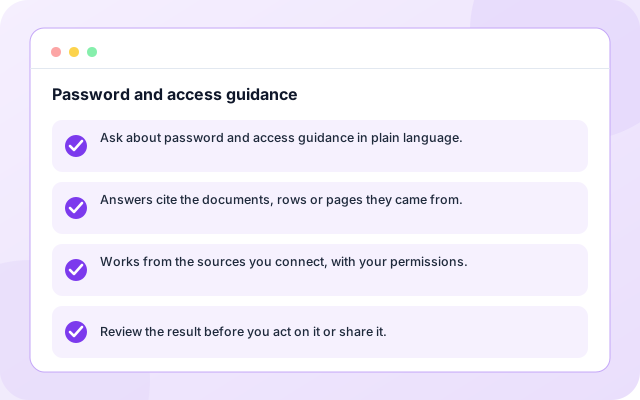
Password and access guidance
Ask for help with password and access guidance. The agent searches your connected sources and shows where each answer came from.
- Ask about password and access guidance in plain language.
- Answers cite the documents, rows or pages they came from.
- Works from the sources you connect, with your permissions.
- Review the result before you act on it or share it.
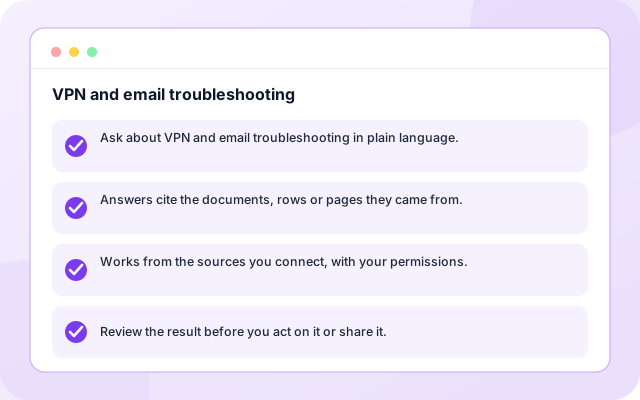
VPN and email troubleshooting
Ask for help with VPN and email troubleshooting. The agent searches your connected sources and shows where each answer came from.
- Ask about VPN and email troubleshooting in plain language.
- Answers cite the documents, rows or pages they came from.
- Works from the sources you connect, with your permissions.
- Review the result before you act on it or share it.
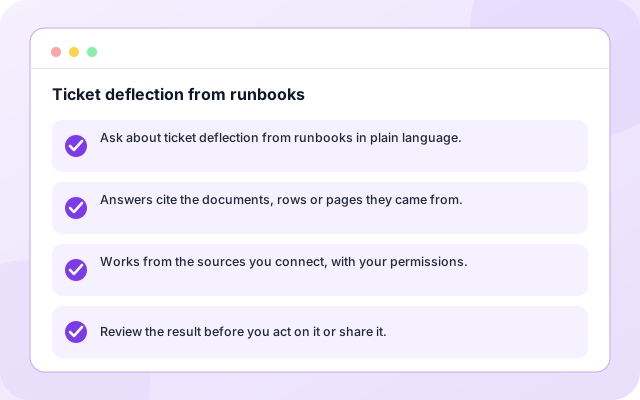
Ticket deflection from runbooks
Ask for help with ticket deflection from runbooks. The agent searches your connected sources and shows where each answer came from.
- Ask about ticket deflection from runbooks in plain language.
- Answers cite the documents, rows or pages they came from.
- Works from the sources you connect, with your permissions.
- Review the result before you act on it or share it.
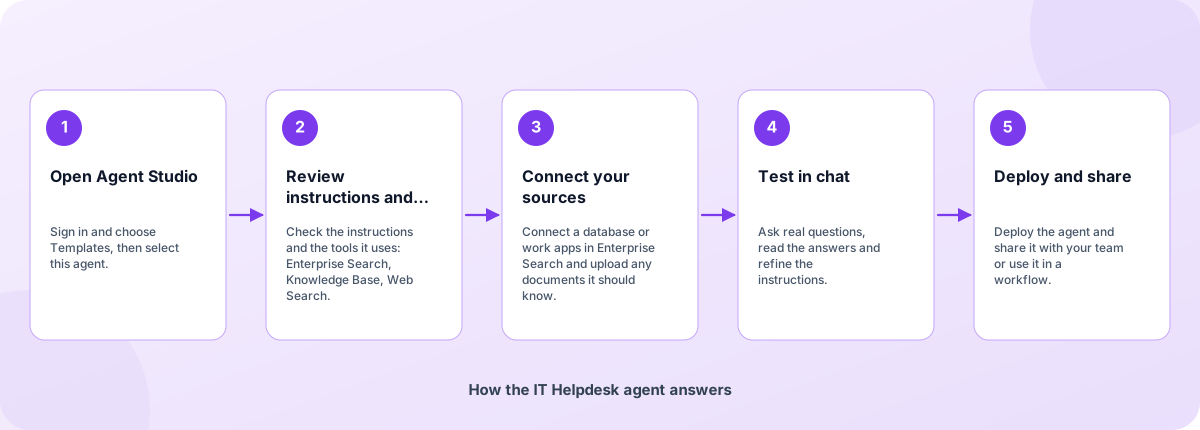
From template to deployed agent
Start from the template, make it yours and deploy when you are happy with how it answers.
- Open Agent Studio: Sign in and choose Templates, then select this agent.
- Review instructions and tools: Check the instructions and the tools it uses: Enterprise Search, Knowledge Base, Web Search.
- Connect your sources: Connect a database or work apps in Enterprise Search and upload any documents it should know.
- Test in chat: Ask real questions, read the answers and refine the instructions.
- Deploy and share: Deploy the agent and share it with your team or use it in a workflow.
How the IT Helpdesk agent answers
How the IT Helpdesk agent is built
An agent template is a set of instructions, tools and example tasks on the Coderva agent platform. You can edit every layer.
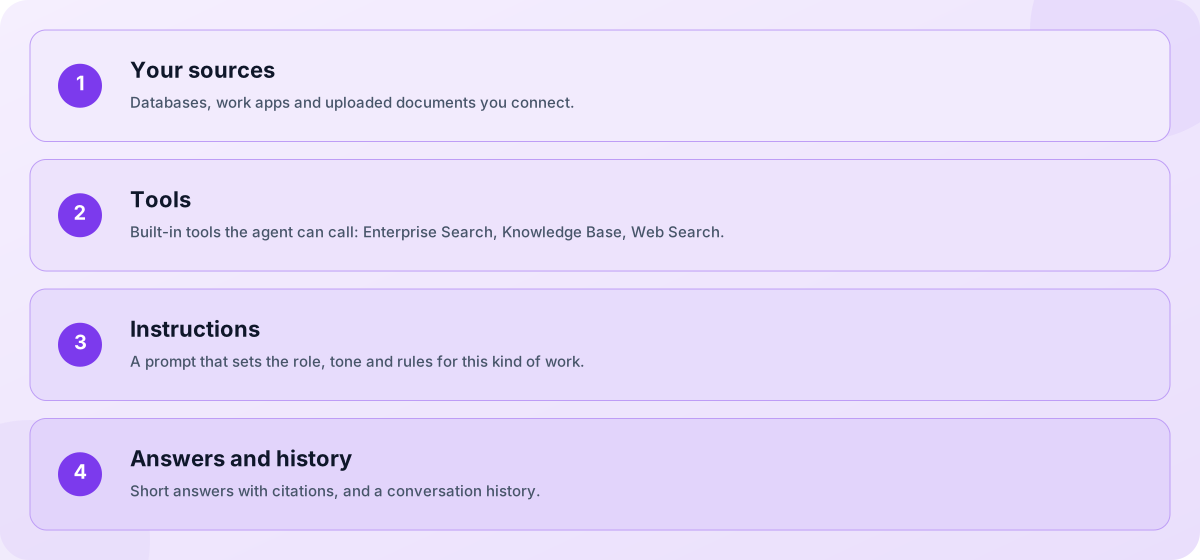
- Your sources: Databases, work apps and uploaded documents you connect.
- Tools: Built-in tools the agent can call: Enterprise Search, Knowledge Base, Web Search.
- Instructions: A prompt that sets the role, tone and rules for this kind of work.
- Answers and history: Short answers with citations, and a conversation history.
Screens you will use
You work with the agent in Agent Studio and in chat.
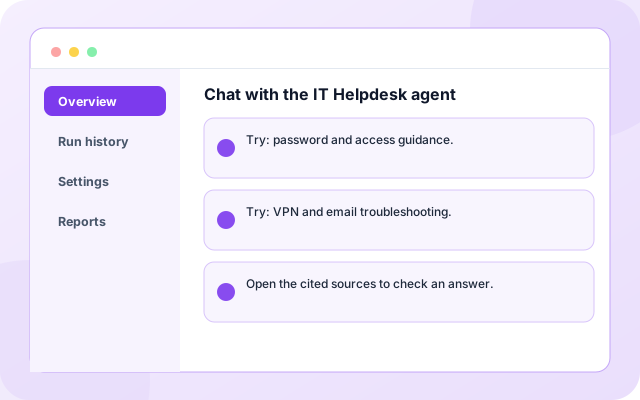
Chat with the IT Helpdesk agent
Ask a question and read the answer.
- Try: password and access guidance.
- Try: VPN and email troubleshooting.
- Open the cited sources to check an answer.
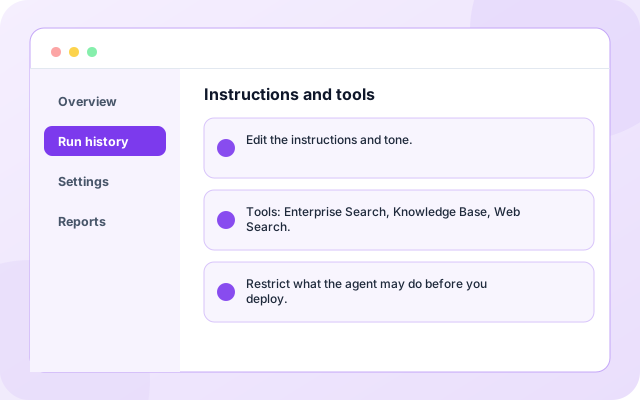
Instructions and tools
Adjust how the agent behaves.
- Edit the instructions and tone.
- Tools: Enterprise Search, Knowledge Base, Web Search.
- Restrict what the agent may do before you deploy.
What teams ask it first
Starting use cases that come with the template. Add your own.
- Password and access guidance: Ask for help with password and access guidance. The agent searches your connected sources and shows where each answer came from.
- VPN and email troubleshooting: Ask for help with VPN and email troubleshooting. The agent searches your connected sources and shows where each answer came from.
- Ticket deflection from runbooks: Ask for help with ticket deflection from runbooks. The agent searches your connected sources and shows where each answer came from.
- Escalation summaries: Ask for help with escalation summaries. The agent searches your connected sources and shows where each answer came from.
- Share with your team: Deploy the agent to a link or embed it in a workflow.
- Keep a history: Every conversation is stored so you can review what was asked and answered.
What it connects to
Sources you can connect for this agent.
- PostgreSQL
- MySQL
- GitHub
- Confluence
- Jira
- Slack
- Notion
- Google Drive
- Web Search
Control and checks built in
You decide what the agent can see and do, and how its answers are used.
- Your permissions apply: Searches run with the credentials you connect, so the agent only sees what they can read.
- Cite or say so: The instructions tell the agent to cite its sources and to say when it cannot find an answer.
- Editable and testable: Edit the instructions and test in chat before you share the agent.
What is in the IT Helpdesk agent
- Enterprise Search: Searches your connected work apps and databases with your own permissions.
- Knowledge Base: Answers from the documents you upload.
- Web Search: Looks up current information on the web.
- Customisable: Instructions, tone and tools are editable in Agent Studio.
- Deployable: Deploy to a link, share it with your team or use it in workflows.
Frequently asked questions
What is the IT Helpdesk Assistant?
Resolves common IT issues from runbooks and past tickets, and prepares a complete ticket summary when escalation is needed. It is a beginner-level agent template you can customise in Agent Studio.
What does the IT Helpdesk Assistant need to work?
A connected source such as a database or work app in the Enterprise Search app, and optionally documents uploaded to a knowledge base. Without sources it will tell you it has nothing to search.
Can I change the instructions and tools?
Yes. Everything is editable in Agent Studio before and after you deploy, so you can tune the tone, add tools and restrict what the agent may do.