What LIA helps with
- Exploring ledger entries by account, period, counterparty or category.
- Highlighting unusual movements and entries worth a second look.
- Producing plain-language summaries for reviews and reporting.
- Answering questions about your records without writing queries.
- Keeping analysis repeatable so month-end reviews follow the same steps.
Getting started
- Sign in and open the LIA app.
- Bring in the ledger data you want to analyse.
- Ask questions or run guided analyses over the data.
- Save the results and reuse the same analysis next period.
Where it fits
Accountants, finance analysts and small business owners use it for reconciliations, variance reviews and preparing management summaries. It complements accounting software by making analysis faster, not by replacing your system of record.
Trust and review
AI-generated insights are starting points. Findings link back to the underlying entries so a person can verify each one before acting.
Questions it can answer
Ask which vendors changed most month over month, which cost centres exceed their usual range, or which entries lack supporting references. The app returns a plain-language summary with the entries behind it, so accountants and finance leads can move from a question to evidence in a few steps and share the result with colleagues.
Works alongside your existing tools
LIA reads the ledger data you provide and does not replace your accounting system. Use it for review, reconciliation support and reporting preparation while your system of record remains the source of truth.
- Verify before saving: Every extracted field and row is editable
- Your own columns: Templates define what LIA extracts per document
- Ask your ledger: Answers drawn from your saved bills
What the app does for your records
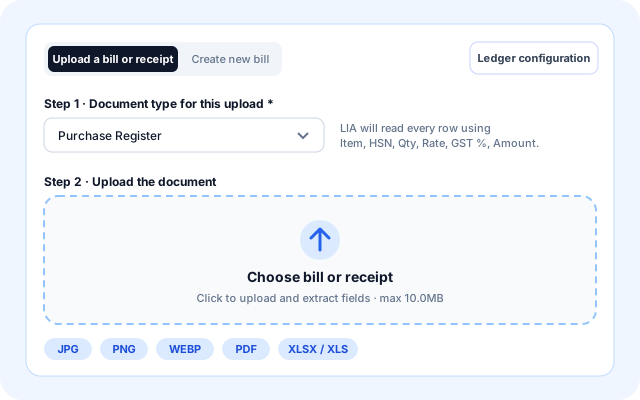
Upload any bill, receipt or register
Choose a document type, drop in the file and LIA reads it. Images and scanned PDFs go through vision OCR, PDFs with a text layer are read directly, and Excel sheets are read as tables.
- JPG, PNG, WEBP, PDF, XLSX and XLS files up to 10MB.
- Pick the layout first so LIA extracts your exact columns instead of guessing.
- Or use Create new bill to key in the rows yourself.
- Live progress with Uploading, Queued, Reading and Structuring steps.
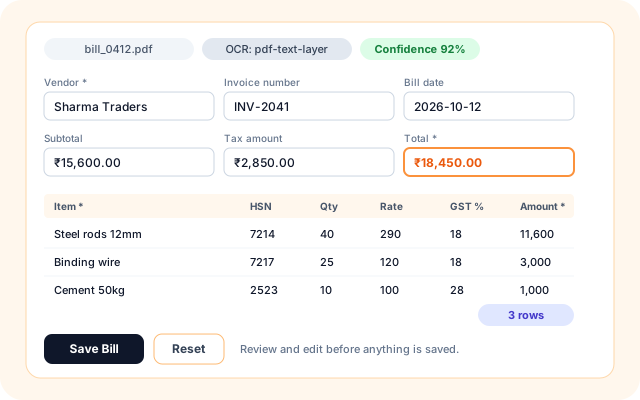
Verify every extracted field
The extracted bill opens in a form. Vendor, invoice number, dates, tax, total and each line-item row can be edited, with a confidence badge and the raw OCR text for reference.
- Header fields plus a table that uses your template columns.
- Columns the document did not have are dropped automatically.
- For multi-row registers the total follows the sum of the rows.
- Nothing is stored until you press Save Bill.
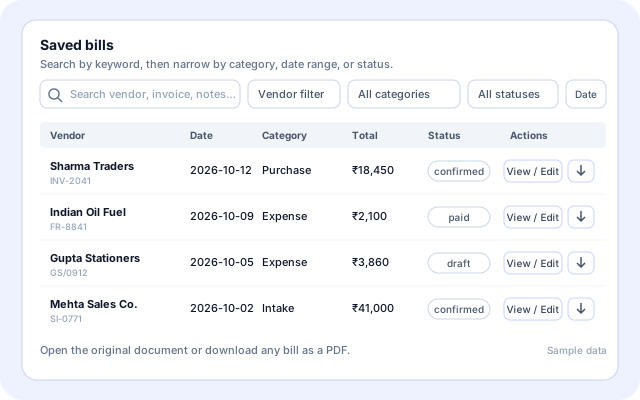
Find any bill in seconds
The Bills tab lists everything saved. Search across vendor, invoice number, notes and OCR text, then narrow by category, status and date range.
- Categories: Intake (Sales/Fees), Purchase, Expense or Custom.
- Statuses: draft, confirmed, disputed and paid.
- View / Edit any bill, or open the Original document.
- Download a single bill as a PDF.
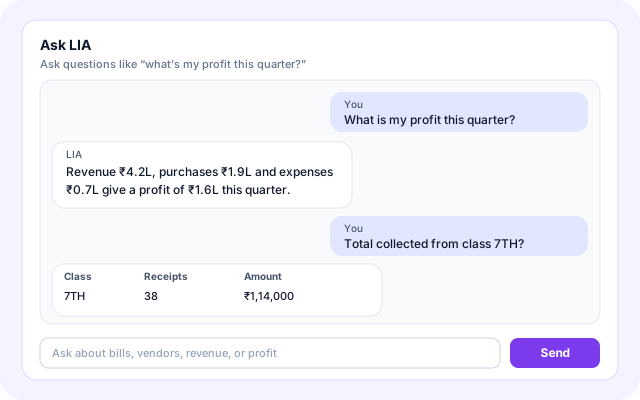
Ask questions, get answers from your data
Ask LIA about revenue, profit, a vendor, a month or a single entry. It answers from your saved bills and, for register-style documents, from the individual rows.
- Totals, vendor profiles and period comparisons such as this month against last month.
- Row-level questions, for example the total collected from one class.
- Short answers with a small table when listing several rows.
- Says so when the data is not enough to answer.
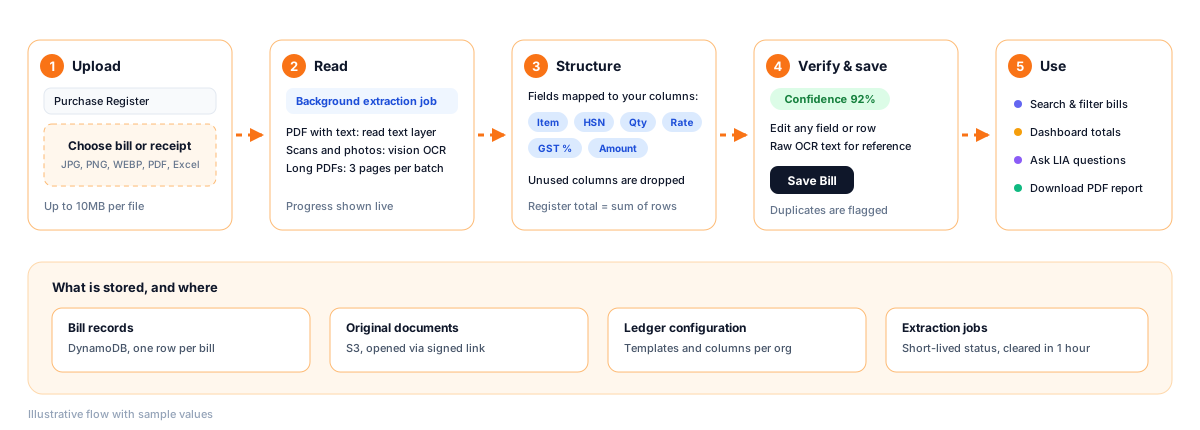
From a document to an answer in five steps
This is the path inside the LIA app, from choosing a layout to asking about your numbers.
- Pick a document type: Choose a template such as Purchase Register or Expense Report, or let LIA decide with a generic bill.
- Upload the file: Add a photo, PDF or Excel sheet. Large files go straight to storage so uploads do not time out.
- AI reads the rows: A background job reads the document and fills your template columns while you watch the progress.
- Verify and save: Fix anything that is off, then Save Bill. A duplicate check warns about a bill already on file.
- Search, report and ask: Browse the Bills tab, open the Dashboard or ask LIA a question.
Upload, read, structure, verify, use
How Ledger Insight Analysis is built
A React app talks to Lambda routes under /api/bills. Slow document reading runs as a background job, data lives in DynamoDB and S3, and questions are answered from the stored ledger.
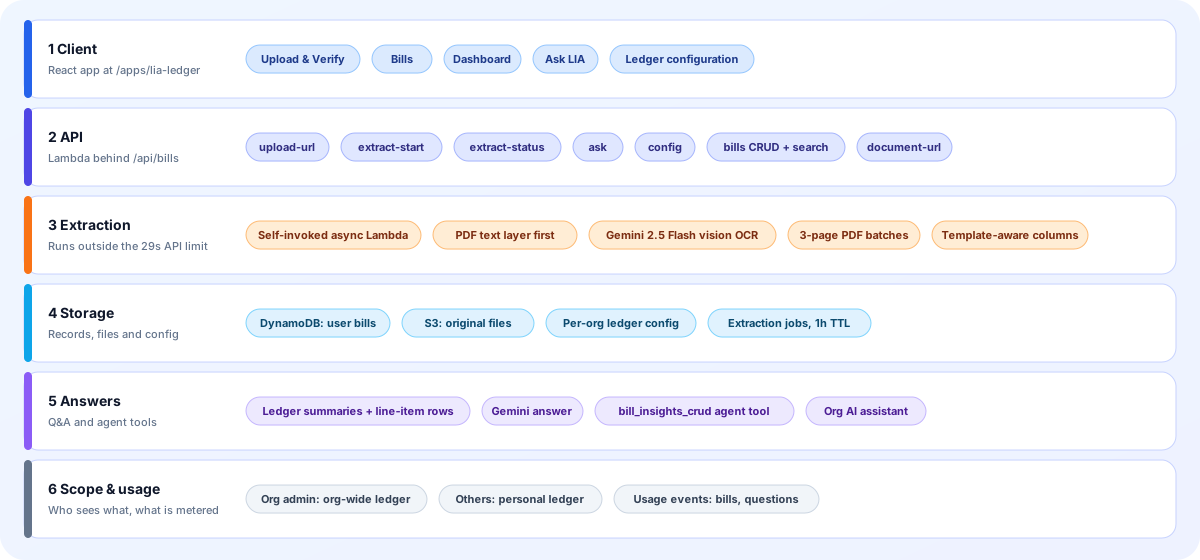
- Client: The LIA page has the Upload & Verify, Bills, Dashboard and Ask LIA tabs, plus the Ledger configuration dialog.
- API: Routes under /api/bills handle presigned upload URLs, extraction jobs and status, config, ask, bill create, update, delete and document links.
- Extraction: The request starts a self-invoked job so slow reading is not cut off by the API timeout. PDFs with text skip OCR, scans go to Gemini vision in 3-page batches.
- Storage: Bill records sit in a DynamoDB table, original files in S3, the per-org ledger configuration alongside the bills, and job status in a table that clears after an hour.
- Answers: Questions are answered by Gemini from ledger summaries and flattened line-item rows. The same data backs the bill_insights_crud tool for agents and the org AI assistant.
- Scope and usage: Org admins work on the organisation ledger, other users on their own. Bills processed and questions asked are recorded as usage events.
Screens you will use every day
Mock-ups with sample data, drawn from the real labels, tabs and columns in the app.
Dashboard
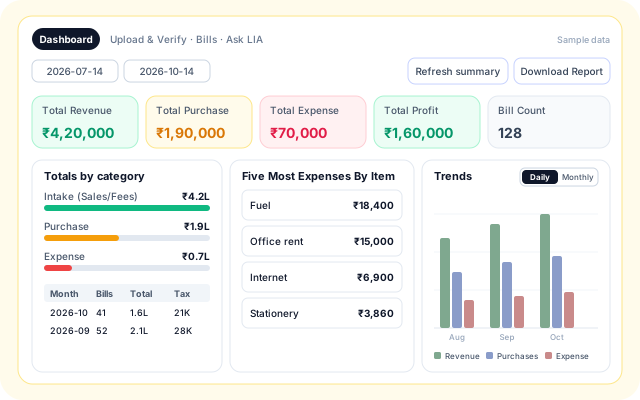
Pick a date range and see revenue, purchases, expenses, profit and bill count, with category totals, top lists and trend charts.
- Total Revenue, Total Purchase, Total Expense, Total Profit and Bill Count cards.
- Totals by category and a monthly table with bills, total and tax.
- Five Most Expenses By Item and top customers or fee payers.
- Daily or Monthly trend bars, and a Download Report button.
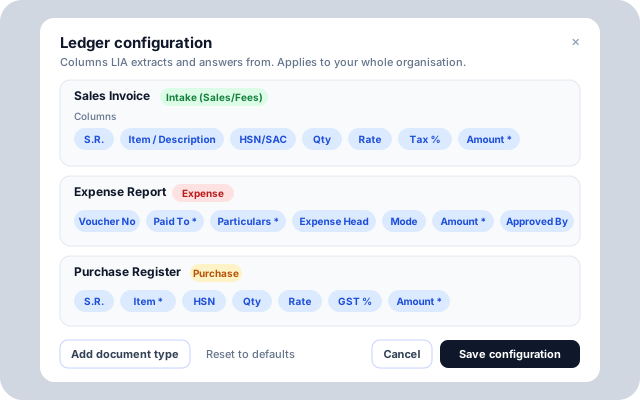
Ledger configuration
Describe your own documents once. Each document type has a ledger category and a list of columns, and these drive extraction, the verification form and item-level answers.
- Defaults include Sales Invoice, Expense Report, Purchase Register and a generic bill.
- Colleges and institutes get a Fee Receipt Book instead of a Sales Invoice.
- Column types are text, number, currency and date, each marked Required or Optional.
- Add document type, Reset to defaults and Save configuration. Only org admins can change it.
Live extraction progress
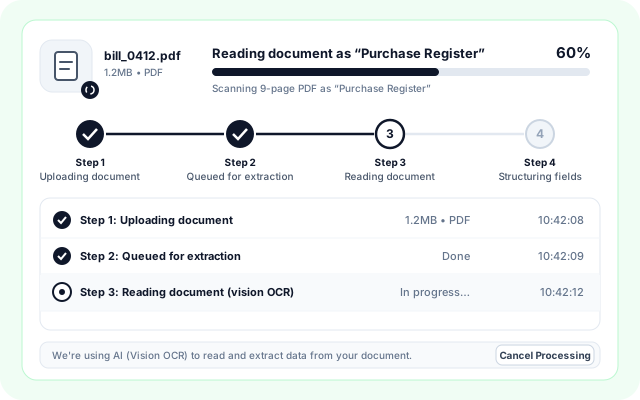
While a document is being read, the screen shows the file, a percentage, a four-step stepper and a row for each stage with its time.
- Steps: Uploading document, Queued for extraction, Reading document, Structuring fields.
- Shows page progress for long scanned PDFs.
- Cancel Processing stops the wait at any point.
Where teams use LIA
The same upload, verify and ask loop covers very different documents.
- Supplier purchase bills: Use the Purchase Register layout with item, HSN, quantity, rate, GST % and amount, then total purchases by vendor.
- Day-to-day expense vouchers: Capture voucher number, paid to, particulars, expense head, mode and approver, and see the top expense items.
- Sales invoices and fee receipts: Track intake from customer invoices, or from a Fee Receipt Book with receipt number, class and section for schools.
- Scanned and Excel registers: Turn a photographed register or a spreadsheet into one row per entry instead of retyping it.
- Owner questions on the go: Ask how much was spent on fuel last month or what the profit is this quarter, without building a report.
- Bills inside an agent: Add the Bill Tracker tool to an agent so users can upload bills in chat and have them saved to the same ledger.
Built on services already in the platform
Only the systems the code actually uses.
- Gemini 2.5 Flash (vision OCR, extraction and answers)
- PDF text layer reading
- Excel (.xlsx, .xls)
- JPG, PNG and WEBP images
- Amazon DynamoDB
- Amazon S3 (original documents)
- AWS Lambda and API Gateway
- Bill Tracker tool (bill_insights_crud) in Agent Builder
- Org AI assistant
- Chat with your ledger
Review, scope and traceability
Controls that exist in the app today.
- A person confirms every bill: Extraction only fills a form. The record is created when someone presses Save Bill.
- Duplicate check on save: A bill with the same vendor, invoice number, total and date is flagged before a second copy is stored.
- Organisation scoping: Org admins work on the organisation ledger and other users on their own. Only org admins can change the ledger configuration.
- Original kept and linked: The source file is stored in S3 and opened from the bill through a time-limited signed link.
What is included
- Vision OCR and text layer: Reads photos, scans and digital PDFs, in batches for long documents.
- Org-defined columns: Templates control extracted columns, the form and item-level answers.
- Create new bill: Key in rows by hand when there is no source document.
- Status tracking: Mark bills draft, confirmed, disputed or paid.
- Search and filters: Keyword, vendor, category, status and date range.
- Dashboard and report: Revenue, purchase, expense, profit and a downloadable report.
- Row-level answers: Ask about one person, receipt or voucher, not only totals.
- Signed original links: Open the source document of any saved bill.
Frequently asked questions
Does LIA replace my accounting software?
No. It sits alongside your accounting tools and helps you analyse and summarise the data they hold.
Can I trace a finding back to the source?
Yes. Findings reference the underlying ledger entries so you can verify them.
Who can use it?
Accountants, finance teams and business owners who need quick, repeatable analysis of ledger data.