What you can do with workflows
- Build multi-step workflows that combine agents, tools and decision points.
- Run a workflow on demand with run-now when you want a result straight away.
- Schedule workflows to run at regular intervals without manual triggers.
- Review execution history to see when each run happened and how it ended.
- Start from ready-made workflow templates and adapt them to your process.
How it works
- Open Workflows from the platform and create a new workflow, or enable one from the template library.
- Add the steps in order, choosing the agents and tools each step should use.
- Save the workflow and use run-now to test it with real inputs.
- Set a schedule if the workflow should repeat, such as a daily check or a periodic report.
- Open the execution history to confirm runs completed and to investigate any that did not.
Who it is for
Workflows are for teams that have recurring tasks: monitoring an inbox, producing a periodic report, checking a market signal or following up on open requests. Instead of a person repeating the same sequence, the workflow performs it and leaves an auditable trail. Operations leads gain visibility, and technical users keep control over how each step behaves. Because every run is recorded, it is straightforward to review what the workflow did last week and to improve it gradually.
Key capabilities
- Multi-step orchestration of agents and tools.
- Manual, run-now and scheduled execution.
- Per-run execution history for review and troubleshooting.
- Workflow templates for common business processes.
- A reviewable record of every run, which helps teams improve a process step by step over time.
- Run now: Start any workflow on demand from its row or detail view.
- Schedule: Repeat on an interval, or at a set time on chosen days.
- Execution History: Search past runs and open the steps inside each one.
What the Workflows page gives you
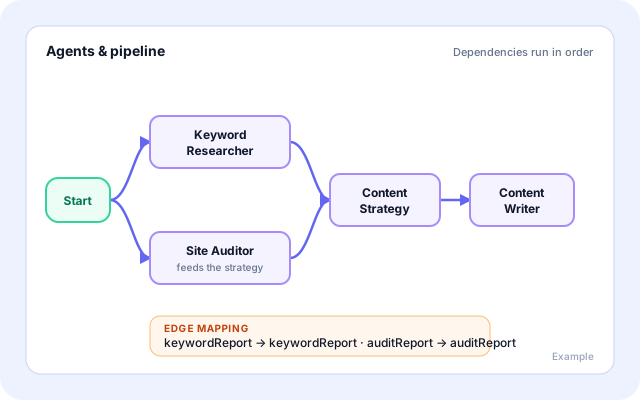
Chain agents into one process
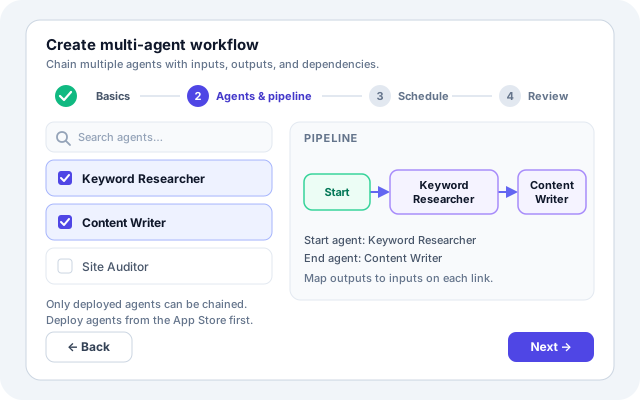
Pick deployed agents, set a start and an end, and map the output of one agent to the input of the next.
- Search and select from your deployed agents.
- Choose a start agent and an end agent for the pipeline.
- Map named outputs to named inputs on each link.
- Add an extra prompt on a link when a step needs more guidance.
Schedule it your way
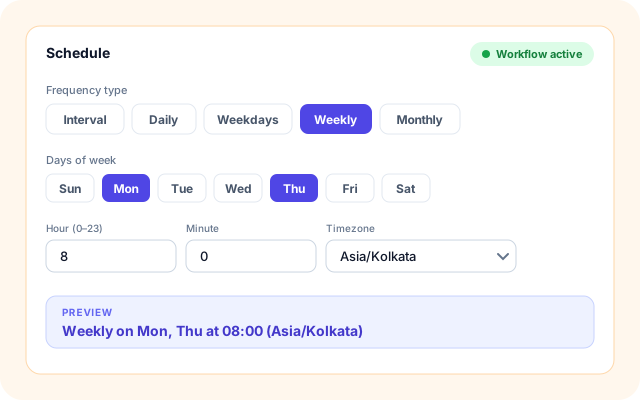
Keep a workflow ad hoc, or have it repeat. The Schedule tab uses the same picker for time-of-day schedules.
- Interval in minutes or hours, with an NSE market-hours option at creation.
- Daily, weekdays, weekly on chosen days, or monthly on chosen dates.
- Hour, minute and timezone, with a plain-language preview.
- Cron expressions are available when creating a workflow.
Run now, pause, or switch off
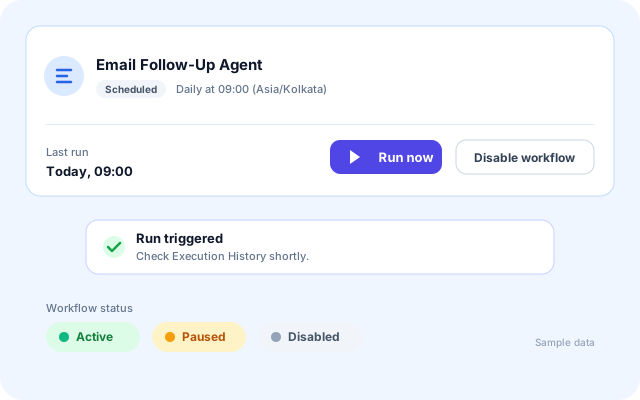
Test a change straight away, then control the workflow from the same place without deleting it.
- Run now starts a run outside the normal schedule.
- Enable or disable a workflow, with a confirmation prompt.
- Status shows Active, Paused or Disabled at a glance.
- Delete a workflow you created when you no longer need it.
Review every run
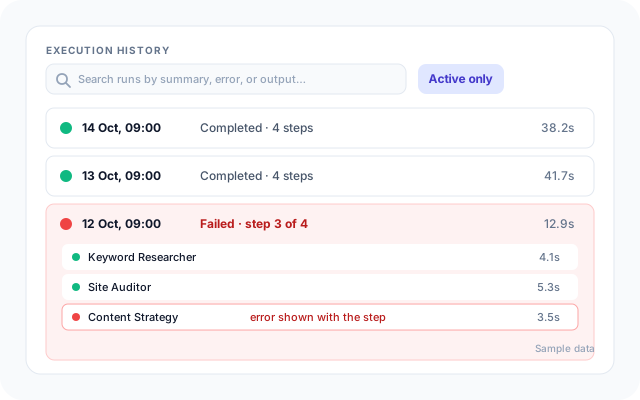
Execution History keeps each run so you can see what happened, how long it took and where it failed.
- Search runs by summary, error or output.
- Toggle between active runs only and all runs.
- Open a run to see each step with its output and duration.
- Errors are recorded against the step that failed.
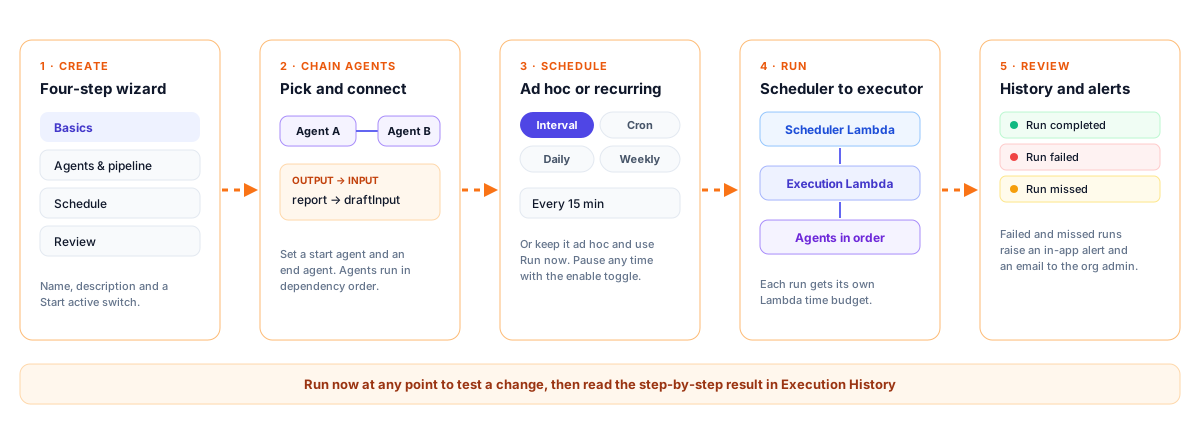
From deployed agents to a reviewed run
The same five moves apply whether the workflow has two agents or ten.
- Deploy your agents: Workflows chain agents that are already deployed, so deploy them first from the App Store.
- Create the workflow: Click Create workflow and give it a name and a description in the Basics step.
- Chain the agents: In Agents & pipeline, choose the agents, a start and an end, and map outputs to inputs.
- Schedule or run now: Pick ad hoc or a recurring schedule, set Start active, and use Run now to test.
- Read the history: Open Execution History and Reports to see runs, steps, errors and daily totals.
One workflow, five stages
How workflows are built
The page talks to one API, runs are stored in DynamoDB, and scheduling and execution are separate Lambda functions so a long workflow gets its own time budget.
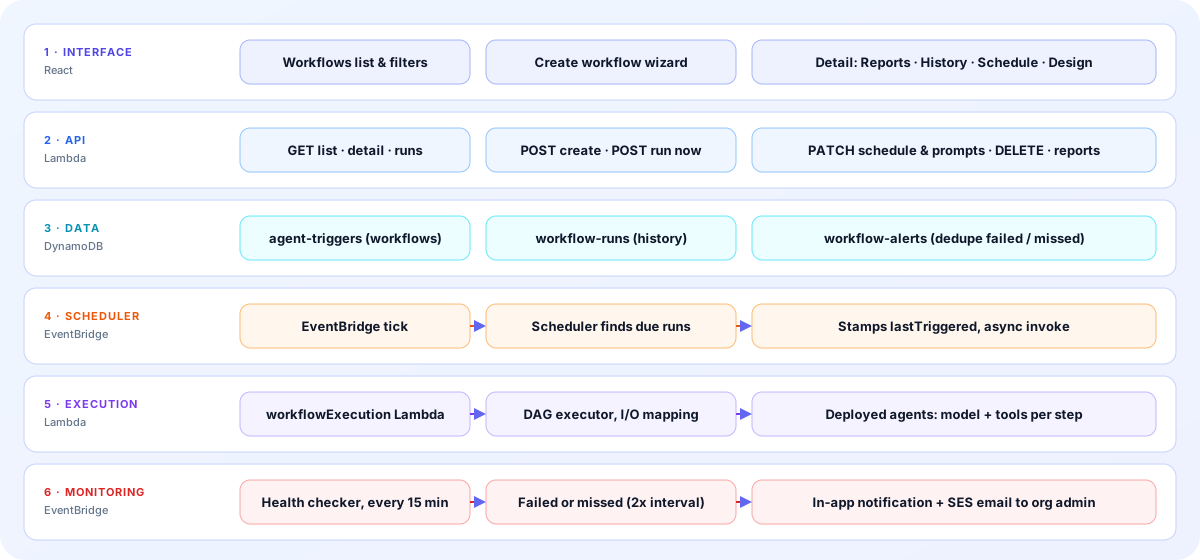
- Interface: The Workflows list, the Create workflow wizard and a detail view with Reports, Execution History, Schedule and Design tabs.
- API: One /api/workflows endpoint lists, creates, updates and deletes workflows, triggers a run, and returns run history and reports.
- Data: Workflow definitions, per-run records with step results, and alert markers each live in their own DynamoDB table.
- Scheduler: An EventBridge tick wakes a scheduler Lambda that finds due schedules, stamps lastTriggered and starts each run asynchronously.
- Execution: A separate Lambda runs the agents in dependency order, passes mapped outputs along, and saves each step and the final result.
- Monitoring: A health checker runs every 15 minutes, flags failed runs and runs missed for twice their interval, and notifies the org admin.
The screens you will use
Labels below match the real tabs and buttons.
Reports
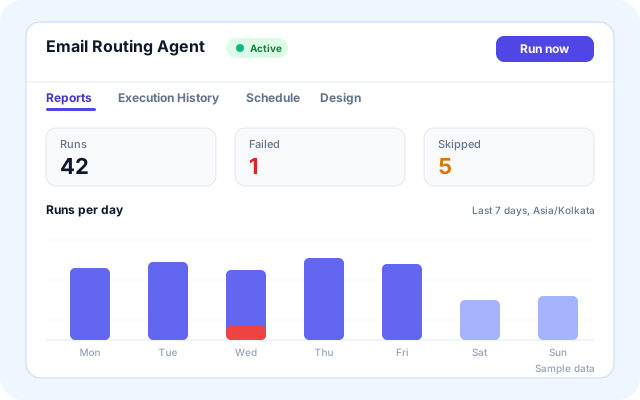
Each workflow opens with Reports, a daily breakdown over a date range in Asia/Kolkata time.
- Run and failure totals for the range.
- Switch to Execution History for individual runs.
- Run now sits in the header.
Design
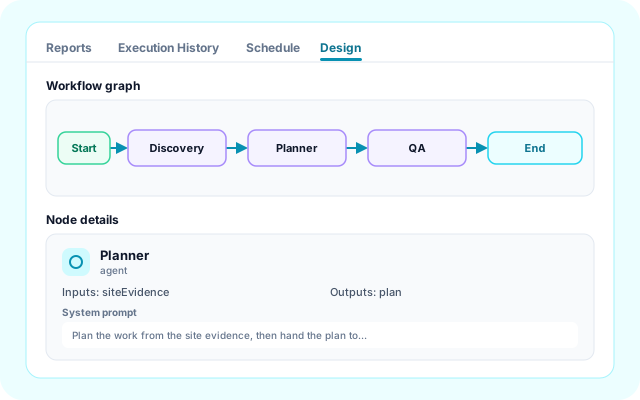
The Design tab shows the graph and the details of every node in order.
- Inputs and outputs for each node.
- The system prompt for each agent.
- Start and end nodes are marked.
Create workflow
A guided dialog with four steps: Basics, Agents & pipeline, Schedule and Review.
- Search deployed agents and select several.
- Run manually or pick Interval or Cron.
- Start active switch before you save.
What teams run on Workflows
These are processes the platform already ships templates or definitions for, plus your own.
- Email routing and follow-ups: The ERA templates create workflows that poll a mailbox, route mail and check open threads for follow-up.
- SEO analysis and rank monitoring: SEO Management creates an analysis workflow and a rank-monitor workflow for each website.
- Google Ads performance loops: PMA creates Full Orchestration, Quick Audit and Campaign Launch workflows, plus a scheduled Performance Monitor.
- Trading cycles: The ATA template runs prediction refresh and trading cycles on an interval, with real or virtual mode shown on the row.
- Campaign posts with approval: The MSA template generates content on a schedule and sends it for approval before publishing.
- Your own agent pipelines: Chain any deployed agents, for example one agent that gathers intel and another that acts on it.
What workflows run on and connect to
Only components present in the product code are listed.
- Deployed agents
- Workflow templates
- AWS Lambda
- Amazon EventBridge
- Amazon DynamoDB
- Amazon SES
- In-app notifications
- Gmail and IMAP/SMTP (ERA)
- Angel One (ATA)
Control and visibility
What keeps scheduled automation reviewable.
- Organisation scoped: Workflows, runs and reports belong to your organisation and user, and org admins can see their organisation.
- Confirm before switching: Enabling or disabling a workflow asks for confirmation first.
- Step-level audit trail: Each run stores step outputs, durations and errors for later review.
- Failed and missed run alerts: The health checker sends an in-app notification and an email to the org admin, once per failure cycle.
Everything on the Workflows page
- Summary tiles: Total workflows, Scheduled, Ad hoc, Active and Paused at the top of the page.
- List and card views: Switch views and sort by name, last run, status or schedule type.
- Filters: Filter by execution type, category and template, with a search box.
- Execution History: Paginated runs with search and an Active only toggle.
- Reports: Daily metrics over a date range for each workflow.
- Design view: Read-only graph and node details for every workflow.
- Template-aware tabs: Template workflows add tabs such as Routing Rules, Follow-up SLA or Campaign Setup.
- Open in full page: Every workflow also opens as its own page at /workflows/:id.
Frequently asked questions
What does run-now do?
Run-now starts a workflow immediately, outside its normal schedule. It is useful for testing a new workflow, getting a result on demand, or re-running a process after you have changed its configuration.
Can I see what happened in earlier runs?
Yes. The workflow execution history lists past runs so you can check when they ran and whether they completed, and use that record to investigate anything that needs attention.
Do I have to build every workflow myself?
No. Coderva provides workflow templates for common processes such as email routing and SEO management. You can enable a template for your organization and adjust it, or build your own from scratch.