What you can do in Agent Builder
- Write and refine the system prompt and instructions that define the agent role and tone.
- Connect tools from the platform catalog so the agent can search the web, send email, update a CRM or open a ticket.
- Attach knowledge such as documents or reference material the agent should answer from.
- Arrange the steps of the flow visually so the logic is easy to follow and review.
- Run test conversations inside the builder and adjust before deploying.
How it works
- Open an agent from Agent Studio, or start a new one, and enter the Agent Builder.
- Describe the goal and write the prompt that tells the agent how to behave.
- Add the tools the agent needs and set up any knowledge sources it should use.
- Use the test panel to try realistic questions and inspect how the agent responds and which tools it calls.
- Deploy the agent so it can be used directly or as a step in a workflow.
Who it is for
Agent Builder is for teams that want control over agent behavior. Product owners can read the flow to confirm it matches policy, while developers can tune prompts and tool choices. Operations teams use it to adapt a template to local processes such as how a support request is triaged or how a quotation is phrased, without waiting for a custom development cycle.
Key capabilities
- Visual flow editing that makes agent logic transparent.
- Prompt, tool and knowledge configuration in a single place.
- Built-in testing so changes are checked before they reach users.
- Deployment that connects directly to workflows and apps on the platform.
- Designer or Wizard: Switch between a node canvas and a three-step guided form for the same agent.
- Test with visible steps: The Test tab shows each thought, tool call and result, and accepts CSV, PDF and image files.
- Save, deploy, export: Save the agent, deploy it to a URL, view generated Python code or submit it as a template.
What you can do in the Agent Builder
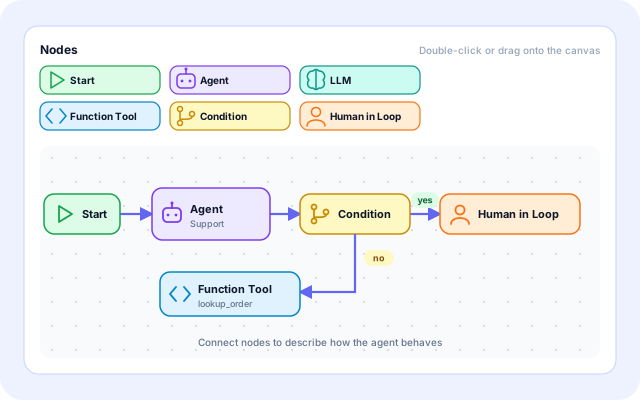
Draw the agent on a canvas
In Designer mode you drag nodes onto a canvas and connect them. What you draw is kept in sync with the agent configuration that the runtime reads.
- Node types: Start, Agent, LLM, Function Tool, Condition and Human in Loop. Double-click or drag to add one.
- Tool nodes become the agent tool list, and Function Tool nodes become custom functions.
- The LLM node holds the model, temperature and max tokens.
- A Node Properties panel edits labels, descriptions and the system prompt, and the canvas can go fullscreen.
Or fill in a guided Wizard
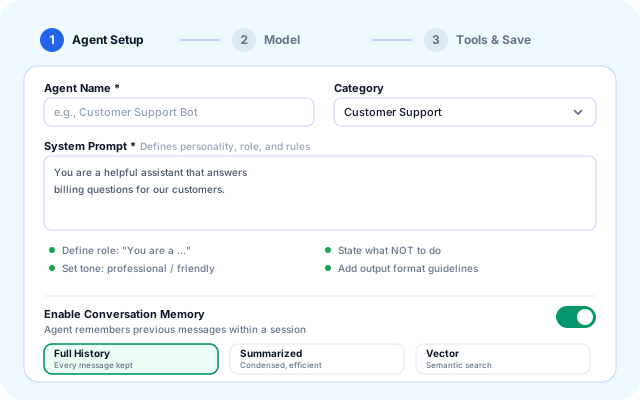
The Wizard walks through Agent Setup, Model and Tools & Save. It edits the same agent, so you can switch to Designer at any point.
- Agent Name and System Prompt are required before you can move on.
- Pick one of seven categories: Customer Support, Data Analysis, Code Review, Content Creation, Research, Sales Assistant or Custom.
- Prompt tips cover role, what not to do, tone and output format.
- Turn on Conversation Memory and choose Full History, Summarized or Vector.
Pick a model and tune it
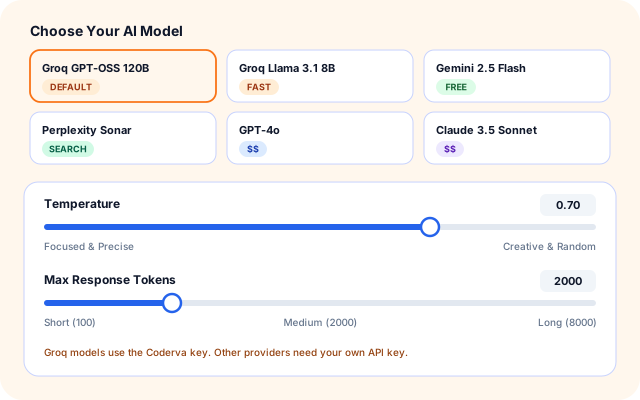
Choose from nine models and set how focused or creative the agent should be. Groq models run on the Coderva key. Other providers need your own API key.
- Models: Groq GPT-OSS 120B (default), Groq Llama 3.1 8B, Perplexity Sonar and Sonar Pro, Gemini 2.5 Flash and 2.0 Flash, GPT-4 Turbo, GPT-4o and Claude 3.5 Sonnet.
- Temperature runs from 0.00 to 1.00 in steps of 0.01.
- Max Response Tokens runs from 100 to 8000, with 2000 recommended for most tasks.
- The next step cannot be reached until a required API key is entered.
Deploy it, or offer it as a template
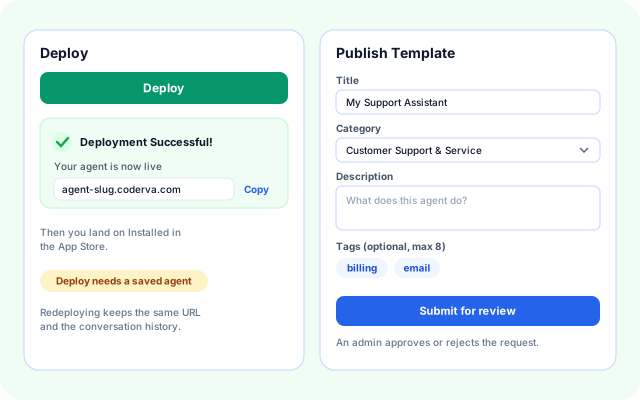
Once an agent is saved, Deploy publishes it to AWS Lambda behind its own URL. You can also submit the agent as a template for other users.
- Deploy is disabled until the agent has been saved.
- A success message shows the agent URL with a Copy button, then opens Installed in the App Store.
- Publish Template asks for a title, category, description and up to eight tags.
- An admin approves or rejects the template request.
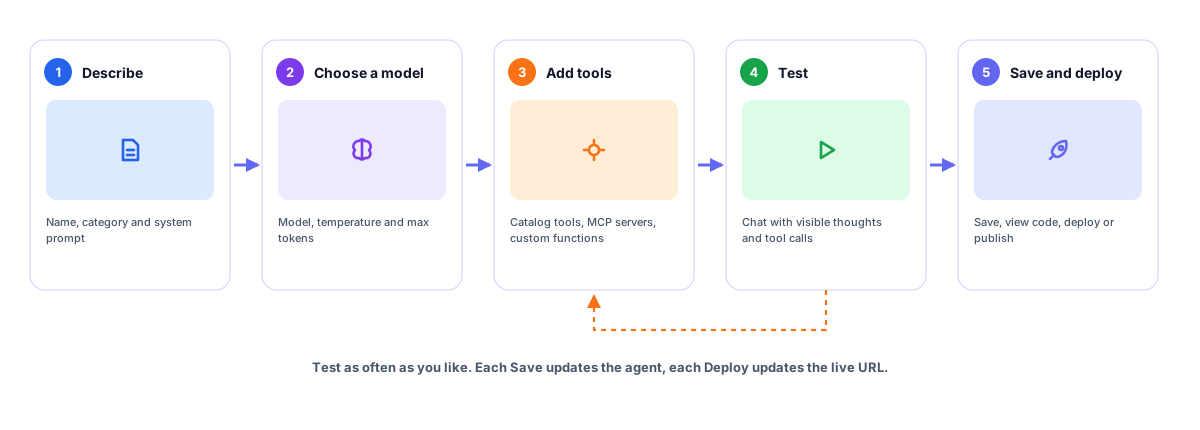
From a blank agent to a live one
The same five steps apply in Designer and in Wizard mode.
- Open an agent: Press Edit on a card in Agent Studio, or create a new agent. A new agent starts with the prompt "You are a helpful AI assistant."
- Describe it: Set the name, description, category and system prompt. Add memory if the agent should remember the session.
- Choose model settings: Pick a model, temperature and maximum response length. Add an API key if the provider needs one.
- Attach tools: Add catalog tools, register an MCP server, or write a custom function with typed parameters.
- Test, save and deploy: Try it in the Test tab, press Save, then Deploy. Use the code icon to view generated files.
Build, test and ship in one editor
How the Agent Builder is built
The builder edits one configuration object. Saving stores it, testing sends it to a Lambda that runs the agent, and deploying copies it into a deployment record.
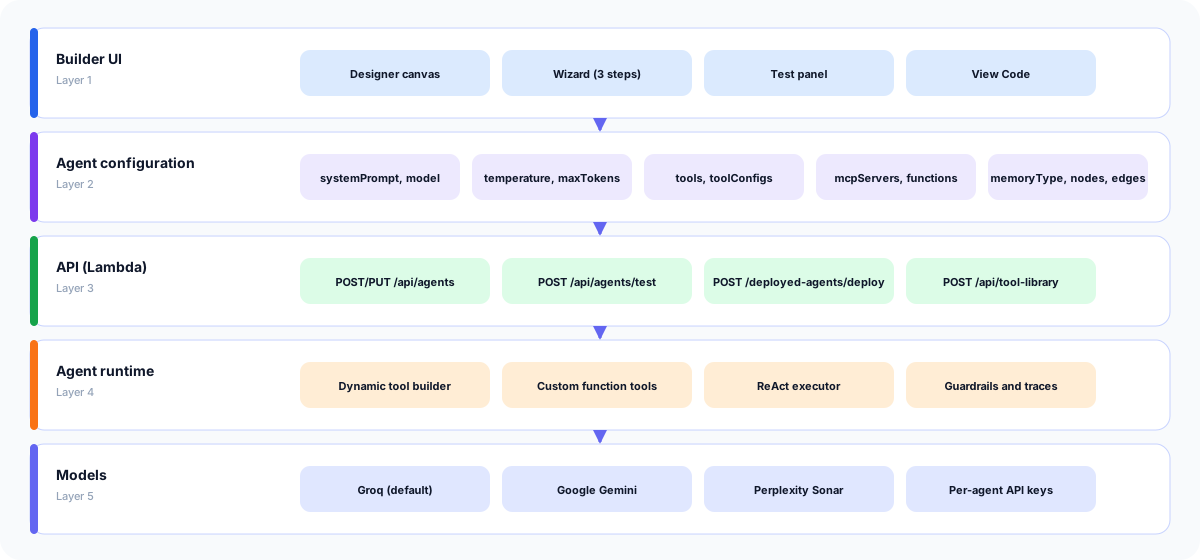
- Builder UI: AgentBuilderPage hosts the Designer canvas, the Wizard, the Test panel and the View Code panel behind one toolbar.
- Agent configuration: One object holds name, system prompt, model, temperature, max tokens, tools, tool settings, MCP servers, custom functions, memory type and the canvas nodes and edges.
- API: POST and PUT /api/agents save the agent. POST /api/agents/test runs it with a message and optional files. POST /api/deployed-agents/deploy publishes it.
- Agent runtime: The dynamic tool builder turns tool IDs and custom functions into LangChain tools. A ReAct executor loops over thought, action and observation, up to the number of tools plus five rounds, never fewer than 6 or more than 20.
- Models: Groq by default, with Gemini and Perplexity support. A 429 rate limit returns a readable message instead of an error.
Test, export and extend
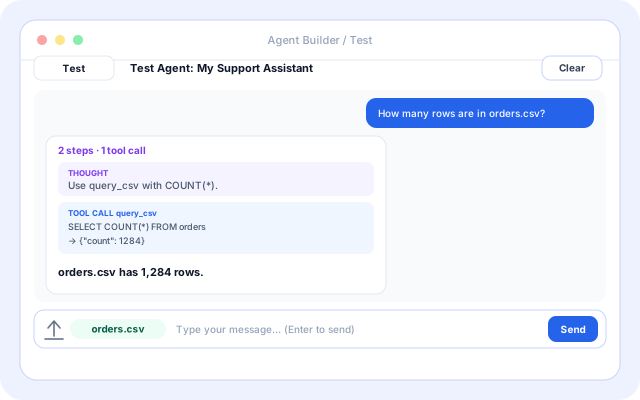
Sample data shown. Tab names and buttons match the live builder.
Test tab
Chat with the agent exactly as configured. Each answer can be expanded to show the thought, the tool call and the tool result behind it.
- A summary such as "2 steps · 1 tool call" on every response.
- Attach CSV, PDF or image files, up to ten per session, for the tools that read them.
- Clear resets the conversation. Enter sends and Shift+Enter adds a new line.
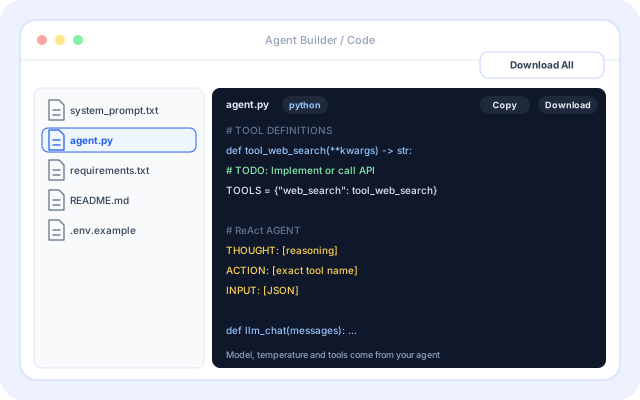
View Code
The code icon in the toolbar generates files for the current agent so you can read how it is put together or take it elsewhere.
- system_prompt.txt, agent.py, requirements.txt, README.md and .env.example.
- Copy or Download a single file, or Download All.
- agent.py contains a Python ReAct loop with a stub for each tool that you finish yourself.
Tools and MCP sidebar
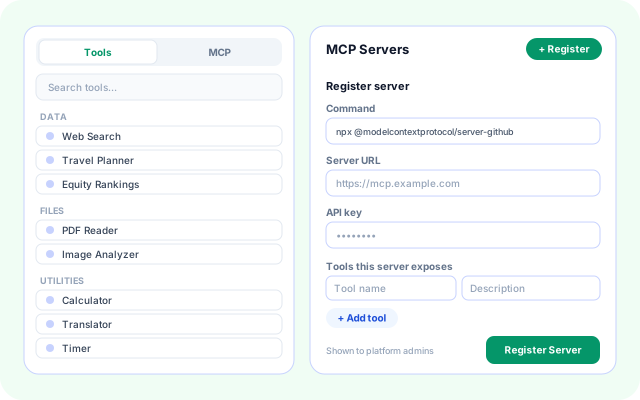
In the Designer, the left sidebar has a Tools tab and an MCP tab. Search the catalog, drag a tool onto the canvas, or register an MCP server.
- Tools are grouped by category and searchable.
- Register an MCP server by command or URL, with an API key and the tools it exposes.
- Custom functions can be saved to the Tool Library and reused across your agents.
What teams build in the Agent Builder
The builder does not limit the use case. These are patterns the current tools and settings support.
- Adapt a template to your process: Open an agent created from a template and rewrite the prompt, swap tools and retest before deploying.
- Answer from your own files: Attach CSV Database or PDF Reader, upload files in the Test tab, and ask questions about the contents.
- Query a database in plain language: Add the Database tool with a host, database name and credentials so the agent can write and run queries.
- Add your own logic: Write a Function Tool in JavaScript with typed parameters, then save it to the Tool Library for other agents.
- Marketing and SEO agents: Combine the SEO tools, such as Site Auditor and Keyword Research, with the email marketing tools for cohorts and campaigns.
- Hand an agent to your team: Deploy it, share it as Editor or Viewer, or submit it as a template for an admin to approve.
Models, tools and systems the builder connects
Only items present in the product today. Some need your own keys or settings.
- Groq
- Google Gemini
- Perplexity
- OpenAI and Anthropic API keys
- MCP servers
- GitHub
- PostgreSQL
- CSV files
- PDF documents
- AWS Lambda
- Amazon DynamoDB
- Tool Library
Access and review
Controls that exist in the builder and its APIs today.
- Owner, Editor and Viewer: Opened from a shared deployment, the builder shows your role. Viewers can look and test but cannot save changes.
- Save before deploy: Deploy stays disabled until the agent has an ID, so a deployment always starts from a saved agent.
- Reviewed templates: Templates submitted from the builder wait as pending requests until an admin approves or rejects them.
- Guardrails and traces: Organizations can add input and output guardrails for deployed agents, and agent runs are traced.
Everything in the toolbar and tabs
- Designer canvas: Drag nodes, connect them and edit properties, with a fullscreen mode.
- Wizard: Three steps: Agent Setup, Model, and Tools & Save.
- Memory options: Full History, Summarized or Vector memory for a session.
- Nine models: Groq, Perplexity, Gemini, OpenAI and Anthropic model choices.
- Tools and MCP: Catalog tools with per-tool settings, MCP server registration and custom functions.
- Test with files: Chat with visible steps, and attach up to ten CSV, PDF or image files.
- View Code: Generate a Python ReAct agent with its prompt, requirements and README.
- Deploy and publish: Deploy to a URL, or submit the agent as a template.
Frequently asked questions
Can I test an agent before it is deployed?
Yes. The builder includes a testing step where you can try sample conversations and see how the agent responds and which tools it uses. You can refine prompts and settings and test again before deploying.
Where do the tools in the builder come from?
Tools come from the platform tool catalog, which includes capabilities such as web search, email, CRM, ticketing and calendar actions. You choose which tools each agent is allowed to call.
Can one agent be used in more than one workflow?
Yes. Once an agent is built and deployed it can be used standalone or added as a step in workflows, so the same well-tested behavior can support several processes.