Tool categories
- Data tools such as web search and CSV database.
- SEO tools for site analysis and search performance checks.
- Development tools such as GitHub.
- Communication and email tools for messages and email marketing.
- File tools, utilities and education tools for everyday agent tasks.
How it works
- Open the tools catalog to review the available tools and what each one does.
- In the Agent Builder, attach the tools an agent needs for its job.
- Give the agent clear instructions about when each tool should be used.
- Test the agent and check that it calls the right tools with the right inputs.
- Deploy the agent and monitor its behavior through workflow history.
Who it is for
The catalog is for builders deciding what an agent should be allowed to do. A support designer picks email and search tools, a developer picks GitHub and data tools, and a marketer picks SEO and search tools. Limiting each agent to only the tools it needs keeps behavior focused and easier to review. It also makes it easier to explain to colleagues exactly what an agent can and cannot do.
Key capabilities
- A single, browsable list of available tools and MCP tools.
- Per-agent tool selection so access matches the job.
- Coverage across data, SEO, development, communication and file use cases.
- Integration with both single agents and multi-step workflows.
- Clear boundaries, because an agent can only call the tools that you attach to it.
- Search and filter: Search by name, description or category, or pick one category from the menu.
- Tool details: Open any tool for its description, system prompt template and configuration fields.
- Attach per agent: Add tools in the Agent Builder Designer or Wizard. Each agent gets its own list.
What the tools catalog gives you
One catalog, grouped by what the tool does
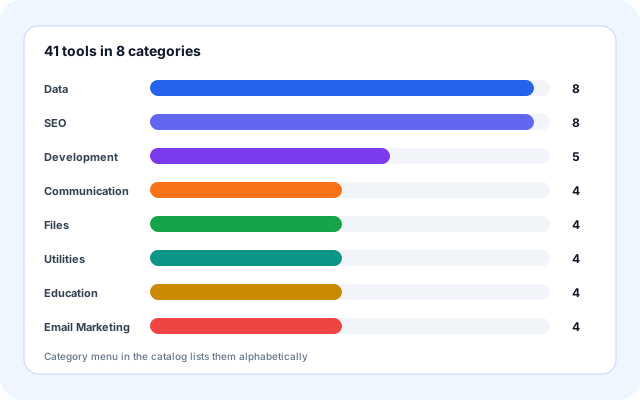
The Available Tools page shows all 41 tools in one searchable grid. Each category heading carries a count, and a sparkle marks the popular tools.
- Data (8), SEO (8), Development (5), Communication (4), Files (4), Utilities (4), Education (4) and Email Marketing (4).
- The badge at the top shows how many tools match your search and filter.
- Search matches tool name, description and category.
- The Wizard tools step uses the same 41-tool list. The Designer sidebar shows a 27-tool palette.
See what a tool needs before you use it
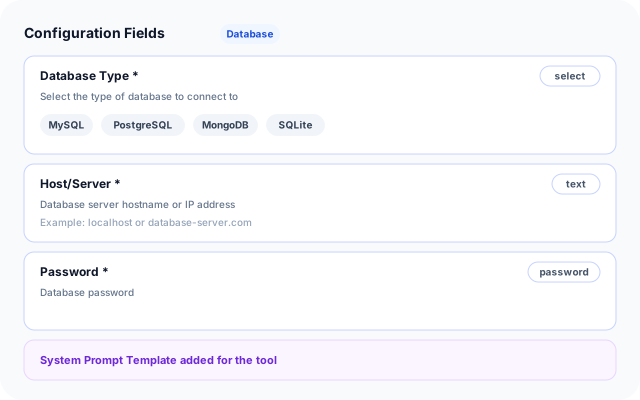
Click a tool card to open its details. You see what it does, the system prompt template it adds to an agent, and the fields you will fill in.
- Configuration fields show a label, a type badge, a required star, a description and an example.
- Select fields list their options, for example MySQL, PostgreSQL, MongoDB, SQLite, SQL Server, Oracle and DynamoDB for the Database tool.
- Tools without extra settings say so and explain where configuration appears.
- Every dialog ends with a short "How to use this tool" guide.
Give each agent only the tools it needs
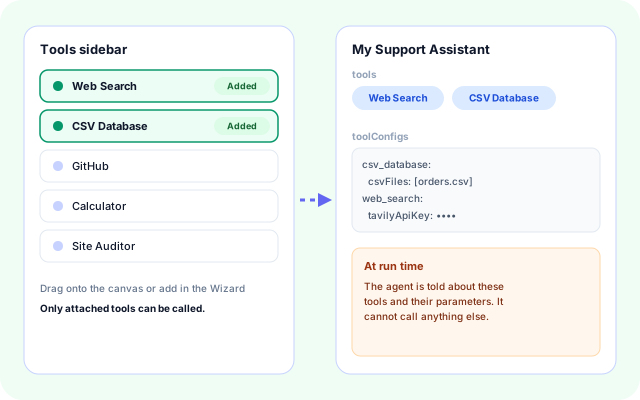
Tools are chosen per agent. The runtime builds the agent tool list from that choice and describes only those tools to the model.
- Pick tools in the Designer sidebar or in the Tools & Save step of the Wizard.
- Per-tool settings, such as uploaded CSV files, live in the agent toolConfigs.
- The model sees each tool with its parameters and cannot call a tool that is not attached.
- Fewer tools keep behavior easier to review and explain.
Add your own when no catalog tool fits
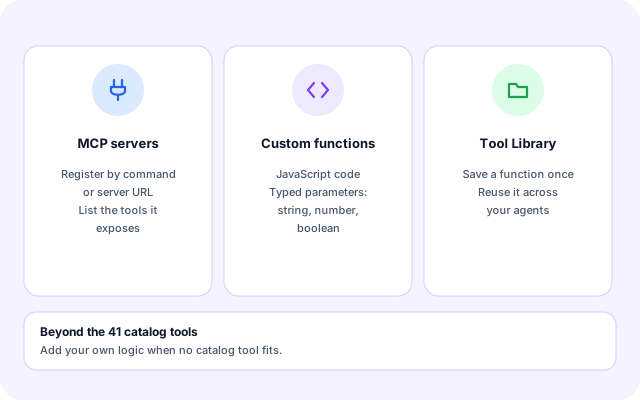
Beyond the catalog, the builder supports custom functions and MCP servers, and a Tool Library for sharing your functions across agents.
- Function Tool nodes hold JavaScript code and typed parameters such as string, number or boolean.
- Save a function to the Tool Library and reuse it in your other agents.
- Register an MCP server by command or URL and list the tools it exposes. This is available to platform admins.
- Custom functions run inside the same agent loop as catalog tools.
From browsing a tool to a tested agent
You need to be signed in with access to the agent builder to open the catalog.
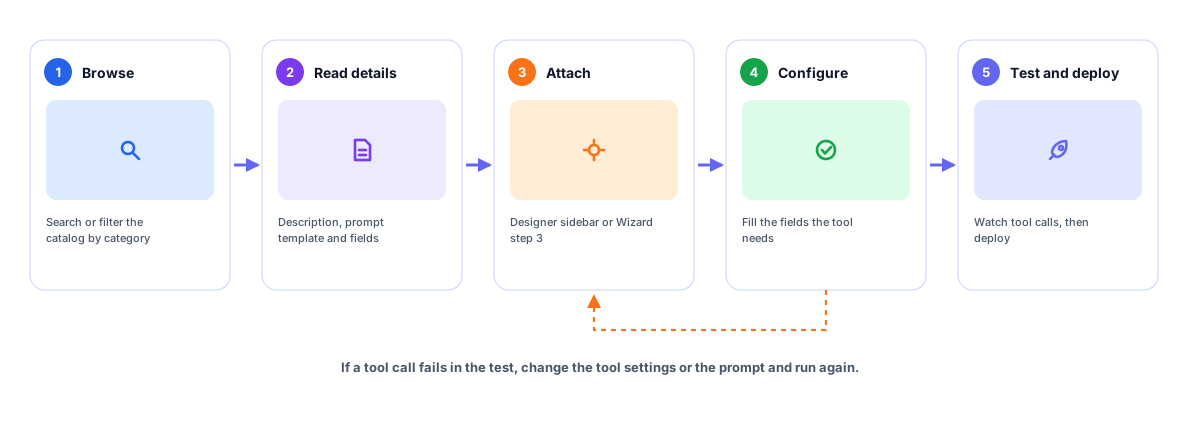
- Open Available Tools: Go to /available-tools. The page lists every tool with its category and a short description.
- Search or filter: Type in the search box or choose a category. Counts update as you narrow the list.
- Read the details: Open a tool to see its system prompt template, configuration fields and a how-to guide.
- Attach it in the builder: In the Designer, drag the tool onto the canvas. In the Wizard, select it in the Tools & Save step, then set its fields.
- Test the tool calls: In the Test tab, expand a response to see the tool name, its input and the result. Adjust and test again.
Find, attach, configure, test
How tools reach an agent
A tool is a tool ID plus optional settings on the agent. On each run, a Lambda turns those IDs into typed tools and hands them to the agent loop.
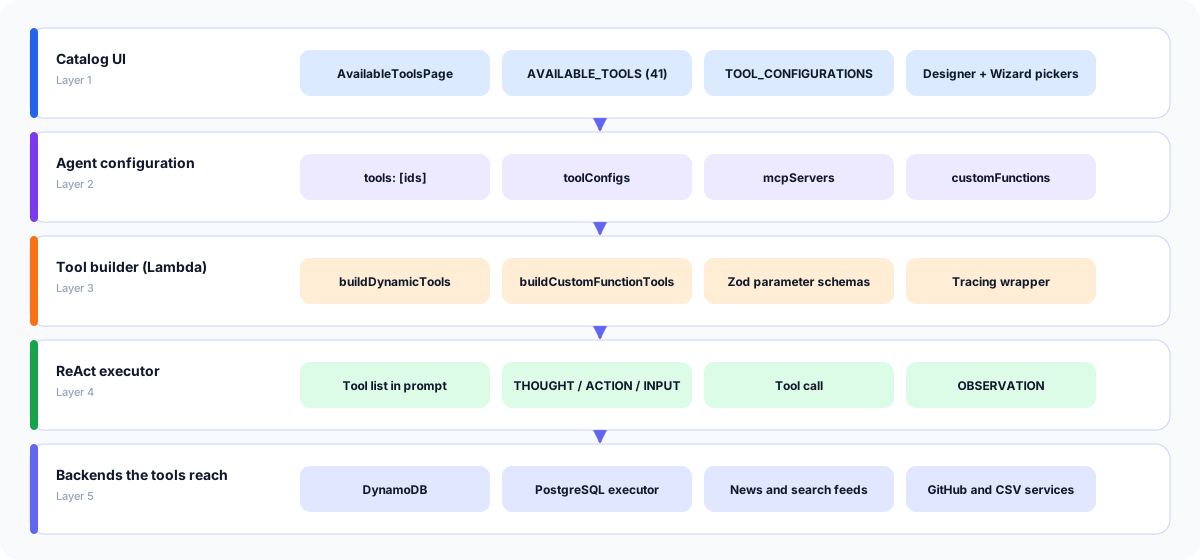
- Catalog UI: AvailableToolsPage renders one shared list of 41 tools. A second file holds configuration schemas and prompt templates for tools that have them.
- Agent configuration: Each agent stores tool IDs, per-tool settings, MCP server entries and custom functions.
- Tool builder: buildDynamicTools maps each ID to one or more LangChain tools with Zod parameter schemas. buildCustomFunctionTools does the same for custom functions. Calls are wrapped for tracing.
- ReAct executor: The prompt lists each tool with its parameters. The model replies with THOUGHT, ACTION and INPUT, the executor runs the tool and feeds back an OBSERVATION.
- Backends: Tools reach DynamoDB, a PostgreSQL query executor, news and search feeds, GitHub and a CSV query service, depending on the tool.
The catalog, a tool, and a tool call
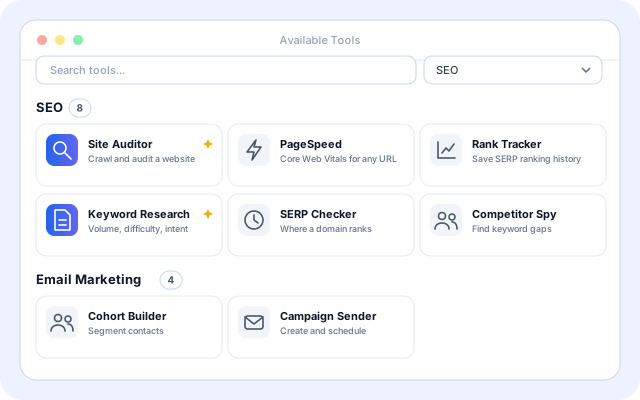
Sample data shown. Headings, badges and buttons match the live page.
Catalog with a category filter
Choose a category and the page shows only its tools, each under a heading with a count. Popular tools carry a sparkle.
- Search box and category menu above the grid.
- Three cards per row on wide screens.
- Popular tools get a highlighted icon.
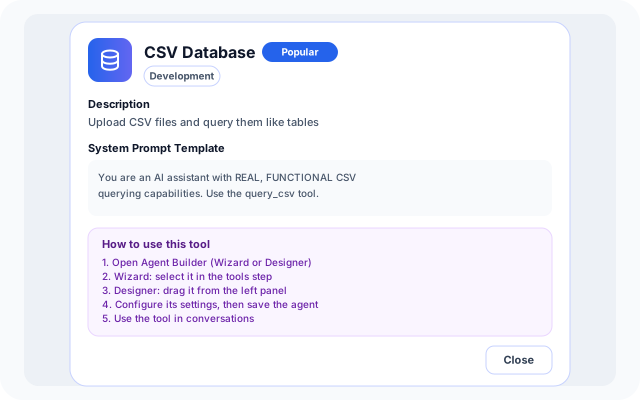
Tool details
Select a card to read what the tool does and how an agent uses it.
- Name, Popular badge and category.
- Description and system prompt template.
- Configuration fields where the tool has them, then a how-to guide.
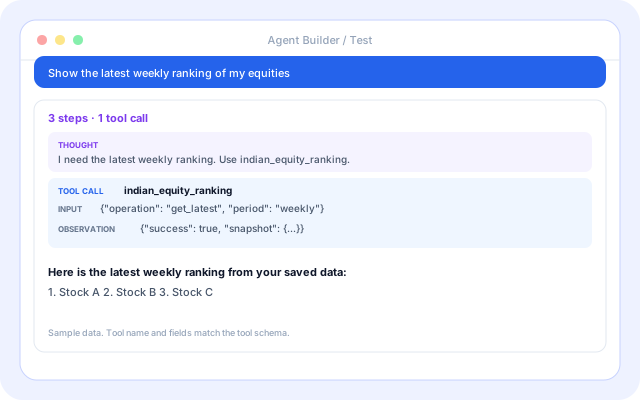
A tool call in the Test tab
In the Agent Builder Test tab, each response shows the thought, the tool called, the input sent and the observation returned.
- Summary such as "3 steps · 1 tool call".
- Tool name and JSON input for every call.
- The raw result, so you can spot a bad parameter quickly.
What the current tools cover
These groups come from the catalog and the tool builder as they exist today.
- Market research with live news: Web Search pulls news from Google News, Yahoo Finance and other feeds. Indian Equity Intel and Equity Rankings save and rank research.
- Questions about spreadsheets: CSV Database lets an agent run SQL against CSV files you upload, for counts, filters and column lookups.
- Search marketing: Eight SEO tools: Site Auditor, PageSpeed, Rank Tracker, Keyword Research, SERP Checker, Competitor Spy, Content Publisher and Schema Generator.
- Email marketing: Cohort Builder, Campaign Sender, Analytics and Personalisation cover segmenting, sending, tracking and tailoring email campaigns.
- Code and repositories: The GitHub tool lists files, reads a file and searches code in a configured repository.
- Study and campus data: Audio Transcription, College Info, Current Session and Lectures store and organize lecture and course information.
Systems the tools connect to
Only systems referenced in the product today. Some need your own keys or settings.
- Google News and Yahoo Finance feeds
- Tavily and Brave Search (optional keys)
- Google PageSpeed Insights
- Serper.dev keyword data
- GitHub
- PostgreSQL
- Amazon DynamoDB
- CSV files
- PDF documents
- Open-Meteo weather
- MCP servers
- Tool Library
Control over what agents can do
Behavior the catalog and runtime enforce today.
- Sign-in and capability check: The catalog page requires a signed-in user with access to the agent builder.
- Only attached tools run: The agent prompt lists the attached tools only. Each tool has a typed parameter schema.
- Claims checked against calls: If an agent says it saved data without calling a write tool, it is challenged, and if it repeats, the user sees a Not saved notice. Figures stated with no query tool call are challenged too.
- Traceable tool calls: Tool calls are wrapped for tracing and shown as steps in the Test tab.
What the Available Tools page does
- Search: Matches name, description and category as you type.
- Category filter: Eight categories plus All, with a count per heading.
- Popular marker: A sparkle on the eight most used tools.
- Tool details: Description, category and a how-to guide for every tool.
- Prompt templates: Read the system prompt text a tool adds to an agent.
- Configuration fields: Text, select, number, password, textarea and URL fields with examples.
- Custom functions: Write a JavaScript function with typed parameters and attach it as a tool.
- Tool Library: Save a function once and reuse it across your agents.
Frequently asked questions
What are MCP tools?
MCP stands for Model Context Protocol, an open way for AI applications to connect to external tools and data. Coderva includes MCP Studio for registering and exploring MCP servers alongside the built-in tool catalog.
Can I restrict which tools an agent may use?
Yes. You select the tools for each agent in the Agent Builder, so an agent only has access to the actions you attach. This helps keep each agent focused on its intended task.
Do tools run automatically without review?
Agents call tools as part of the behavior you design. You can test that behavior before deploying and review workflow execution history afterward, so you stay informed about what actions were taken.