What you can do in Agent Studio
- Browse a catalog of agent templates for common jobs such as customer support, sales assistance and quotations.
- Create a new agent from a template or start with a blank definition and shape it to your process.
- See all agents that belong to your organization, with their current configuration and status.
- Open any agent in the Agent Builder to edit prompts, tools and knowledge, then test it before use.
- Keep agents scoped to your organization so each team sees only what it should.
How it works
- Sign in to Coderva and open Agent Studio from the platform navigation.
- Browse the template tab and pick a template close to the job you need done.
- Create the agent, then open it in the Agent Builder to adjust instructions, connect tools and add knowledge.
- Test the agent with sample conversations and refine until it behaves the way your team expects.
- Use the agent on its own or as a step inside a multi-step workflow.
Who it is for
Agent Studio suits operations teams, founders and engineers who want AI agents doing real work but do not want to maintain custom code for each one. A support lead can start from a customer support template, a sales manager can adapt a quotation agent, and a technical user can go deeper in the builder. Because agents live in one catalog, it is easier to avoid duplicates and to reuse what already works.
Key capabilities
- Template-first creation so you start from a working pattern rather than an empty page.
- Direct hand-off to the visual Agent Builder for deeper changes.
- Tool access through the platform tool catalog, including web search, email and CRM actions.
- Reuse of agents inside workflows, so one agent can serve several processes.
- Organization-level management so teams can find, review and update the agents they depend on.
- Agent Templates tab: Browse templates by category, open Details, then Use Template to get your own copy.
- Run and Edit: Run opens the Test tab. Edit opens the Agent Builder for the same agent.
- Deploy and share: Deploy from the builder, then share the deployed agent with read or write access.
What Agent Studio gives your team
Start from a working template
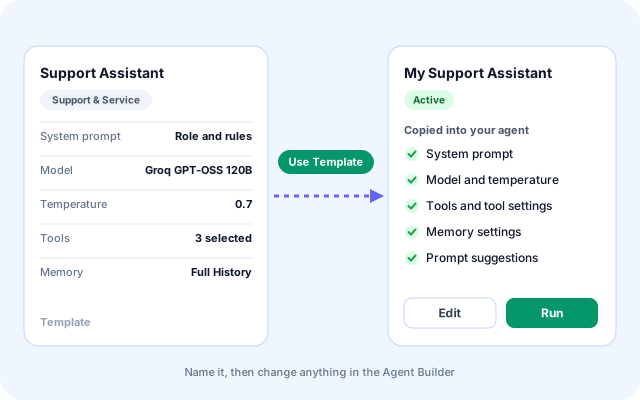
Use Template creates a new agent in your account and copies the template settings into it, so you begin with something that already behaves the way a finished agent should.
- Each template card shows its category, creator, complexity, use count and tool count.
- Details lists the template tools, required tools and example use cases.
- The new agent inherits the system prompt, model, temperature, tools, memory settings and prompt suggestions.
- Give it your own name, for example "My Support Assistant", and change anything afterwards.
Create from scratch when no template fits
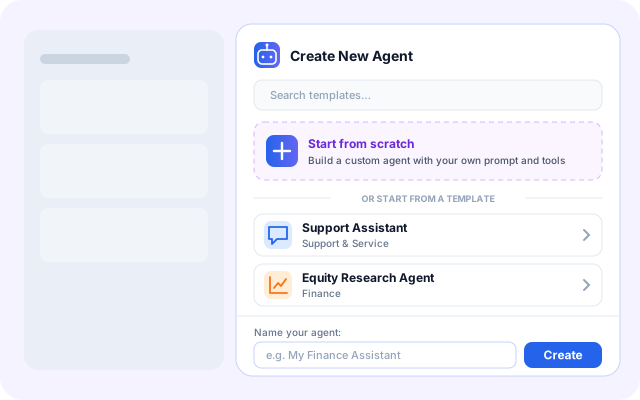
The Create Agent button opens a side panel with a template search, a Start from scratch option and a list of templates, so you can pick either path without leaving the page.
- Start from scratch builds a custom agent with your own system prompt and tools.
- Pick a template in the panel to preview its model and temperature before creating.
- Name the agent in the panel and press Create. The Agent Builder opens next.
- If you are not signed in you are sent to log in first, and the agent is created afterwards.
Run it, then edit it in the builder
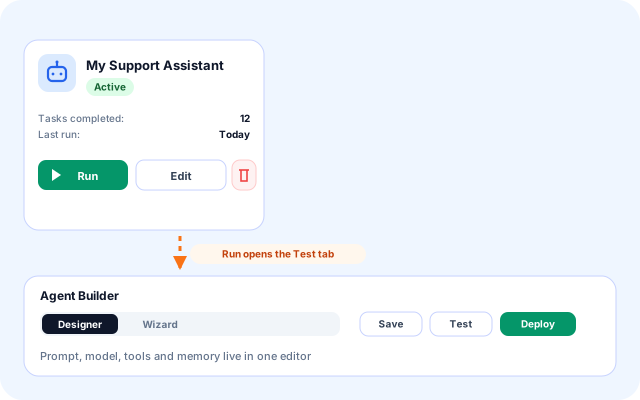
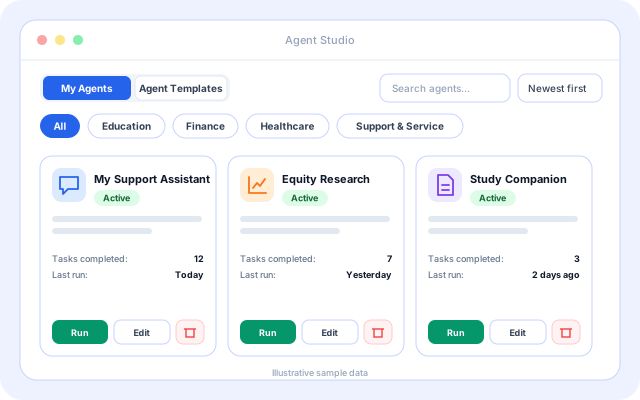
Each agent card in My Agents has Run and Edit. Run jumps straight to the Test tab of the Agent Builder so you can try the agent. Edit opens the same agent for changes.
- The card shows status, tasks completed and last run.
- The builder has a Designer canvas and a step-by-step Wizard.
- Save, Test and Deploy sit in one toolbar.
- A delete button asks for confirmation before removing an agent.
Deploy, share and review what happened
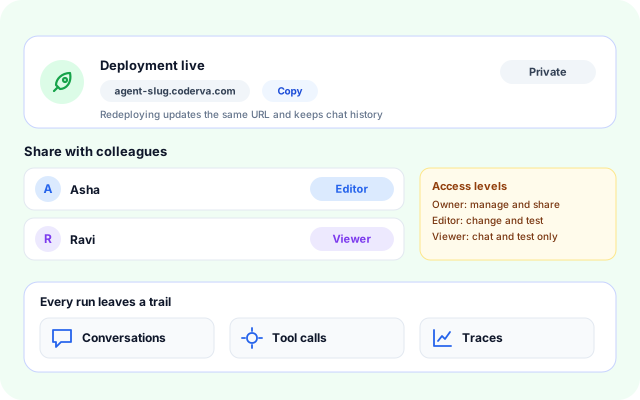
Deploying turns an agent into a live deployment with its own URL. You can share it with colleagues and look back at conversations and traces.
- Redeploying updates the existing deployment in place and keeps chat history.
- Share with other users as Editor (write) or Viewer (read).
- Deployments are private by default and can be published or unpublished.
- Conversations, tool calls and traces are stored per deployment.
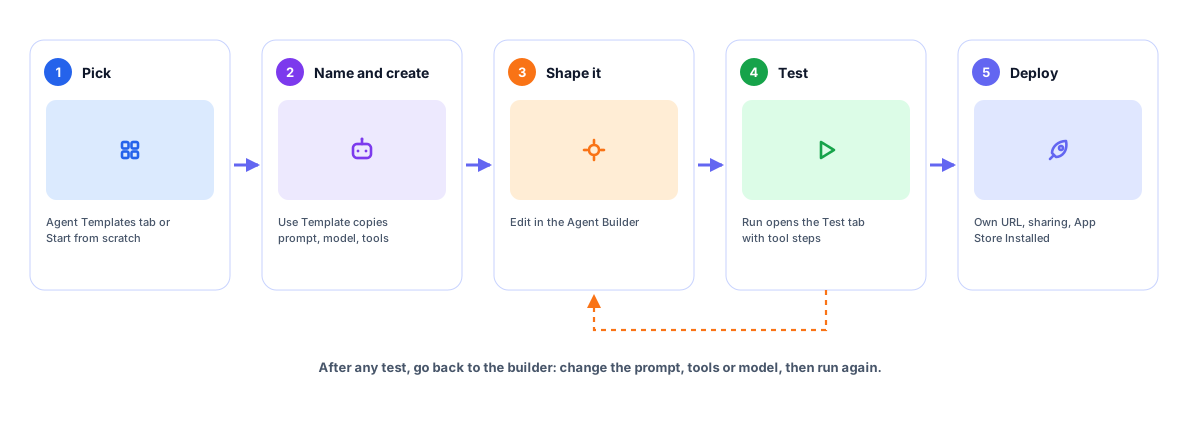
From first click to a deployed agent
Five steps, all inside Agent Studio and the Agent Builder it hands off to.
- Open Agent Studio: Go to /agent-studio. The page has a My Agents tab and an Agent Templates tab, plus search and sort.
- Pick a starting point: Filter templates by category or press Create Agent and choose Start from scratch.
- Name it and create: Use Template asks for a name, then creates the agent with the template settings copied in.
- Run and refine: Run opens the Test tab. Edit opens the builder to change the prompt, tools, model or memory.
- Deploy and share: Deploy from the builder. The agent then appears under Installed in the App Store.
Template to deployed agent in one loop
How Agent Studio is built
Agent Studio is a React page backed by Lambda functions and DynamoDB tables. Agents run through a LangChain ReAct executor that builds its tools from the agent configuration.
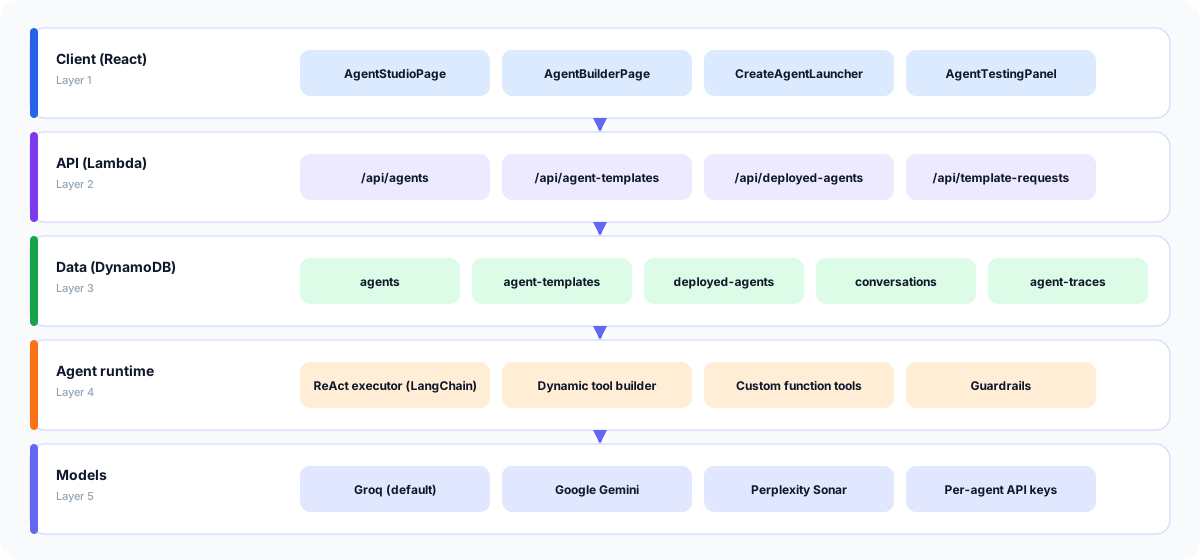
- Client: AgentStudioPage lists agents and templates. CreateAgentLauncher, AgentBuilderPage and AgentTestingPanel handle creating, editing and testing.
- API: Lambda handlers for /api/agents, /api/agent-templates, /api/deployed-agents and /api/template-requests. Agent and deployment calls need a signed-in user.
- Data: DynamoDB tables for agents, agent templates, deployments, conversations and messages, and agent traces.
- Agent runtime: A ReAct executor on LangChain asks the model for a thought, an action and an input, calls the matching tool and reads the observation.
- Models and tools: Groq is the default model. Gemini and Perplexity are supported, and tools come from the dynamic tool builder and custom functions.
The screens you will use
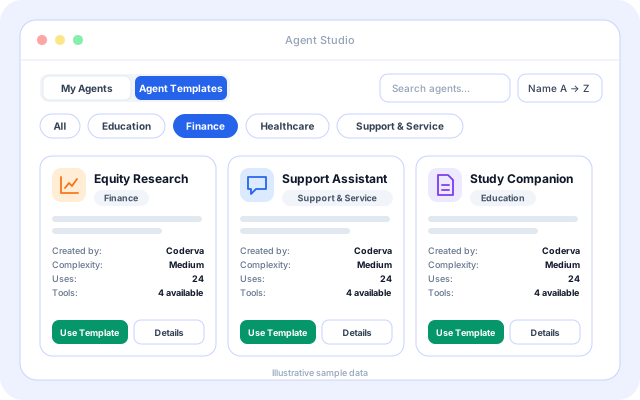
Sample data shown. Labels, tabs and buttons match the live page.
Agent Templates tab
Search and sort templates, filter by category, and see who created each one, its complexity, how often it was used and how many tools it includes.
- Category chips: All, Education, Personalization, Finance, Healthcare, Support & Service, Engineering.
- Sort: Newest first, Oldest first, Name A to Z, Name Z to A.
- Use Template and Details on every card.
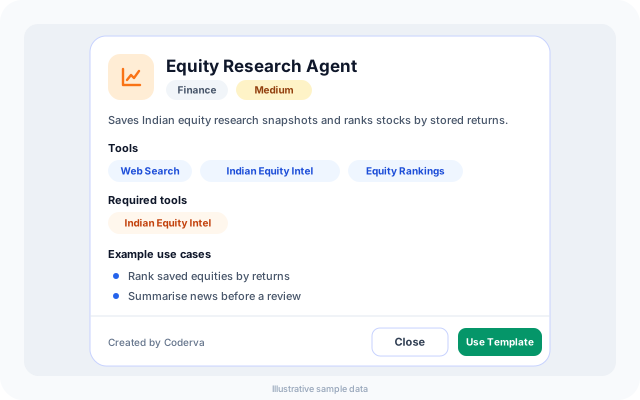
Template details
Before you create anything, open Details to see what the template includes and what it needs.
- Tools, required tools and example use cases.
- Creator name and complexity.
- Use Template from the dialog when it looks right.
My Agents tab
Every agent you have created, with its status and activity. Run it, edit it or delete it.
- Status badge, tasks completed and last run.
- Run opens the Test tab, Edit opens the Agent Builder.
- Same search, sort and category filters as templates.
Agents for the work your team repeats
Agent Studio does not fix what an agent is for. These are the kinds of agents the catalog and tools support today.
- Support and service: Start from a Support & Service template, attach the tools it needs and test it with real questions.
- Finance and market research: Combine Web Search, Indian Equity Intel and Equity Rankings to save research snapshots and rank stocks by stored returns.
- Education and study help: Use the Education tools such as Audio Transcription, College Info and Lectures to store notes and build study material.
- Data questions on your own files: Attach the CSV Database tool and upload CSV files in the test panel, then ask questions answered with SQL.
- Engineering helpers: Connect the GitHub tool to list repository files, read a file and search code from a chat.
- Search marketing: Use the SEO tools for site audits, Core Web Vitals, keyword research and SERP position checks.
Models and systems agents can use
Only systems that are in the platform today. Availability of each tool depends on how the agent is configured.
- Groq
- Google Gemini
- Perplexity
- AWS Lambda
- Amazon DynamoDB
- GitHub
- PostgreSQL
- CSV files
- PDF documents
- Google News and Yahoo Finance feeds
- Open-Meteo weather
- App Store
Ownership, sharing and review
What the code does today for access and oversight.
- Your agents are yours: Agents are saved against your user ID and listed for you only. Deployments start private.
- Read or write sharing: Share a deployment with another user as Viewer (read) or Editor (write). The owner keeps control of sharing.
- Admin-reviewed templates: Publishing your agent as a template creates a pending request. An admin approves or rejects it and the submitter gets an email.
- Guardrails and traces: Organizations can turn on guardrails: blocked keywords, PII detection, prompt injection checks and a topic policy. Runs are traced.
Everything on the Agent Studio page
- Template catalog: Browse templates created by Coderva and by users, with usage counts.
- Start from scratch: A blank agent with your own system prompt and tools.
- Search, sort and filter: Search by text, sort four ways and filter by six categories.
- Run: Open the Test tab for an agent in one click.
- Edit in the builder: Change prompts, tools, model, temperature, memory and flow.
- Safe delete: A confirmation dialog protects against deleting an agent by mistake.
- Publish as a template: Submit a saved agent as a template for admin approval.
- App Store link: Jump to the App Store to install agents and apps from the header.
Frequently asked questions
Do I need to write code to create an agent in Agent Studio?
No. You can start from a template and adjust it in the visual Agent Builder by editing prompts, choosing tools and adding knowledge. Technical users can go further, but a working agent does not require programming.
Can different teams in my organization have their own agents?
Agents are managed within your organization on Coderva, so teams work with the agents that belong to their workspace. This keeps configurations organized and avoids mixing unrelated processes together.
What is the difference between Agent Studio and Agent Builder?
Agent Studio is the catalog and management view where you find templates and list your agents. Agent Builder is the editor you open to design one agent in detail, including its prompts, tools and knowledge.