What you can do
- Review the plans available for your organization.
- Understand how usage-based pricing relates to agent and workflow activity.
- Manage your subscription and credit balance on the Billing page.
- Plan ahead by matching your intended usage with the right plan.
How it works
- Open the Pricing page. It is public, so you can compare plans before you sign up.
- Review the plans and read how usage is measured and charged.
- Choose a plan, or start on Free, and pay in INR through Razorpay when you upgrade.
- Use agents, workflows and apps as needed while usage is tracked.
- Open the Billing page to review usage, your credit balance and buy more credits.
Who it is for
The page is for owners and administrators responsible for budgeting and procurement, as well as team leads who want to understand the cost of running agents. Because pricing is connected to usage, a small team can begin with a few agents and expand over time, and finance stakeholders can see how activity relates to billing before they commit. Reviewing the page before rollout also helps teams agree on which agents and workflows are worth running regularly.
Key capabilities
- Clear presentation of plans and how they work.
- Credit-based pricing tied to platform activity.
- A Billing page for subscription, balance and usage.
- A transparent path from trial usage to wider rollout.
- A single place where administrators can review plan details before they decide on a rollout.
- Information that helps you estimate cost by thinking about how often your agents and workflows will run.
- INR billing through Razorpay.
- Credit balance: See total credits, purchased credits and executions in one row of cards.
- Buy credits: Purchase a credit pack from the page and pay through Razorpay.
- Activity history: Recent activity lists each debit and each purchase with its time.
What Pricing and Billing gives you
Balance and limits at a glance
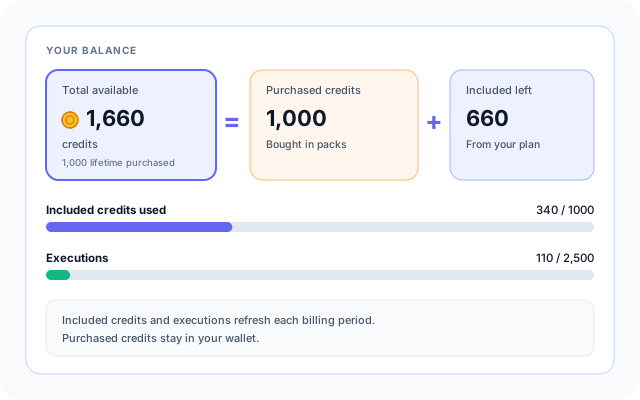
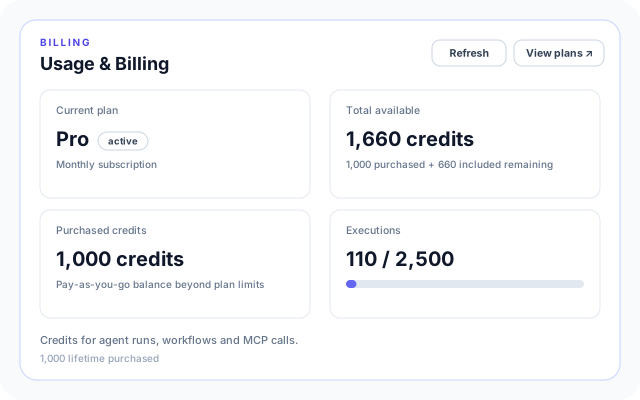
The top of Usage & Billing answers the first questions: which plan you are on, how many credits you can still spend, and how many executions you have used.
- Current plan with its status badge.
- Total available credits, split into purchased credits and included credits remaining.
- Executions used against the limit of your plan, with a progress bar.
- Lifetime purchased credits when you have bought packs.
Every run is metered
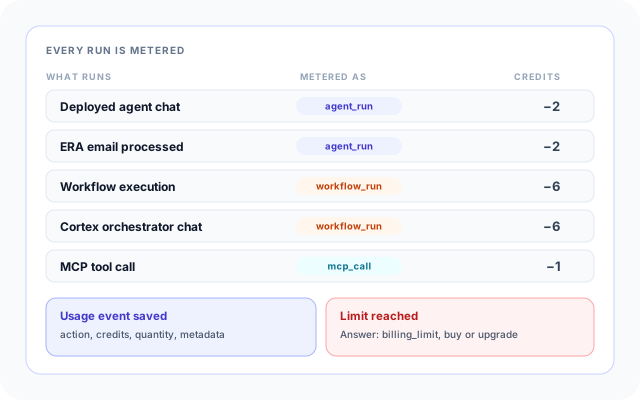
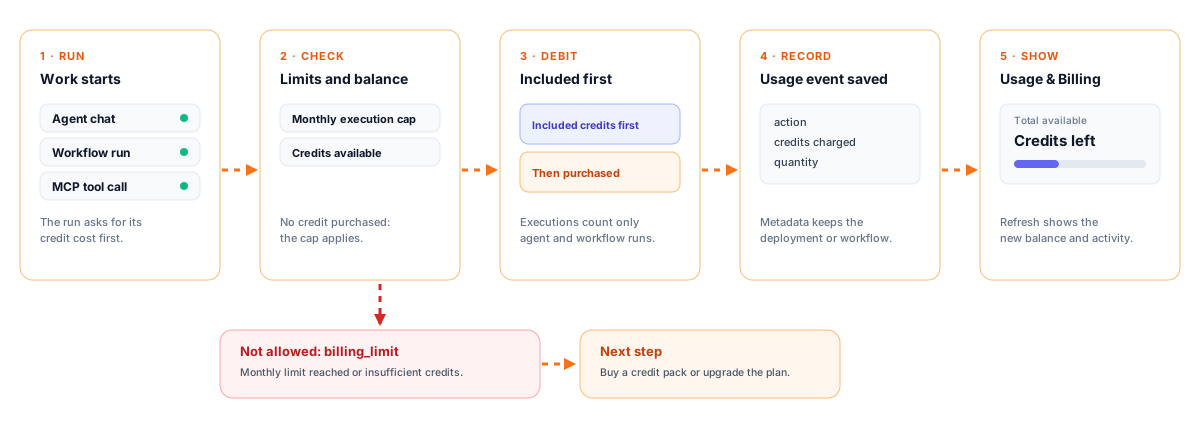
Metering happens in the runtime, not in a report afterwards. Each run checks your balance, takes its credits and saves a usage event.
- Deployed agent chat and ERA email processing count as agent runs.
- Workflow executions and Cortex orchestrator chat count as workflow runs.
- MCP tool calls made by agents count as MCP calls.
- When a limit is reached the run is refused with a billing_limit message and a link to pricing.
Plans that fit who you are
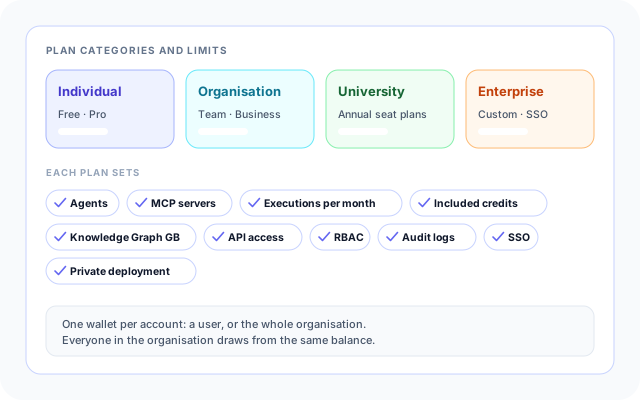
Plans come in four categories, and each plan sets the limits that apply to your account or organisation.
- Individual plans, Free and Pro, for one user.
- Organisation plans, Team and Business, with a shared wallet and shared workspace.
- University seat plans and Enterprise with custom pricing and SSO.
- Limits cover agents, MCP servers, executions per month, Knowledge Graph storage, API access, RBAC, audit logs, SSO and private deployment.
Buy credits in rupees
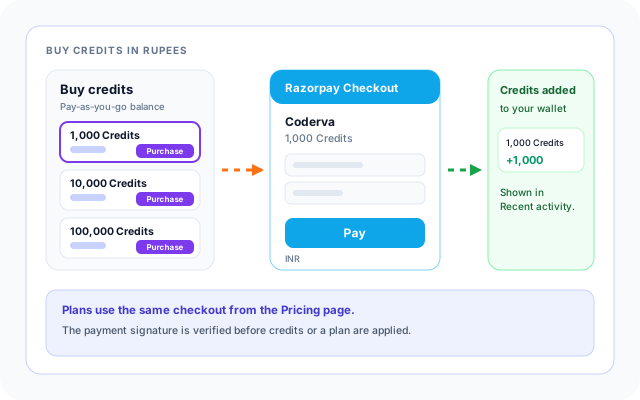
When included credits run low, top up without changing plans. Credits arrive in your wallet as soon as the payment is verified.
- Purchase buttons for each credit pack on the Buy credits panel.
- Razorpay Checkout in INR, with the payment signature verified.
- The purchase shows up in Recent activity as a plus entry.
- View plans takes you to the Pricing page to upgrade instead.
From a run to a line in your usage
The same steps apply to every metered action.
- Open Usage & Billing: Find it in the sidebar under Usage & Billing. Pricing sits next to it for plan details.
- Read your balance: Check Total available, Purchased credits and Executions before a busy period.
- Run your work: Chat with a deployed agent, run a workflow or let an agent call an MCP tool.
- Review Recent activity: Each run appears as a debit with its action and time, and purchases appear as credits.
- Top up or upgrade: Choose Purchase on a credit pack, or View plans to move to a larger plan.
Run, check, debit, record, show
How billing is built
A shared catalog defines plans, packs and credit costs. A billing Lambda serves the pages, DynamoDB stores wallets and usage events, and the runtime Lambdas call one metering function before they do any work.
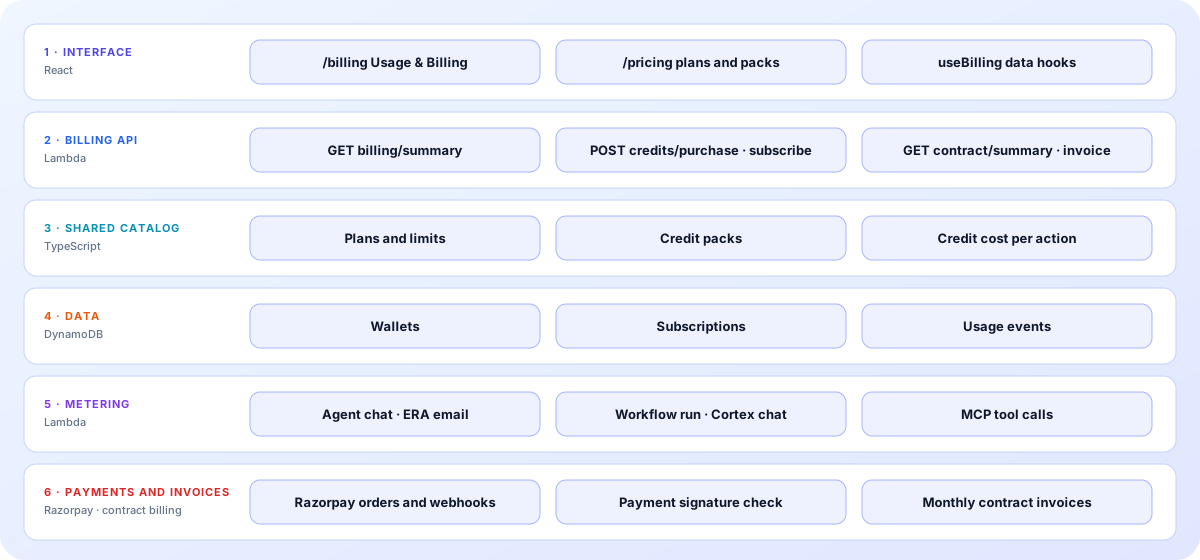
- Interface: The /billing page needs sign-in. The /pricing page is public. Data hooks load your summary and plans and start Razorpay Checkout.
- Billing API: Endpoints return the plan catalog and your billing summary, create orders for credit packs and plans, verify payments and receive the Razorpay webhook.
- Shared catalog: One TypeScript module holds plans, limits, credit packs and the credit cost of each action, used by the page and the Lambda alike.
- Data: DynamoDB tables hold one wallet and one subscription per account, plus usage events that are queried newest first.
- Metering: A single check-and-record function is called by deployed agent chat, ERA email, workflow execution, the Cortex orchestrator and MCP tool calls.
- Payments and invoices: Razorpay handles payment in INR. Organisations on a fixed ERA contract get monthly invoices from separate contract billing tables.
The screens you will use
Labels below are the ones shown in the product.
Dashboard cards
The header offers Refresh and View plans, and four cards sum up the period.
- Current plan with a status badge.
- Total available credits with the purchased and included split.
- Purchased credits and Executions with a progress bar.
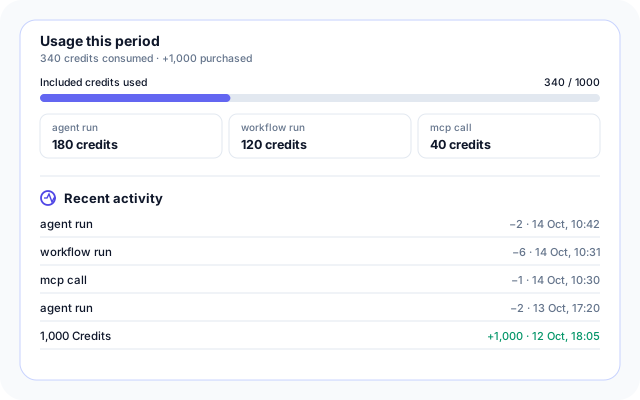
Usage this period and Recent activity
See how many included credits you have used and which actions used them.
- Included credits used as a progress bar.
- Credits per action, such as agent run and workflow run.
- Recent activity with debits and purchases, newest first.
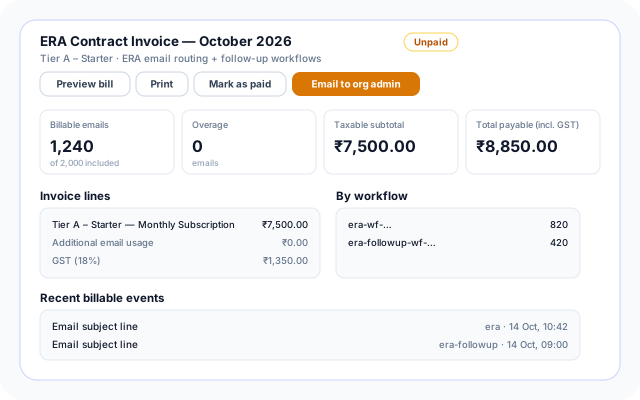
ERA Contract Invoice
Organisations on a fixed monthly ERA contract see an invoice for the month instead of credit metering.
- Billable emails, Overage, Taxable subtotal and Total payable (incl. GST).
- Preview bill, Print and Email to org admin.
- Mark as paid for administrators, and an Invoice period selector for earlier months.
How teams use Usage & Billing
The page works for one person trying agents and for an organisation sharing a wallet.
- Check what an agent costs: Run a deployed agent, then read the agent run debit in Recent activity to learn its cost in credits.
- Budget a rollout: Use credits consumed this period and the per-action breakdown to estimate what a wider rollout will need.
- Top up before a busy period: Buy a 1,000, 10,000 or 100,000 credit pack ahead of a campaign or a batch of workflow runs.
- Share one wallet across a team: An organisation has one wallet, so everyone in it draws from the same included and purchased credits.
- Stay on a fixed contract: ERA email routing customers on a monthly contract see billable emails, overage and GST in a printable invoice.
- Support any organisation: A superuser can pick an organisation from Organization billing and review its credits and invoice.
What is metered and what it connects to
Only systems referenced in the billing code are listed.
- Deployed agent chat
- Workflows
- MCP servers
- Cortex orchestrator
- ERA email routing
- Razorpay Checkout
- Razorpay webhooks
- Amazon DynamoDB
- AWS Lambda
- Amazon API Gateway
Control and safeguards
Who can see and change billing, and how payments are checked.
- Organisation scoped: You can open billing for your own organisation. Access to another organisation is denied unless you are allowed to manage it.
- Admin-only invoice actions: Marking an invoice paid, changing a contract profile and recording a setup fee require an admin or superuser.
- Verified payments: The Razorpay payment signature is checked before credits or a plan are applied, and webhooks must be signed.
- No double billing: Usage covered by a fixed ERA contract is not also debited from the credit wallet.
Everything on the Billing page
- Credit balance: Total available, purchased and included credits remaining.
- Executions meter: Executions used against the monthly limit of your plan.
- Usage by action: Credits consumed per action in the current period.
- Recent activity: The latest debits and purchases with their times.
- Buy credits: Purchase a pack and pay through Razorpay Checkout.
- View plans: One click to the Pricing page to compare or upgrade.
- Organization billing: Superusers choose any organisation to view its billing.
- Contract invoices: Invoice period, Preview bill, Print, Email to org admin and Mark as paid.
Frequently asked questions
Where can I see the current prices?
Current plans, credit packs and per-action credit costs are shown on the public Pricing page, so you can review them before signing up.
What does usage-based pricing mean?
It means part of what you pay relates to how much you use the platform. Agent runs, workflow runs and MCP calls use Coderva Credits, so a subscription gives access and credits cover consumption. The Pricing page lists the cost of each action.
Who manages billing for an organization?
Subscriptions and credits are managed from the Billing page, where you can see your plan, credit balance and usage and buy more credits.