The apps
- Fynamic Wealth Trading: signal-driven equity trading support with position sizing, capital and risk settings, and broker account connections.
- ERA Email Management: email routing and follow-up monitoring for operations and sales teams.
- Ledger Insight Analysis: upload bills and receipts, extract details with AI, categorize them and ask questions about your numbers.
- SEO Intelligence: monitor a website, review proposed fixes and track runs over time.
How it works
- Sign in to Coderva and open the Apps page.
- Select the app that matches your need and open it.
- Complete any first-time setup, such as connecting a mailbox, a broker account or a website.
- Use the app interface for day-to-day work and review its results.
- Extend the underlying agents and workflows when you want deeper customization.
Who it is for
Apps are for people who want to use AI for a defined business function rather than design it. Traders, finance staff, email operations teams and marketers each get an interface shaped around their daily tasks. Since the apps run on the same platform, they share tools, organization settings and workflow history with everything else you build. This means a team can begin with one app and later connect it with custom agents or scheduled workflows as its needs grow.
Key capabilities
- Domain-specific interfaces that reduce setup time.
- Shared platform foundations including agents, tools and workflows.
- Per-organization configuration and data separation.
- A consistent sign-in and navigation experience across apps.
- Guided first-time setup so each app is ready to use after a few configuration steps.
- One catalog: The Apps page lists every app enabled for your organization, with search and sort.
- Ask from inside an app: Each app has a chat button that opens the organization AI Assistant.
- Build your own: Start from a REST API or FastAPI template and build it in the browser.
What Coderva Apps give your team
Open any app from anywhere
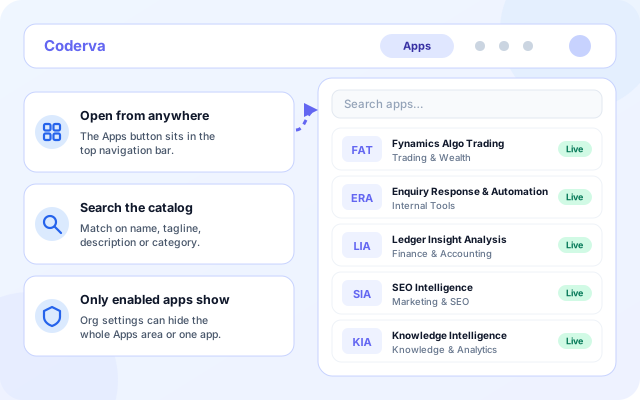
The Apps button in the top navigation opens a launcher with a search box. Pick an app and you land on its own screen, shaped around the job it does.
- Search by name, tagline, description or category.
- Each entry shows a Live status badge.
- The launcher and the Apps page show the same catalog.
- Apps your organization has turned off do not appear.
Ask about what is on screen
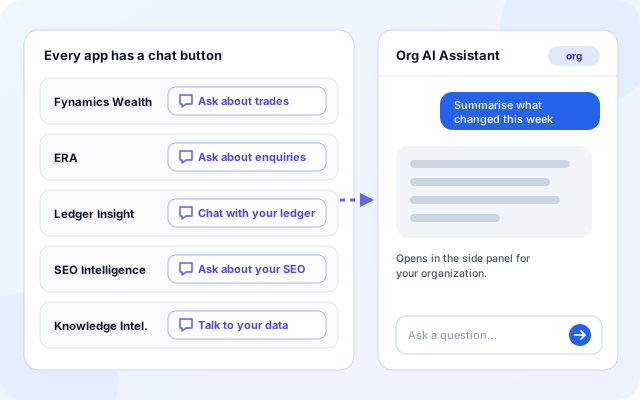
Every first-party app header carries a chat button with a label that fits the app, such as Ask about trades or Chat with your ledger. It opens your organization AI Assistant in a side panel.
- Ask about trades, enquiries, your ledger, your SEO or your data.
- The same assistant panel is used across all apps.
- The button is hidden when you do not belong to an organization.
- Apps and assistant share your organization context.
Start your own app from a template
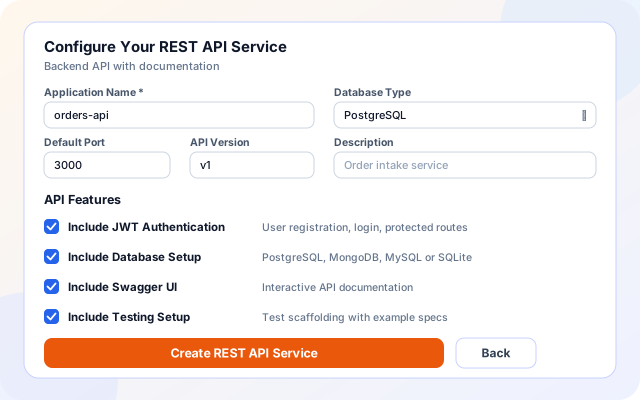
Create App guides you through a short form for the REST API Service or FastAPI Service template, then opens the new project in App Studio Lab.
- Set the application name, description, port and API version.
- Choose JWT authentication, database setup, testing, Swagger (REST) or Docker (FastAPI).
- Pick PostgreSQL, MySQL or SQLite, plus MongoDB for the REST API template.
- The app is saved to your account when you submit the form.
Keep track of what you built
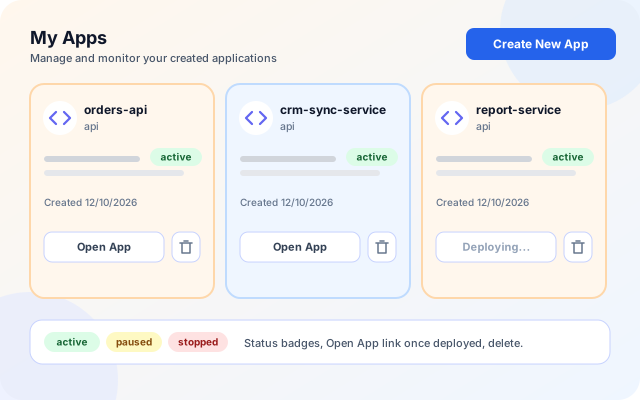
My Apps lists the applications you created with their template type, status and creation date, so you can open a running app or remove one you no longer need.
- Status badges for active, paused and stopped apps.
- Open App appears once a deployment URL exists; until then the card shows Deploying.
- Delete an app from its card.
- Create New App is one click away.
From the catalog to a working app
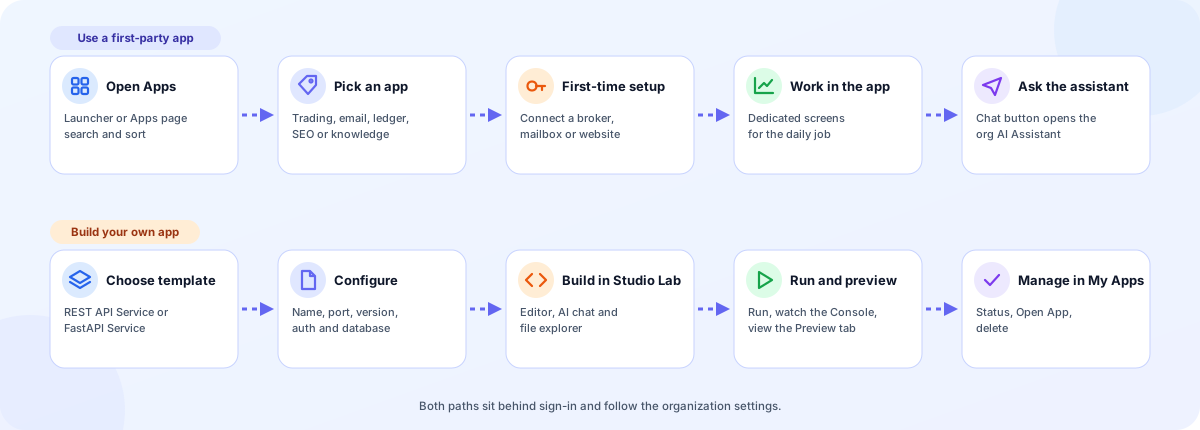
Use a ready-made app for a business function, or build a small service of your own. Both start from the same sign-in.
- Open Apps: Sign in and open Apps from the top navigation or go to the Apps page.
- Pick an app: Open Fynamics Wealth, ERA, Ledger Insight, SEO Intelligence or Knowledge Intelligence.
- Finish first-time setup: Connect what the app needs, such as a broker account, a mailbox or a website.
- Or create your own: Choose the REST API Service or FastAPI Service template and fill in the form.
- Build, run, manage: Edit in App Studio Lab, press Run to preview, then manage the app in My Apps.
Two paths, one platform
How the Apps area is built
A catalog and access layer in front, first-party app screens and a shared shell in the middle, and a custom app builder backed by the same API and DynamoDB storage as the rest of Coderva.
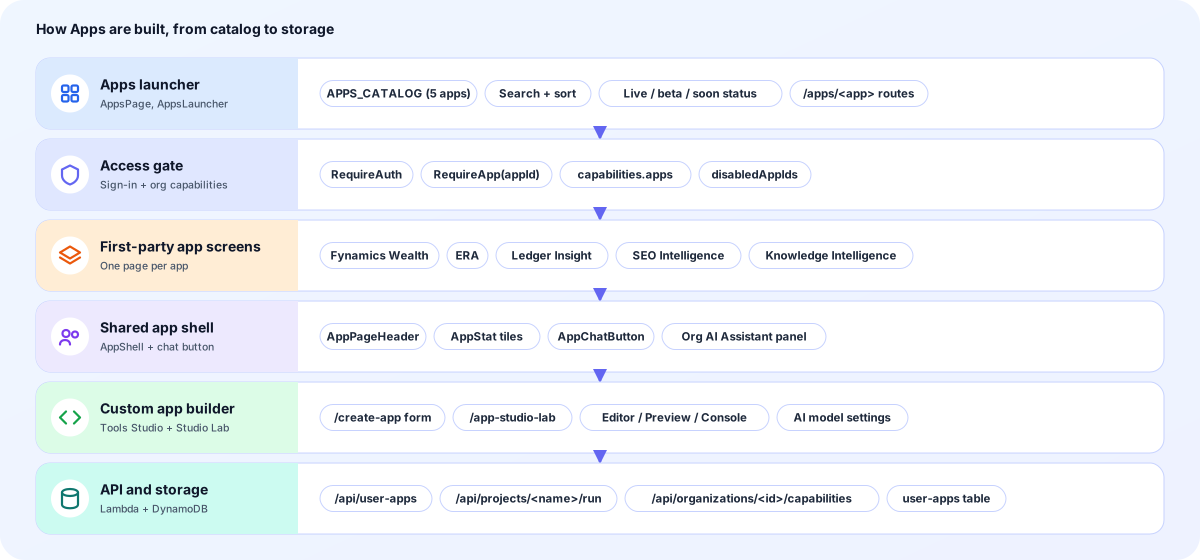
- Apps launcher: The Apps page and the navigation launcher read one catalog of five apps and show search, sort and status.
- Access gate: Every app route requires sign-in. Organization settings can switch the Apps area off or disable single apps.
- First-party app screens: Fynamics Wealth, ERA, Ledger Insight, SEO Intelligence and Knowledge Intelligence each have a dedicated page.
- Shared app shell: Common header, stat tiles and a chat button that opens the organization AI Assistant keep every app consistent.
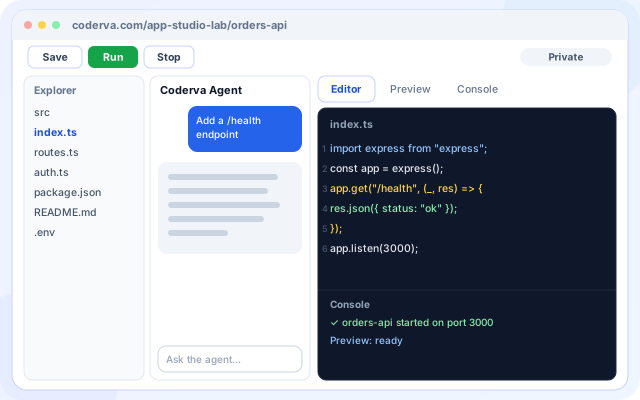
- Custom app builder: The create-app form and App Studio Lab provide a file explorer, editor, preview, console and an AI chat agent.
- API and storage: User apps are saved through the user-apps API into DynamoDB, and previews start through the projects run endpoint.
Screens you will use
Three screens cover finding an app, choosing a template and building it.
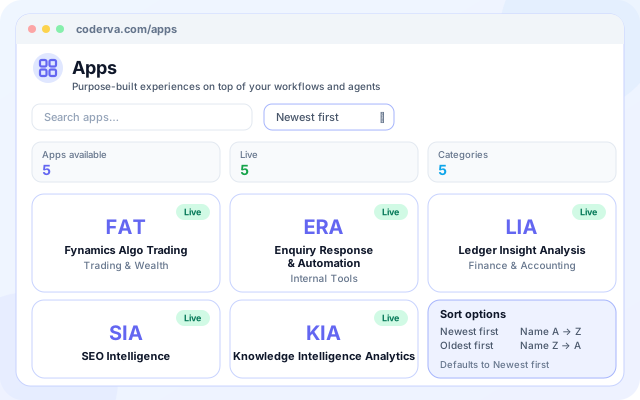
The Apps page
A searchable catalog with three summary tiles and a card for every app you can open.
- Tiles for Apps available, Live and Categories.
- Sort by Newest first, Oldest first, Name A to Z or Name Z to A.
- Cards show the short name, category, status and tagline.
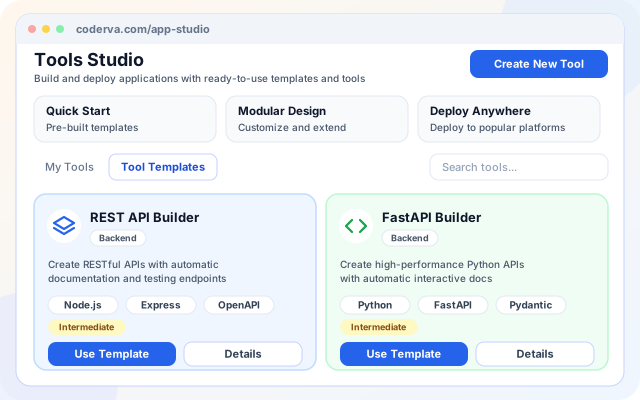
Tools Studio
A gallery of starter templates with a My Tools tab for what you have already created.
- Tool Templates tab with REST API Builder and FastAPI Builder.
- Technologies, category and complexity shown on each card.
- Search across your tools and templates.
App Studio Lab
A browser workspace where you edit files, chat with the Coderva Agent and run a live preview.
- Explorer, Editor, Preview and Console tabs.
- Save, Run and Stop controls; download the project as a ZIP.
- Configure the AI model: OpenAI, Azure OpenAI or Google Gemini.
What teams open an app for
Each app packages agents, workflows and an interface around one business function.
- Run auto-trading for several clients: Fynamics Wealth shows one card per Angel One client with holdings, today's P&L and recent trades.
- Monitor email routing and follow-up: ERA tracks routing and follow-up workflows, open conversations, mailboxes and daily results.
- Understand bills and revenue: Ledger Insight lets you upload bills and receipts, verify extracted details and ask questions about your numbers.
- Watch SEO work across sites: SEO Intelligence shows audit and rank-monitoring status for the websites you run.
- See every knowledge base: Knowledge Intelligence lists documents, databases, wikis and knowledge graphs with index health.
- Ship a small internal API: Create a REST API or FastAPI service from a template, edit it with the AI agent and preview it.
Systems named in the code
These are the systems the Apps area and its templates actually reference today.
- Angel One (Fynamics Wealth)
- Gmail and IMAP/SMTP mailboxes (ERA)
- Organization AI Assistant
- OpenAI
- Azure OpenAI
- Google Gemini
- Express.js
- FastAPI
- PostgreSQL
- MongoDB
- MySQL
- SQLite
- Swagger / OpenAPI
- Docker (FastAPI template)
Controlled per organization
App access follows your sign-in and your organization settings.
- Sign-in required: The Apps page and every app route redirect to sign-in first.
- Per-app switches: An organization can turn the Apps area off or disable individual apps, and users are sent back to the Apps page.
- Private by default: Apps you create start as private, and the Config tab lets you make an app public when you choose.
Everything in the Apps area
- Searchable catalog: Find an app by name, tagline, description or category.
- Four sort orders: Newest, oldest, A to Z and Z to A.
- Live status badges: Each app shows Live, or Soon when it is not yet available.
- Org AI Assistant: Chat button on each app opens one shared assistant panel.
- Template scaffolding: Auth, database, Swagger or Docker options chosen in the form.
- Browser IDE: File explorer, editor, preview and console in one screen.
- Project download: Download the project as a ZIP from App Studio Lab.
- My Apps management: Status badges, Open App and delete for everything you created.
Frequently asked questions
Do I need to use every app?
No. Each app is independent, so you can open only the ones relevant to your work. A finance team might use Ledger Insight Analysis alone, while an operations team might use only ERA Email Management.
Are the apps separate from the agent platform?
They are built on it. Each app uses the same agents, tools and workflows that you can also see and extend in Agent Studio and Workflows, which keeps the platform consistent.
Do the apps promise specific results?
No. The apps automate and organize work, but outcomes depend on your data, configuration and external conditions such as markets or search engines. Treat their output as support for your own judgment.