Use cases
- Classify incoming enquiries and route them to the right owner or queue.
- Use regex rules for clear patterns and the LLM for messages that need interpretation.
- Track open requests and send reminders when an SLA is close to being missed.
- Escalate stalled threads so nothing is forgotten in a busy inbox.
- Keep a reviewable record of what was routed and followed up.
Apps and templates that apply
- ERA email routing and follow-up: the workflow template with a guided setup wizard.
- ERA Email Management: the first-party app for working with routed mail.
- Workflows: scheduling and execution history for the routing and follow-up runs.
- Tools catalog: email tools that agents use to read and send messages.
How it works
- Enable the ERA email routing template and start the guided setup wizard.
- Connect a mailbox using a Gmail app password, or enter IMAP and SMTP details.
- Define routing rules and the categories or owners that mail should be assigned to.
- Set the follow-up timings that define your SLA reminders and escalations.
- Run it, review the execution history and refine rules where routing needs improvement.
Who it is for
This domain suits operations, sales and service teams that receive many similar emails and need consistent handling. It is useful when response time matters and ownership is easy to lose. Routing accuracy depends on your rules and mail content, so review early runs and tune the configuration before relying on it fully. Teams often begin with a single mailbox and a few categories, then add rules as they learn which kinds of messages take the most time.
- Rules first, LLM second: Spam filters, VIP senders and rules handle known mail. The LLM agent decides the rest.
- Follow-up monitor: Remind customers who went quiet and escalate when nobody on your team has replied.
- A record of every run: Execution History, daily activity reports and ERA labels in the mailbox show what happened.
What email operations teams get
Sort the inbox without sorting by hand
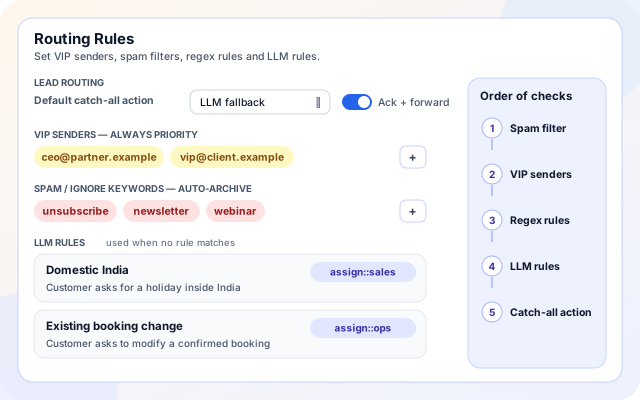
Mail passes through checks in a fixed order, and only what no rule settles reaches the language model. Decisions stay predictable and model use stays low.
- VIP senders are always treated as priority.
- Spam and ignore keywords archive mail automatically.
- Natural-language LLM rules map a description to an action such as assign::sales.
- A default catch-all action covers everything else.
Reply, assign or forward with the right cover
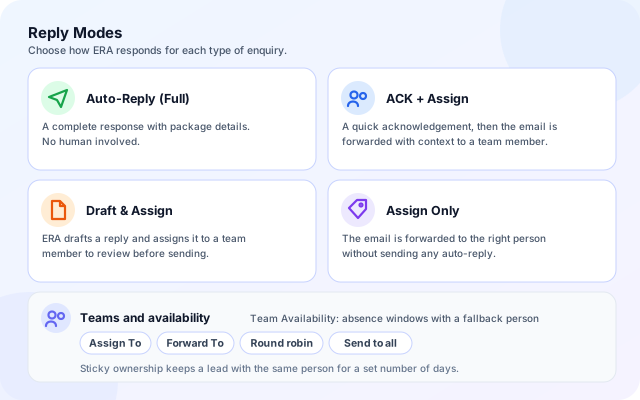
Pick how much ERA does on its own, from a full automatic reply to assigning without any reply. Teams can be addressed one person at a time or all at once.
- Auto-Reply Full, ACK + Assign, Draft & Assign or Assign Only.
- Assign To and Forward To teams, by round robin or to everyone.
- Team Availability holds absence windows and fallback people.
- Sticky ownership can keep a lead with the same person.
Nothing goes quiet
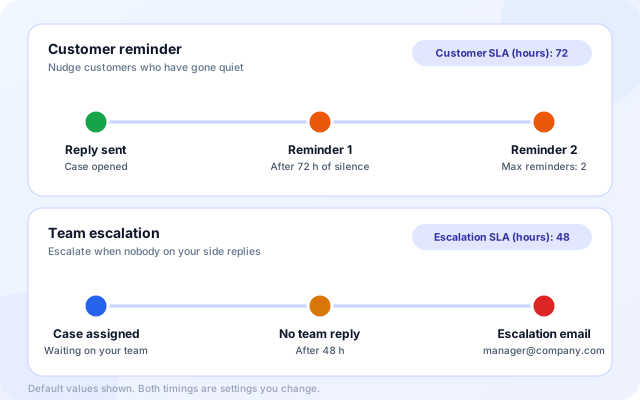
The follow-up monitor scans open threads on a schedule. It reminds the customer after a period of silence and emails a manager when nobody on your side has replied.
- Customer reminders after a set time of silence, up to a maximum number of reminders.
- A team escalation email when your own team has not replied.
- Spam, promotions and threads the customer already accepted or rejected are skipped.
- A standalone monitor runs on its own mailbox, on an interval in hours or a daily cron expression.
Test it before it touches live mail
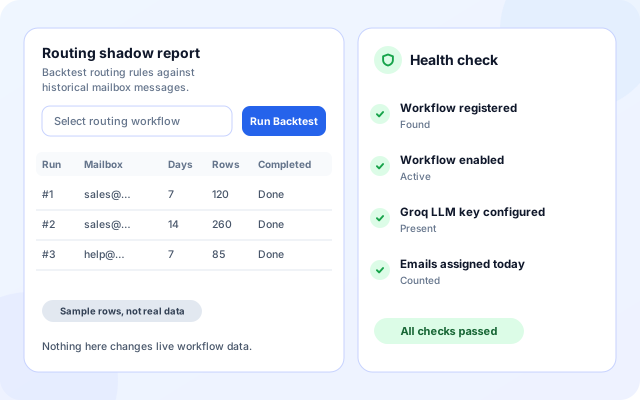
The ERA workspace includes checks you can run without changing live workflow data, so you can tune rules before you rely on them.
- Run Backtest tries routing or follow-up behavior against historical mailbox messages.
- A health check reports whether the workflow is registered, enabled and has its LLM key.
- Daily activity tables show what was processed, assigned, reminded and escalated.
- Start with one mailbox and a few rules, then add more as the results look right.
From mailbox to a monitored inbox
Routing and follow-up are separate workflows. Start with routing, add the follow-up monitor when you are ready.
- Connect the mailbox: Use Gmail with a 16-character App Password, or enter custom IMAP and SMTP servers and ports.
- Enable tools and teams: Choose which of the nine tools the agent may use and who receives assigned or forwarded mail.
- Write routing rules: Set VIP senders, spam keywords, regex rules, LLM rules and a default catch-all action.
- Add the follow-up monitor: Set the customer reminder, the team escalation and a schedule, paired with routing or on its own mailbox.
- Review, activate, watch: Activate on the Review step, then use Execution History, the ERA workspace and Run Backtest to tune.
From arrival to follow-up
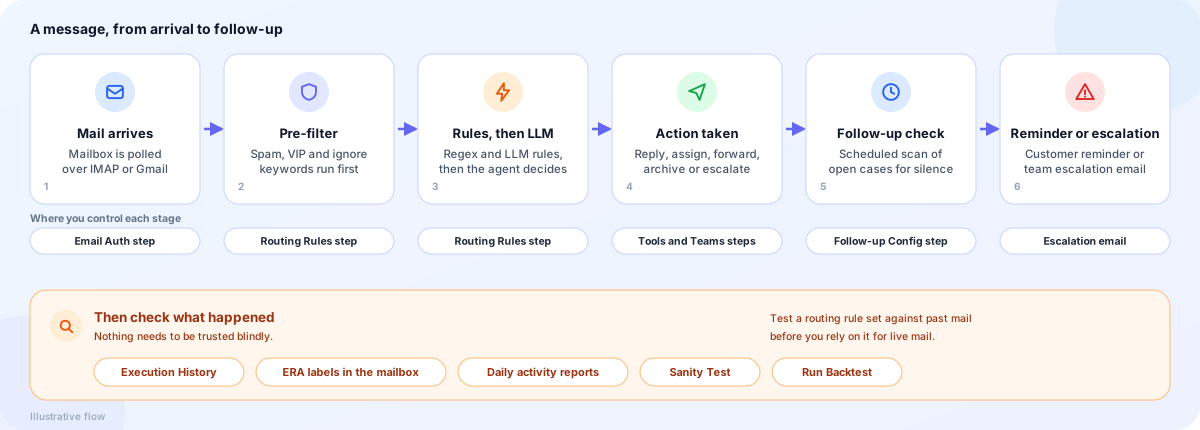
Building blocks for email operations
Mailboxes feed workflow templates, a decision layer chooses an action, tools carry it out, and apps and records let you review the result.
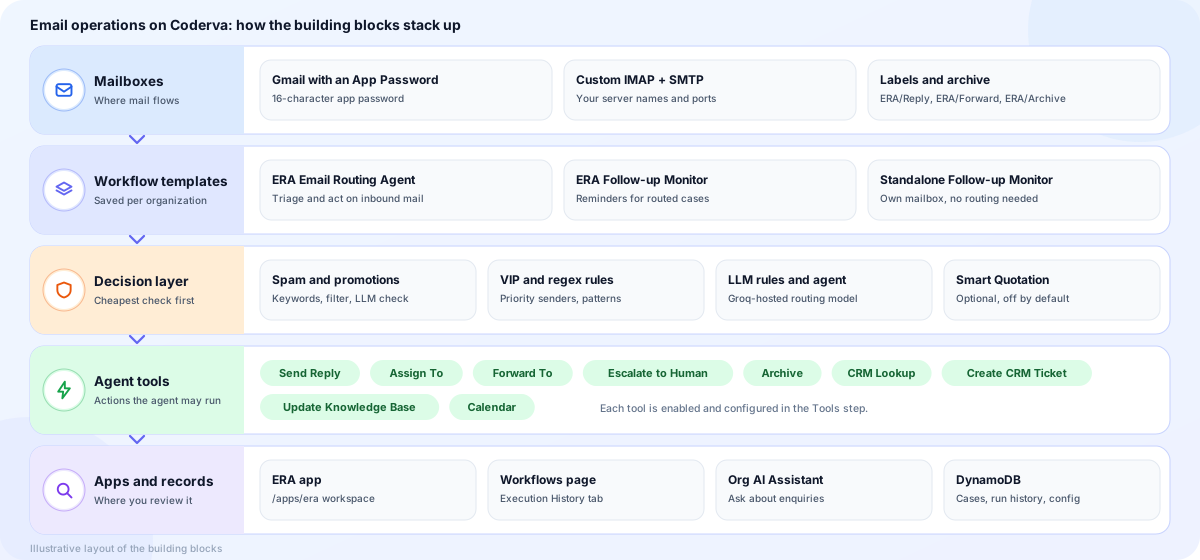
- Mailboxes: Gmail with an App Password or custom IMAP and SMTP. Outcomes appear as ERA labels such as ERA/Reply, ERA/Forward and ERA/Archive.
- Workflow templates: ERA Email Routing Agent, ERA Follow-up Monitor and a standalone Follow-up Monitor, with settings saved per organization.
- Decision layer: Spam and promotions filtering, VIP and regex rules, then LLM rules and the agent. Smart Quotation is optional and off by default.
- Agent tools: Send Reply, Assign To, Forward To, Escalate to Human, Archive, CRM Lookup, Create CRM Ticket, Update Knowledge Base and Calendar.
- Apps and records: The ERA app, the Workflows page with Execution History, the organization AI Assistant, and DynamoDB for cases, runs and configuration.
Where operations teams work
These screens come from the ERA app and the follow-up setup.
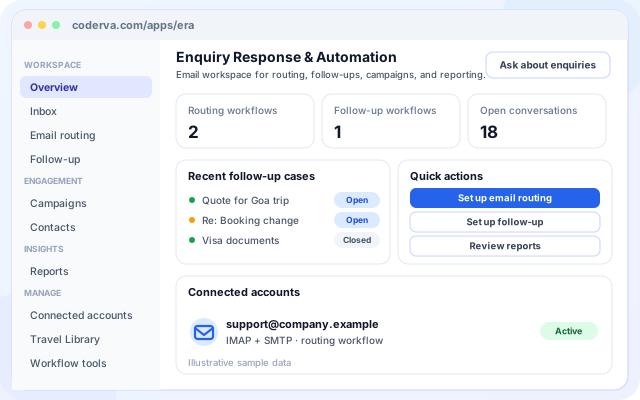
ERA workspace
One place for the routing and follow-up workflows of your organization.
- Overview, Inbox, Email routing and Follow-up.
- Campaigns, Contacts, Reports, Connected accounts, Travel Library and Workflow tools.
- An Ask about enquiries button opens the organization AI Assistant.
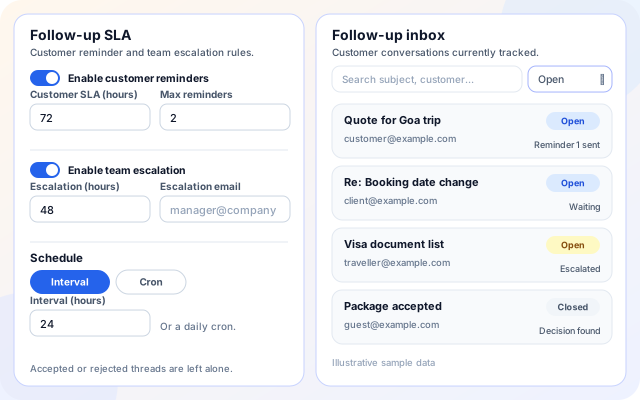
Follow-up settings and inbox
Reminder and escalation timings next to the list of conversations being tracked.
- Customer SLA in hours with a maximum number of reminders.
- Escalation SLA in hours with an escalation email.
- Search the follow-up inbox and filter Open, Closed or All cases.
Workflow tools and reports
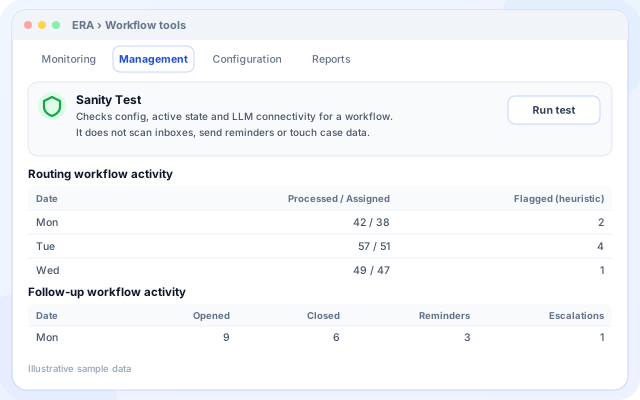
Check that a workflow is healthy and see daily activity without touching live mail.
- Sanity Test checks configuration, active state and LLM connectivity.
- Routing activity: processed, assigned and flagged per day.
- Follow-up activity: opened, closed, reminders and escalations per day.
Scenarios teams set up first
Each one uses the same building blocks with different rules and teams.
- Sales enquiry desk: Send new enquiries to a sales team by round robin or to everyone, with fallback people when someone is away.
- Shared support mailbox: Assign requests to a team, send an acknowledgement, and create a ticket through your own CRM API.
- Vendor and newsletter clean-up: Spam keywords, a promotions filter and an LLM spam check archive mail that does not need a person.
- Priority senders: Mark VIP senders so their messages are always treated as priority.
- Quotes by email: Smart Quotation builds a priced reply from a package catalog or a rate-card document, with optional approval.
- Chasing silent threads: Remind the customer, then escalate to a manager when nobody on your side has replied.
Systems named in the code
Email operations on Coderva work with these mail systems and tools today.
- Gmail (App Password)
- Any IMAP and SMTP mailbox
- Your CRM API (CRM Lookup, Create CRM Ticket)
- Calendar events
- Knowledge base updates
- Groq-hosted routing models
- Organization AI Assistant (Ask about enquiries)
- Downloadable backtest reports
Control and checks built in
You decide how much ERA does on its own, and you can see what it did.
- You choose the reply mode: Draft & Assign and Assign Only keep a person in charge of the reply, while Auto-Reply Full answers on its own.
- Approval before a quote is sent: With approval required, the priced quote goes to your recipients first and the customer receives only an acknowledgement.
- Confidence thresholds: When the agent is not confident enough, the enquiry goes to a person instead of an automatic reply.
- Backtests and health checks: Run Backtest and the health check work from history and configuration, without changing live workflow data.
What is in the email operations toolkit
- Two mailbox options: Gmail with an App Password or custom IMAP and SMTP servers.
- Nine agent tools: Reply, assign, forward, CRM lookup, CRM ticket, knowledge base, escalate, archive and calendar.
- Layered routing rules: Spam keywords, VIP senders, regex rules, LLM rules and a catch-all action.
- Teams and availability: Assign To, Forward To, round robin or all, absence windows and fallbacks.
- Follow-up monitor: Customer reminders and team escalation, paired with routing or standalone.
- Reports and history: Execution History, daily activity tables and a health check from the ERA workspace.
Frequently asked questions
What does hybrid regex plus LLM routing mean?
Regex rules handle predictable patterns quickly and consistently, while the LLM interprets messages that rules cannot classify. Combining them keeps routing fast for common cases and flexible for unusual emails.
Which mailboxes can I connect?
You can connect Gmail using an app password, or use any provider that offers IMAP for reading and SMTP for sending. The guided setup wizard asks for the details it needs.
How does the follow-up monitor work?
It watches open threads against the SLA timings you configure, sends reminders when a reply is due, and escalates threads that stay unanswered so that no request is silently dropped.