What is included
- Email routing workflow with rules first and an LLM agent for the rest.
- Follow-up monitor with reminder and escalation timings.
- Smart quotation replies based on your pricing policy.
- Mailbox labels under an ERA namespace so staff can see outcomes at a glance.
- Execution history showing every run with status and details.
How it works
- Open ERA and choose the routing or follow-up template.
- Connect your mailbox and set preferences.
- Add routing rules and choose the tools the agent can use.
- Enable the workflow and monitor results from the execution history.
Where it helps most
ERA suits travel agencies, support desks, sales teams and operations groups where email volume is high and messages follow recognisable patterns. Automating triage and follow-up gives staff time back and improves response consistency.
Cost and setup
Setup takes minutes through the wizard. Running costs depend mostly on mailbox volume and how many messages reach the language model, which stays low because rules handle known mail first.
Visibility for your whole team
Every routed message, drafted quotation and follow-up reminder is recorded, so a manager can see what happened to any enquiry without searching inboxes. Teams can start with routing alone and add quotations and follow-ups later, keeping the rollout gradual and easy to review.
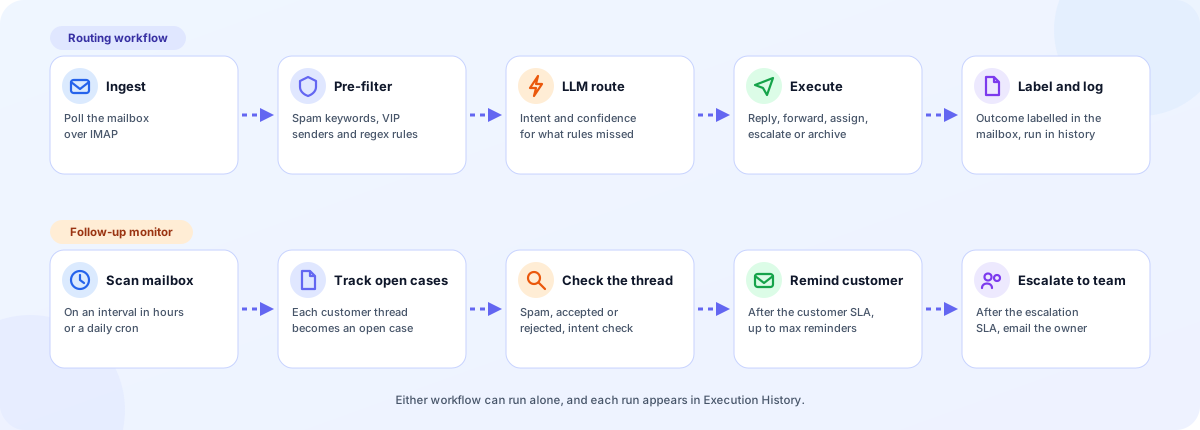
- Rules first, LLM second: Spam filters, VIP senders and rules handle known mail. The LLM agent decides the rest.
- Teams and assignment: Assign To and Forward To teams, with round robin or send-to-all, and absence fallbacks.
- Follow-up monitor: Remind customers and escalate to your team when a conversation goes quiet.
What ERA gives your team
A guided setup wizard
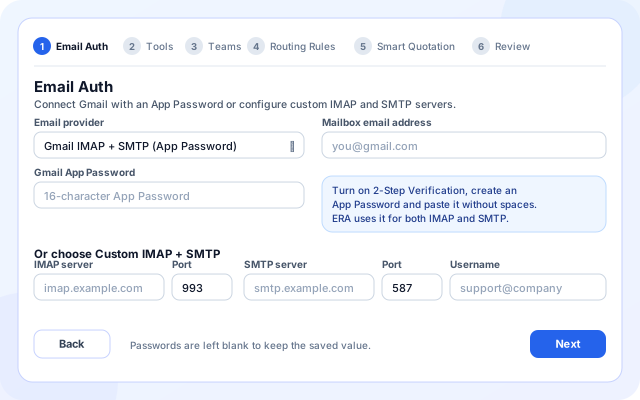
ERA is configured in six steps: Email Auth, Tools, Teams, Routing Rules, Smart Quotation and Review. Nothing starts until you activate it on the last step.
- Connect Gmail with a 16-character App Password, or enter custom IMAP and SMTP servers and ports.
- Enable only the tools you want the agent to use.
- Define teams and who receives forwarded or assigned mail.
- Review the whole configuration before activating.
A routing engine you can read
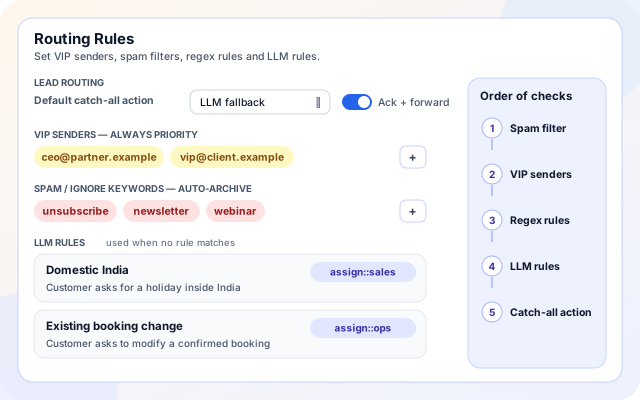
Rules run in a fixed order, and only mail that no rule settles reaches the language model. That keeps decisions predictable and model use low.
- VIP senders are always treated as priority.
- Spam and ignore keywords archive mail automatically.
- Natural-language LLM rules map a description to an action such as assign::sales.
- A default catch-all action and an ack-plus-forward option cover the rest.
Replies, hand-offs and team availability
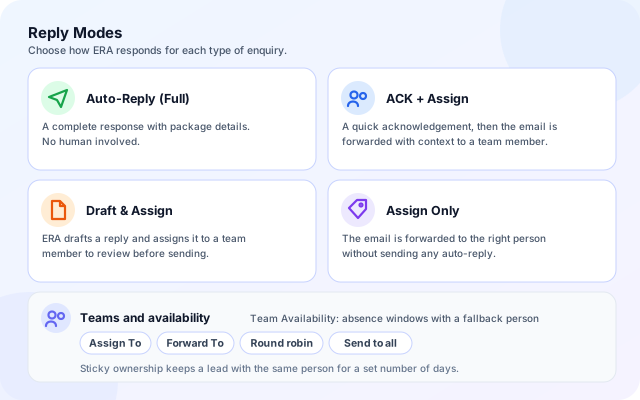
The pipeline supports four reply modes, from a full automatic answer to assigning without any reply. Teams can be addressed one person at a time or all at once.
- Auto-Reply Full, ACK + Assign, Draft & Assign or Assign Only.
- Assign To and Forward To teams, by round robin or to everyone.
- Team Availability holds absence windows and fallback people.
- Sticky ownership can keep a lead with the same person.
Smart Quotation with an approval step
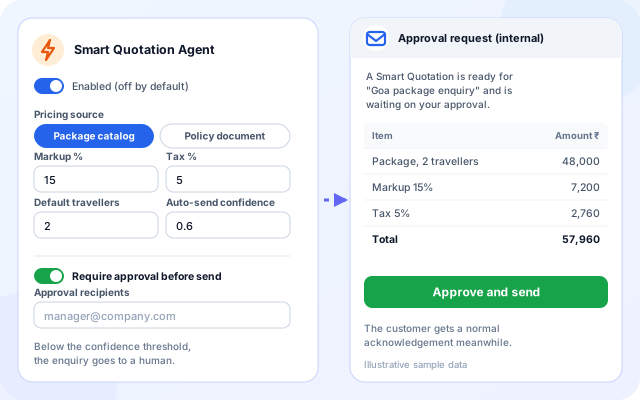
For travel enquiries, ERA can build a quote from your package catalog or a rate-card policy document. It is off until you enable it, and you can require approval before anything is sent.
- Pricing from a package catalog or an uploaded policy document.
- Markup, tax, default travellers and an auto-send confidence threshold.
- Below the threshold, the enquiry goes to a person.
- Approval email with an Approve and send action, while the customer gets an acknowledgement.
From mailbox to running workflow
You can start with routing alone and add quotations and follow-ups later.
- Connect the mailbox: Choose Gmail with an App Password or custom IMAP and SMTP, then enter the mailbox address.
- Enable tools and teams: Turn on the actions the agent may take and define who gets assigned or forwarded mail.
- Add routing rules: Set VIP senders, spam keywords, regex rules, LLM rules and a default catch-all action.
- Optional: Smart Quotation: Enable quotes, choose catalog or policy pricing and decide whether approval is required.
- Review and activate: Check the summary, activate, then watch results in Execution History and the ERA workspace.
Two workflows that work together or alone
How ERA is built
A setup wizard writes workflow configuration, a mailbox layer reads and sends mail, a routing engine decides, and tools act. State and reports sit in DynamoDB.
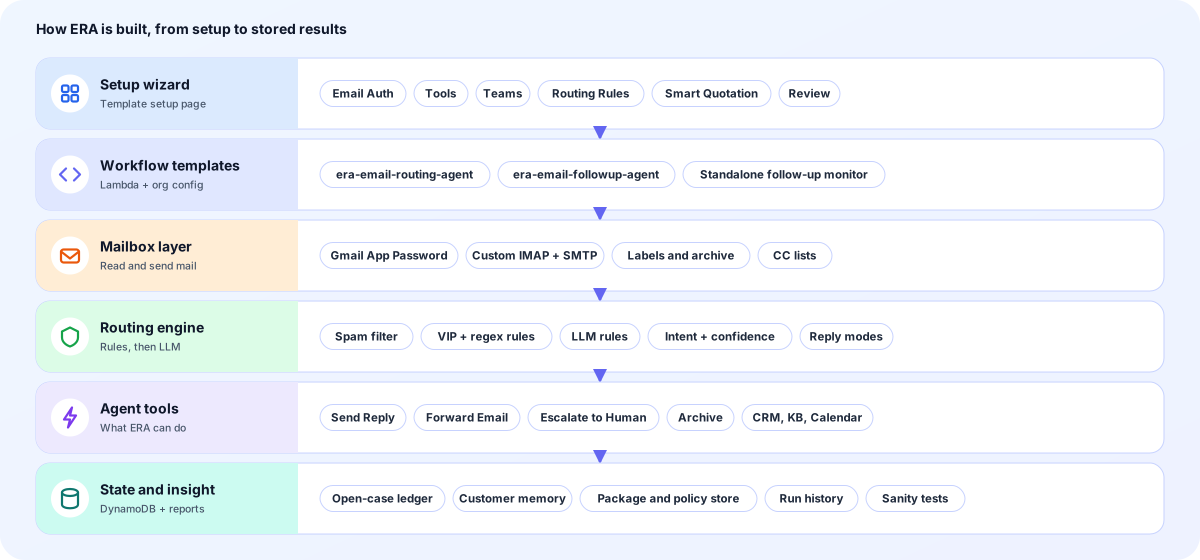
- Setup wizard: The template setup page renders the ERA steps, with dedicated screens for tools, teams, routing rules and smart quotation.
- Workflow templates: Separate templates for email routing, follow-up and a standalone follow-up monitor store their settings per organization.
- Mailbox layer: Mail is read and sent over IMAP and SMTP, including Gmail with an App Password, with labels, archive and CC lists.
- Routing engine: A spam filter, VIP and regex rules and LLM rules run first. The agent then returns an intent, a confidence score and one tool to run.
- Agent tools: Send Reply, Forward Email, Escalate to Human and Archive, plus CRM lookup, CRM ticket, knowledge base and calendar tools.
- State and insight: DynamoDB holds open cases, customer memory, packages and policy documents, run history and test results.
Screens you will use
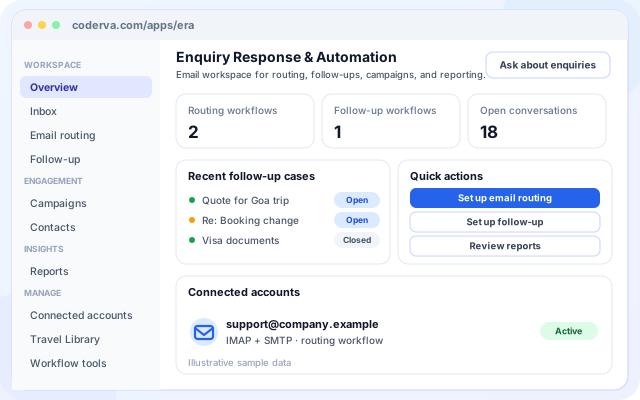
The ERA workspace gives operations teams one place for status, follow-ups and checks.
ERA workspace
A sidebar with Workspace, Engagement, Insights and Manage groups, and an overview of what is running.
- Overview, Inbox, Email routing and Follow-up.
- Campaigns, Contacts, Reports, Connected accounts, Travel Library and Workflow tools.
- An Ask about enquiries button opens the organization AI Assistant.
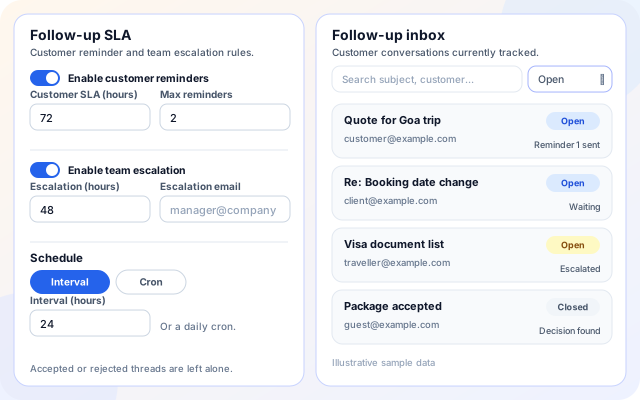
Follow-up SLA and inbox
Reminder and escalation timings next to the list of conversations being tracked.
- Customer SLA in hours with a maximum number of reminders.
- Escalation SLA in hours with an escalation email.
- Search the follow-up inbox and filter Open, Closed or All cases.
Workflow tools and reports
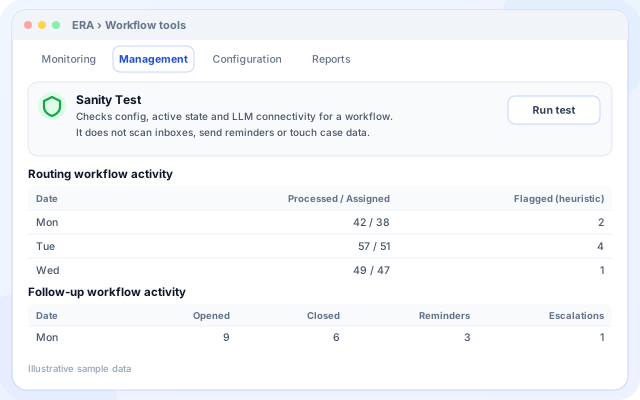
Check that a workflow is healthy and see daily activity without touching live mail.
- Sanity Test checks configuration, active state and LLM connectivity.
- Routing activity: processed, assigned and flagged per day.
- Follow-up activity: opened, closed, reminders and escalations per day.
What teams switch on first
Each capability can be enabled by itself. Solution pages cover full customer scenarios; this list shows what the product provides.
- Shared inbox triage: Classify each message and send it to the right team, or archive it, without anyone sorting by hand.
- Priority senders: Mark VIP senders so their messages are always treated as priority.
- Spam and promotion clean-up: Keyword rules, a promotions filter and an LLM spam check keep newsletters and vendor blasts out of the way.
- Quote on first reply: Smart Quotation prepares a priced reply from a catalog or policy document, with optional approval.
- Team assignment with cover: Round robin or send-to-all assignment, with absence windows and fallback people.
- Follow-up on silent threads: Remind the customer, then escalate to your team, and leave alone threads already accepted or rejected.
Systems named in the code
ERA works with these mail systems and tools today.
- Gmail (App Password)
- Any IMAP and SMTP mailbox
- CRM lookup and ticket tools
- Knowledge base updates
- Calendar events
- Groq-hosted routing models
- Excel export of test reports
- Organization AI Assistant (Ask about enquiries)
Control and checks built in
ERA lets you decide how much it does on its own and shows you what it did.
- Approval before a quote is sent: With approval required, the priced quote goes to your recipients first and the customer receives only an acknowledgement.
- Confidence thresholds: When the agent is not confident enough, the enquiry goes to a person instead of an automatic reply.
- Sanity tests: A workflow check verifies configuration, active state and model connectivity without scanning inboxes or sending mail.
- Safe follow-up testing: Follow-up test runs show what would happen to tracked cases without sending reminders, escalating or closing anything.
What is in ERA
- Two mailbox options: Gmail with an App Password or custom IMAP and SMTP servers.
- Nine agent tools: Reply, assign, forward, CRM lookup, CRM ticket, knowledge base, escalate, archive and calendar.
- Teams and availability: Assign To, Forward To, round robin or all, absence windows and fallbacks.
- Layered routing rules: Spam keywords, VIP senders, regex rules, LLM rules and a catch-all action.
- Smart Quotation: Catalog or policy pricing, markup and tax, with optional approval.
- Follow-up monitor: Customer reminders, team escalation, interval or cron schedule.
- Open-case tracking: A follow-up inbox with Open, Closed and All views and search.
- Reports and logs: Daily activity tables, run history and Sanity Test from the workspace.
Frequently asked questions
Is ERA only for Gmail?
No. Gmail with an app password is supported, as is any provider that offers IMAP and SMTP.
Can I use only the follow-up part?
Yes. The follow-up monitor can be enabled as a standalone workflow without email routing.
Where do I see what ERA did?
The execution history lists each run with its status and details, and the mailbox labels show outcomes per message.